User’s Guide
Online Mode (Interactive Mode)
User Manual
In Interactive Mode, ICBricks and the PC can establish wireless communication via low-energy Bluetooth, allowing you to control the main controller through programming.
Note: The minimum firmware version for the main controller is V3.3.5.
Steps
|
|
|---|---|
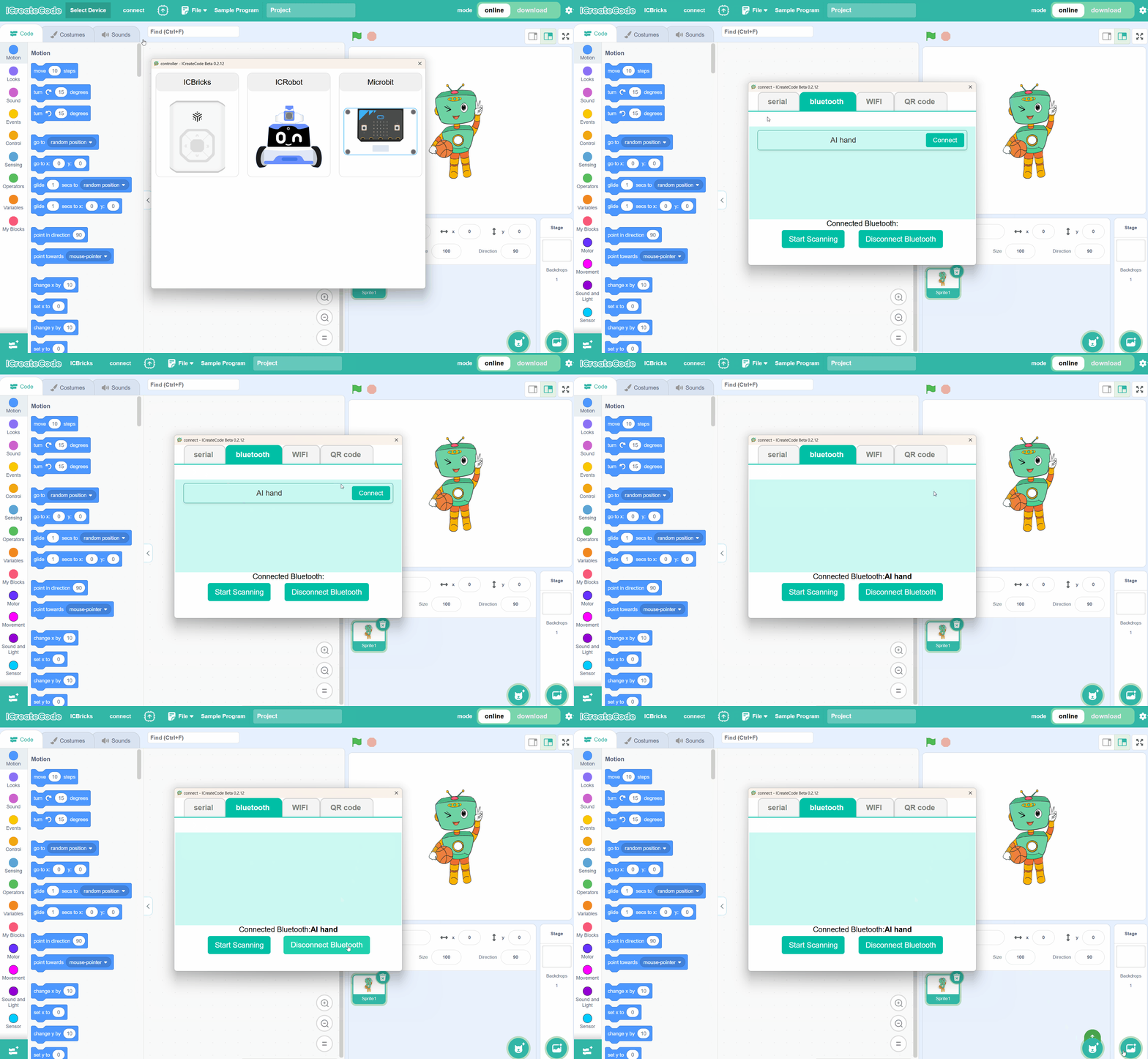
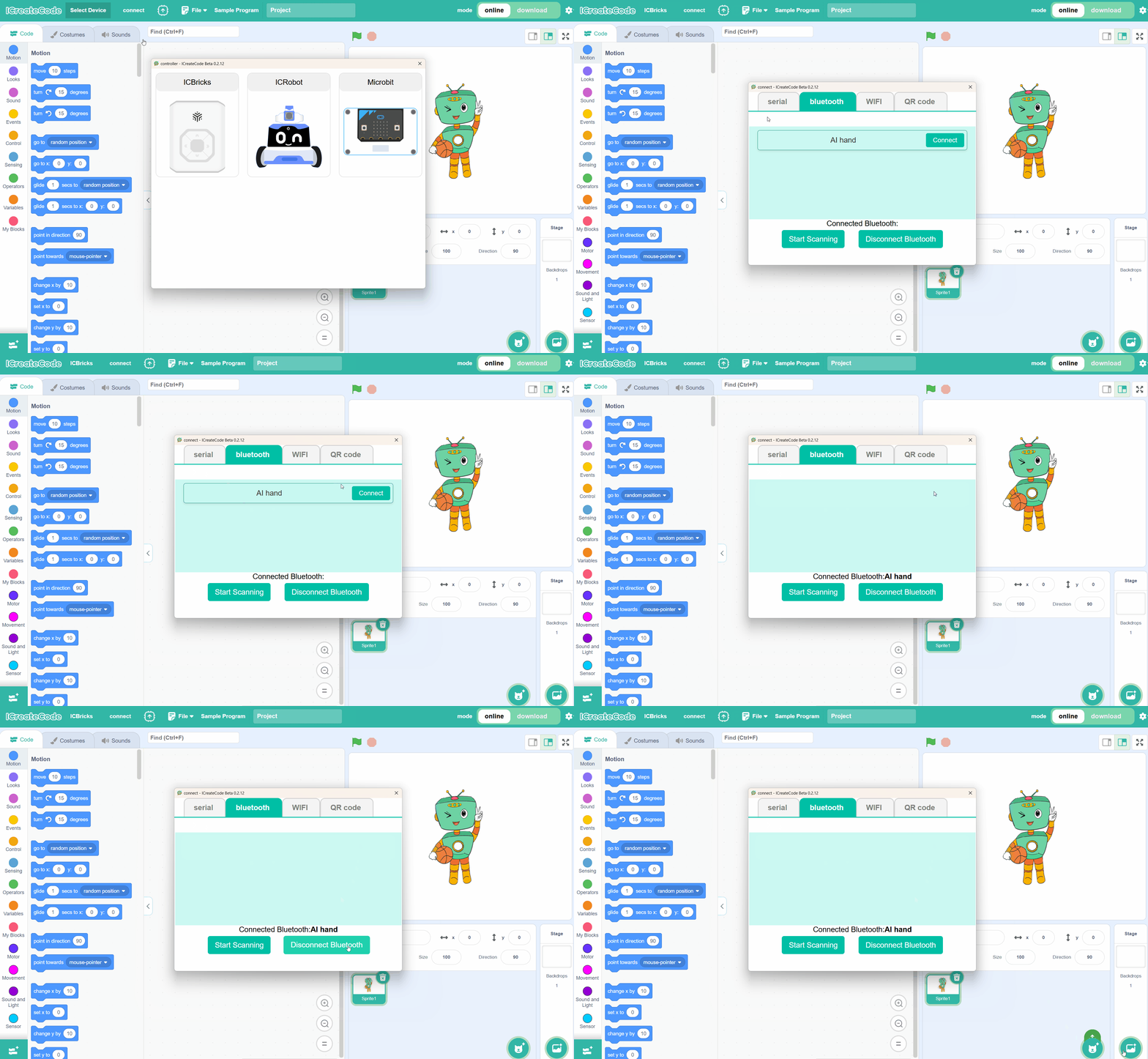
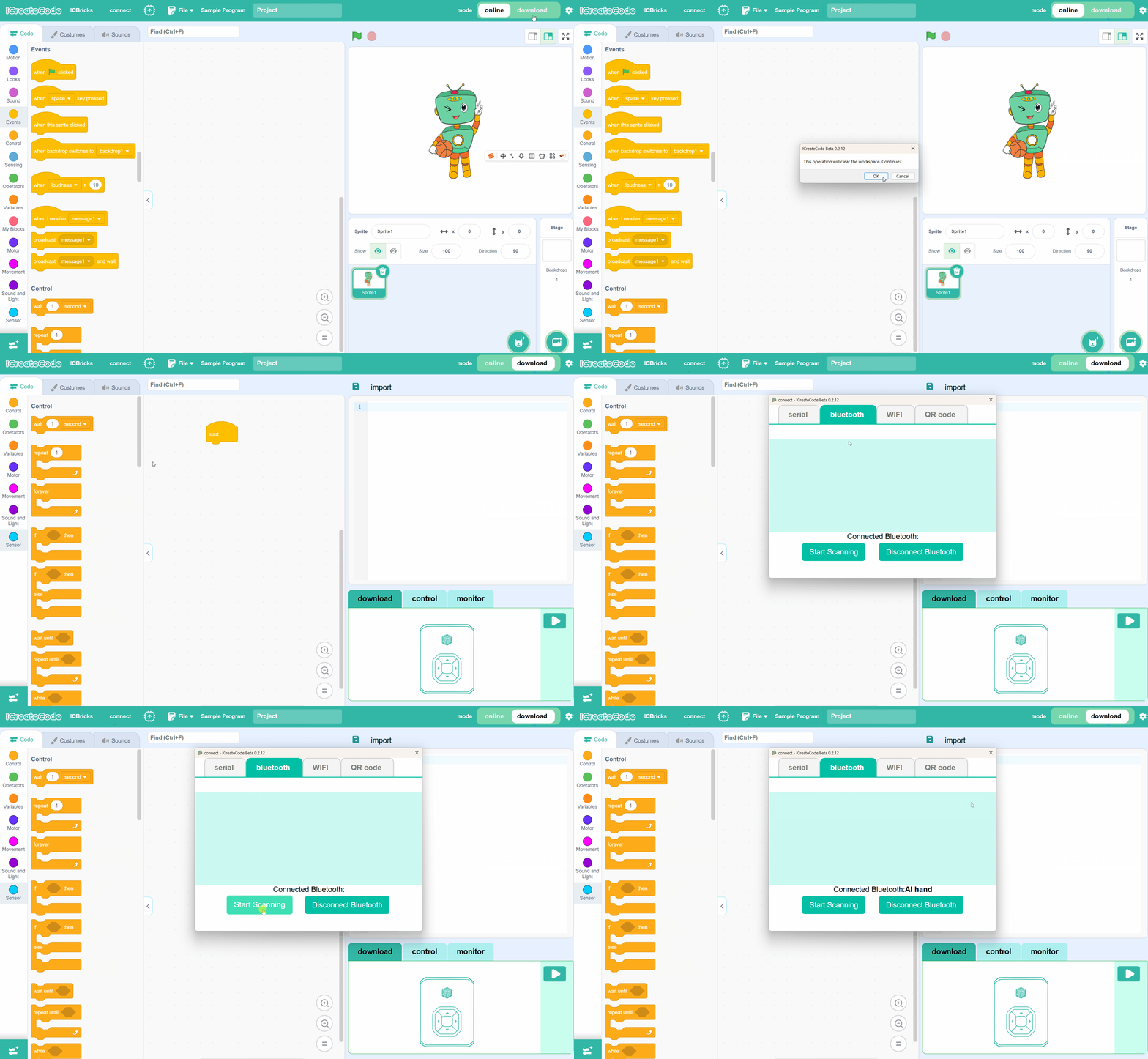
Step 1: After turning on the ICBricks main controller and opening the programming software, select “Online Mode,” |
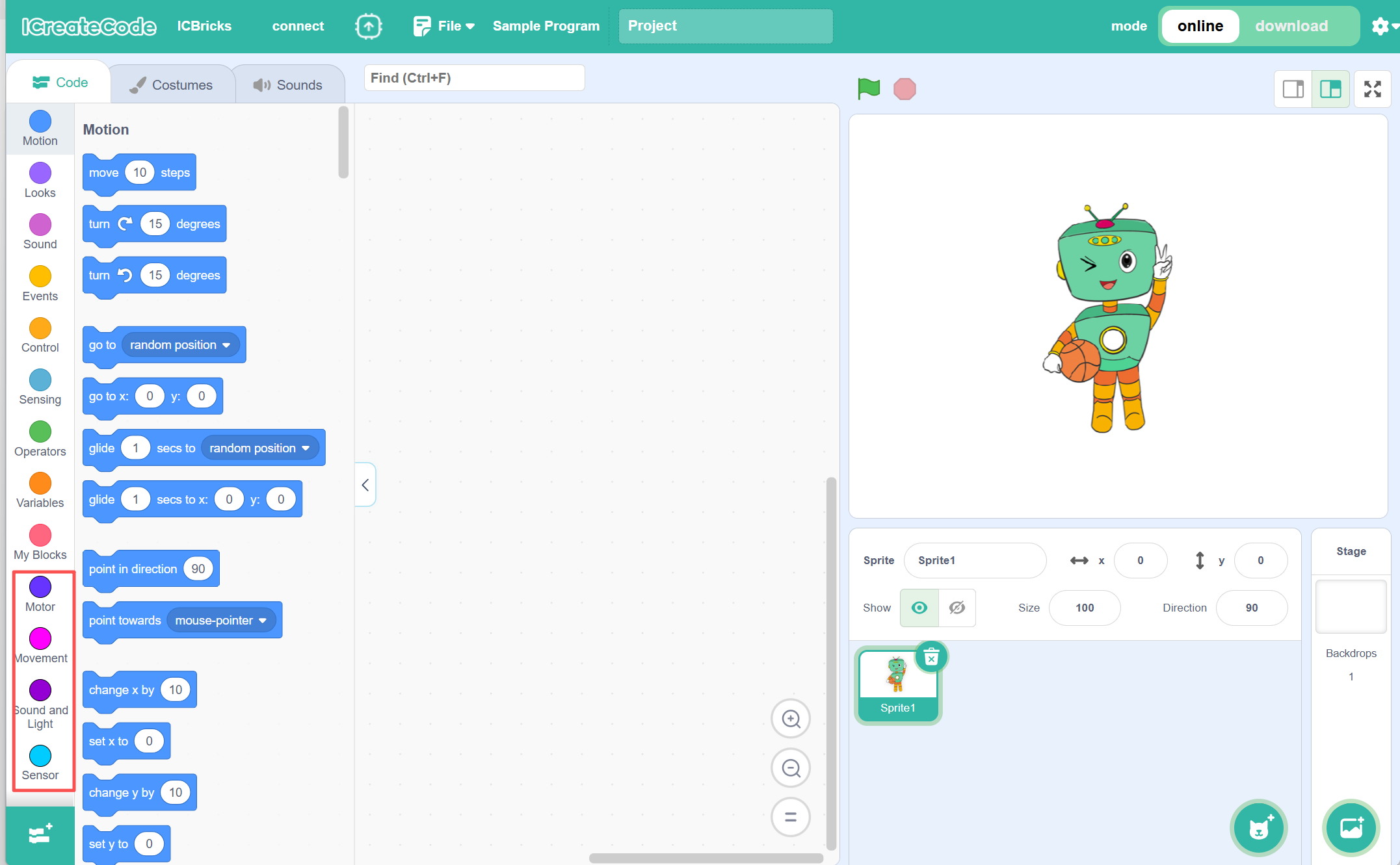
Step 2: Once the connection is successful, the block command area will automatically load the relevant ICBricks extension |
|
|
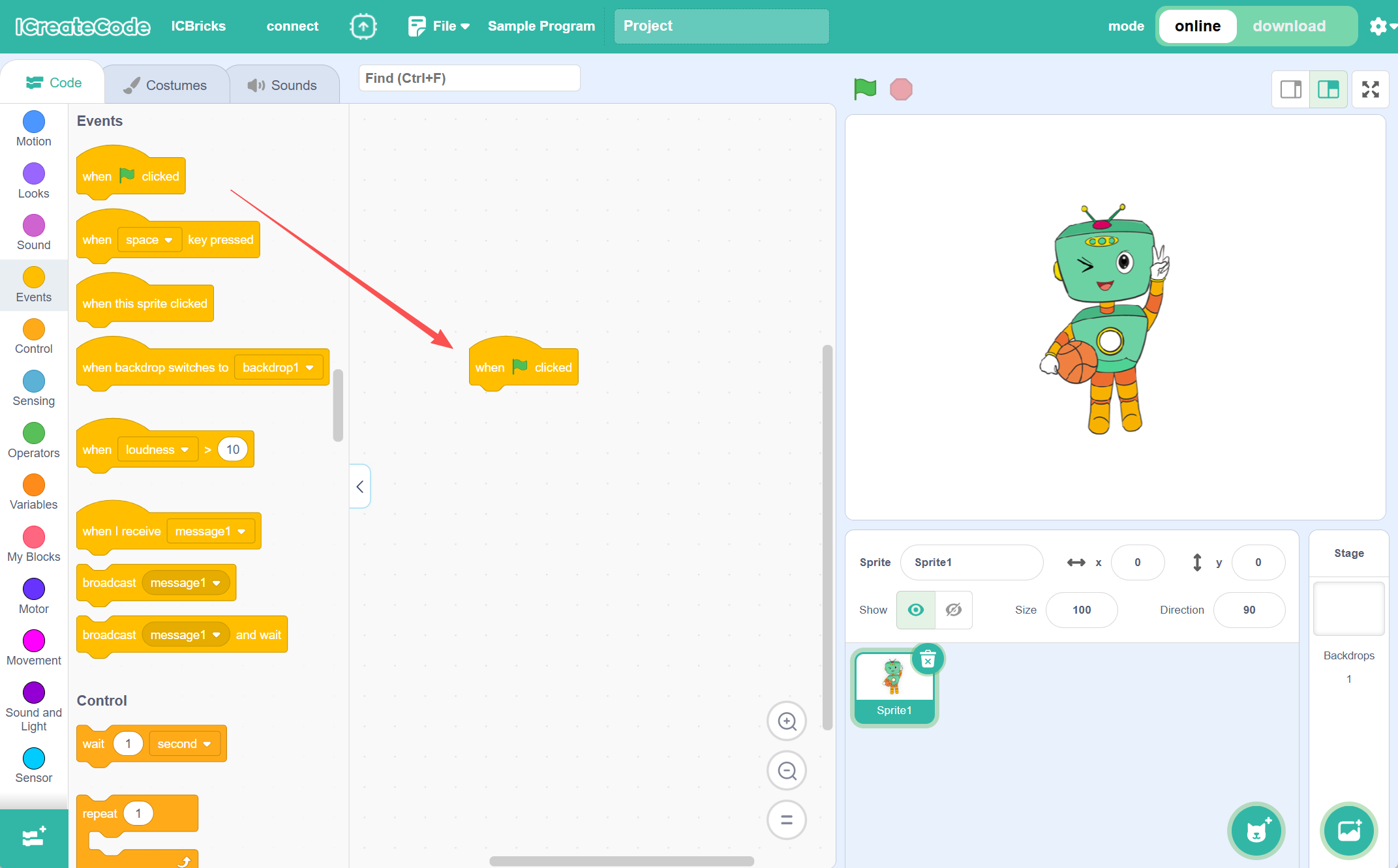
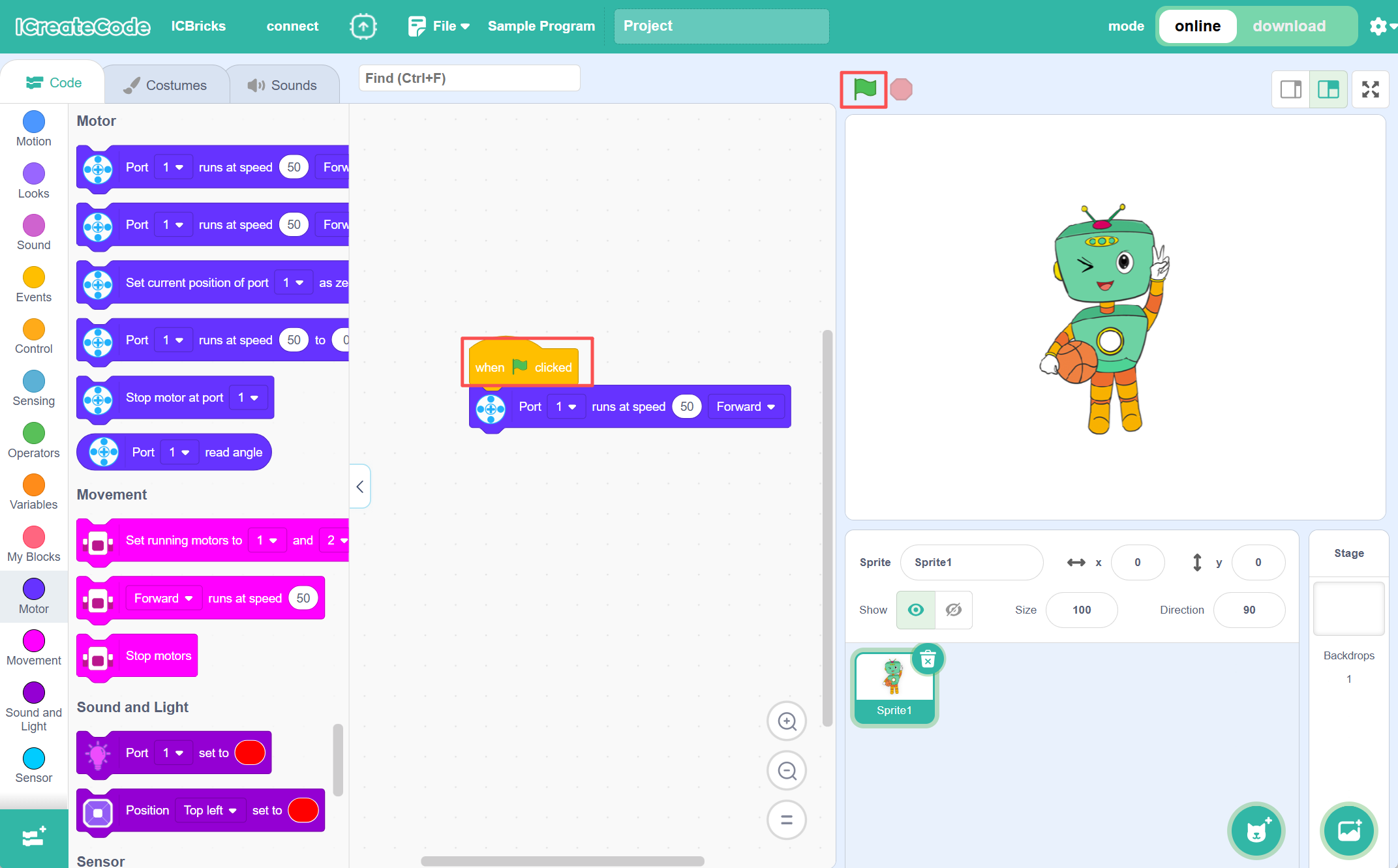
Step 3: Drag the commands into the programming area to start programming. |
Step 4: After completing the programming, click the green flag to execute the program and check the execution results. |
Example
Operation Steps:
|
|
|---|---|
Step 1: After turning on the ICBricks main controller and opening |
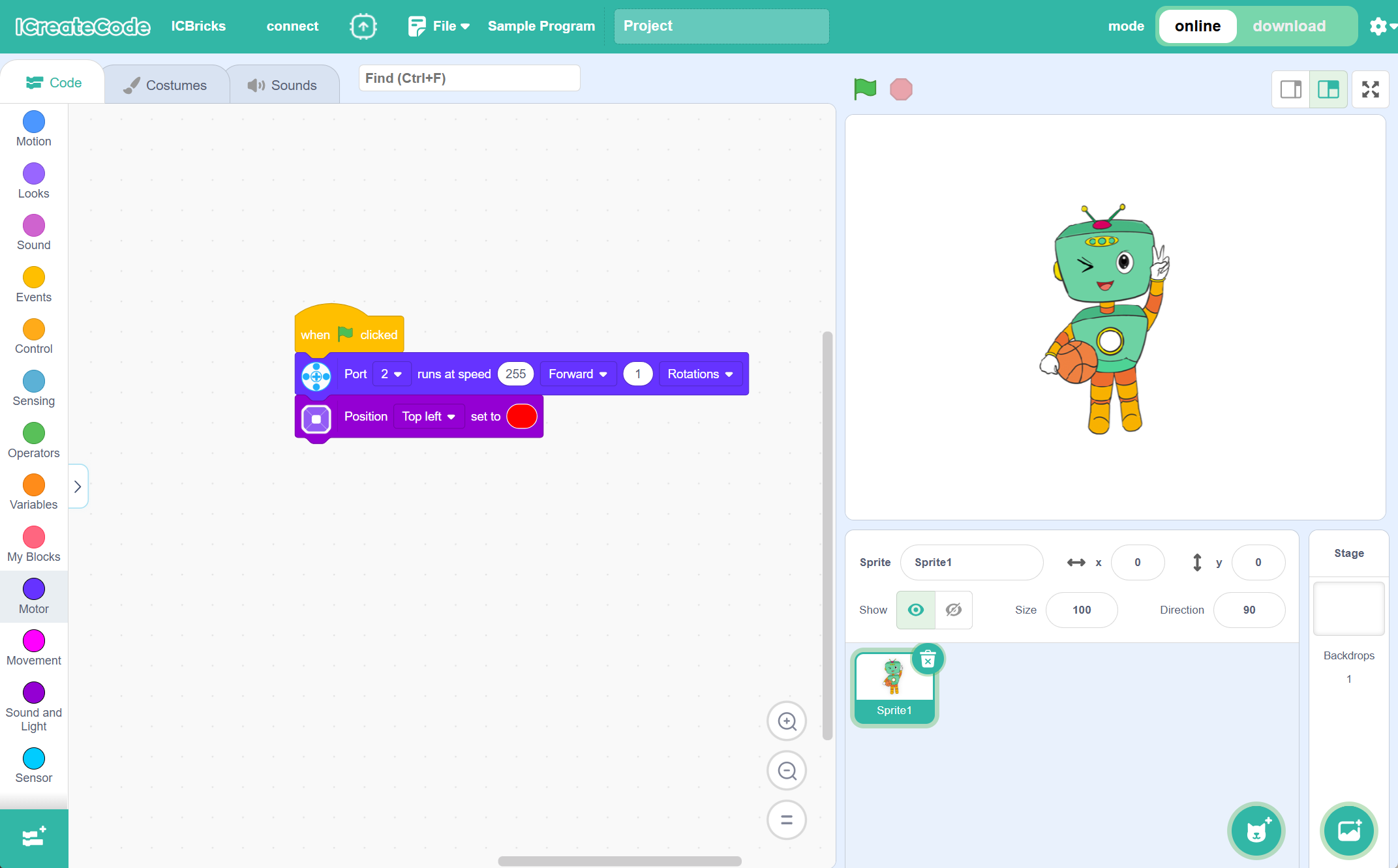
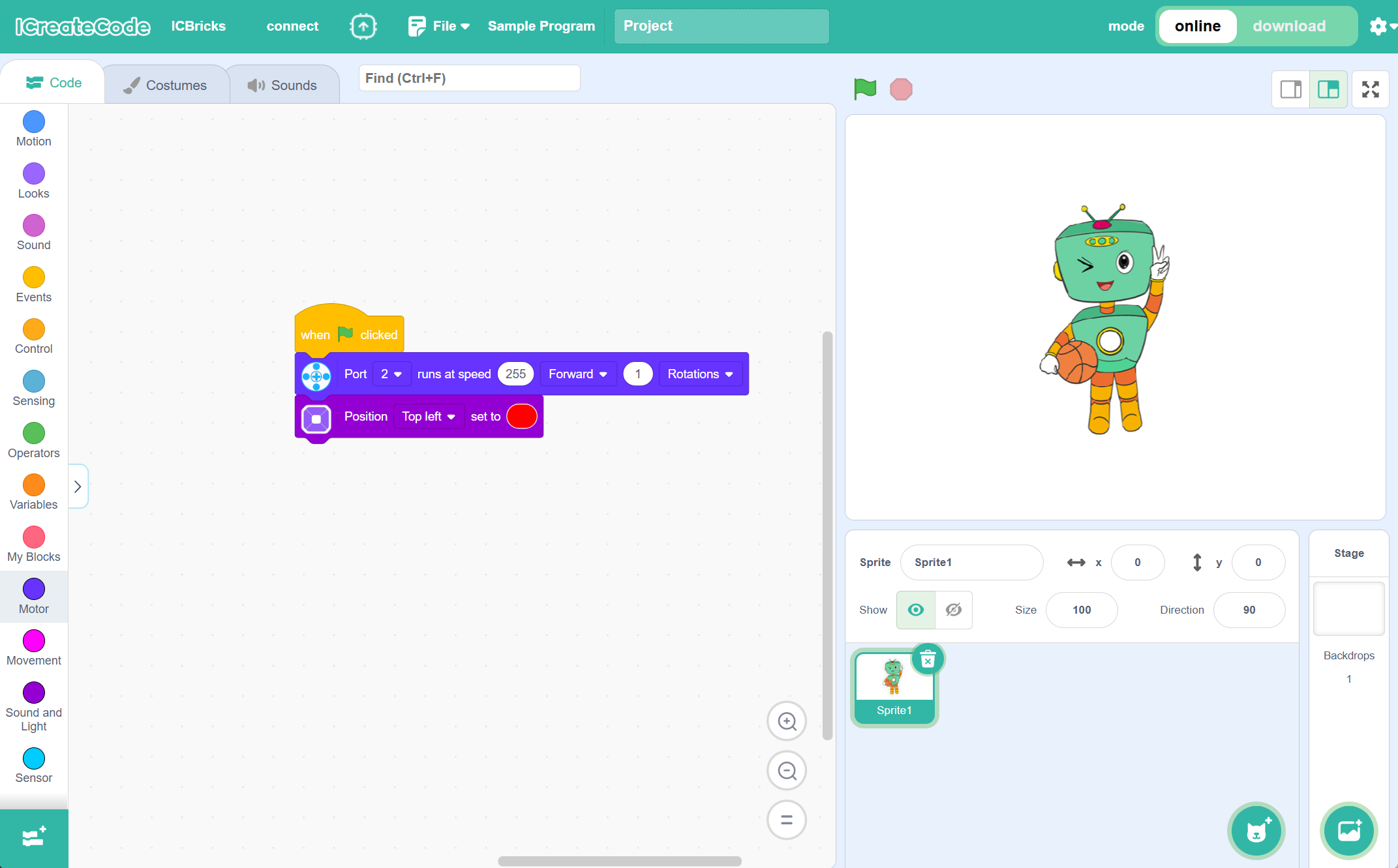
Step 2: Drag the commands into the programming area to start programming. |
|
|
Step 3: After completing the programming, click the green flag |
Demonstration
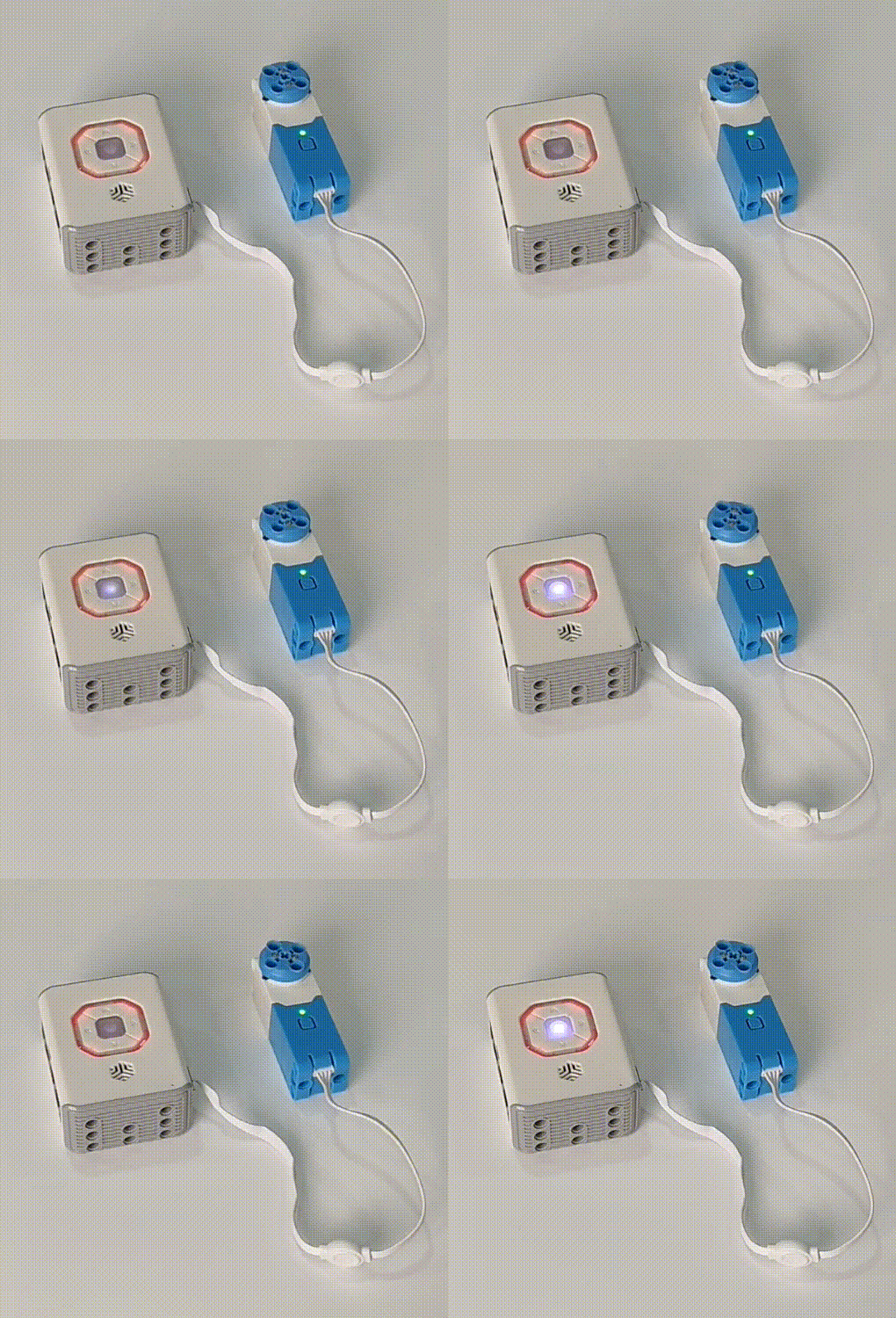
Download Mode
User Manual
In Download Mode, you can download the program you’ve written to the main controller. The program will control the main controller according to its content.
Operation Steps:
|
|
|---|---|
Step 1: After turning on the ICBricks main controller and opening the programming software, |
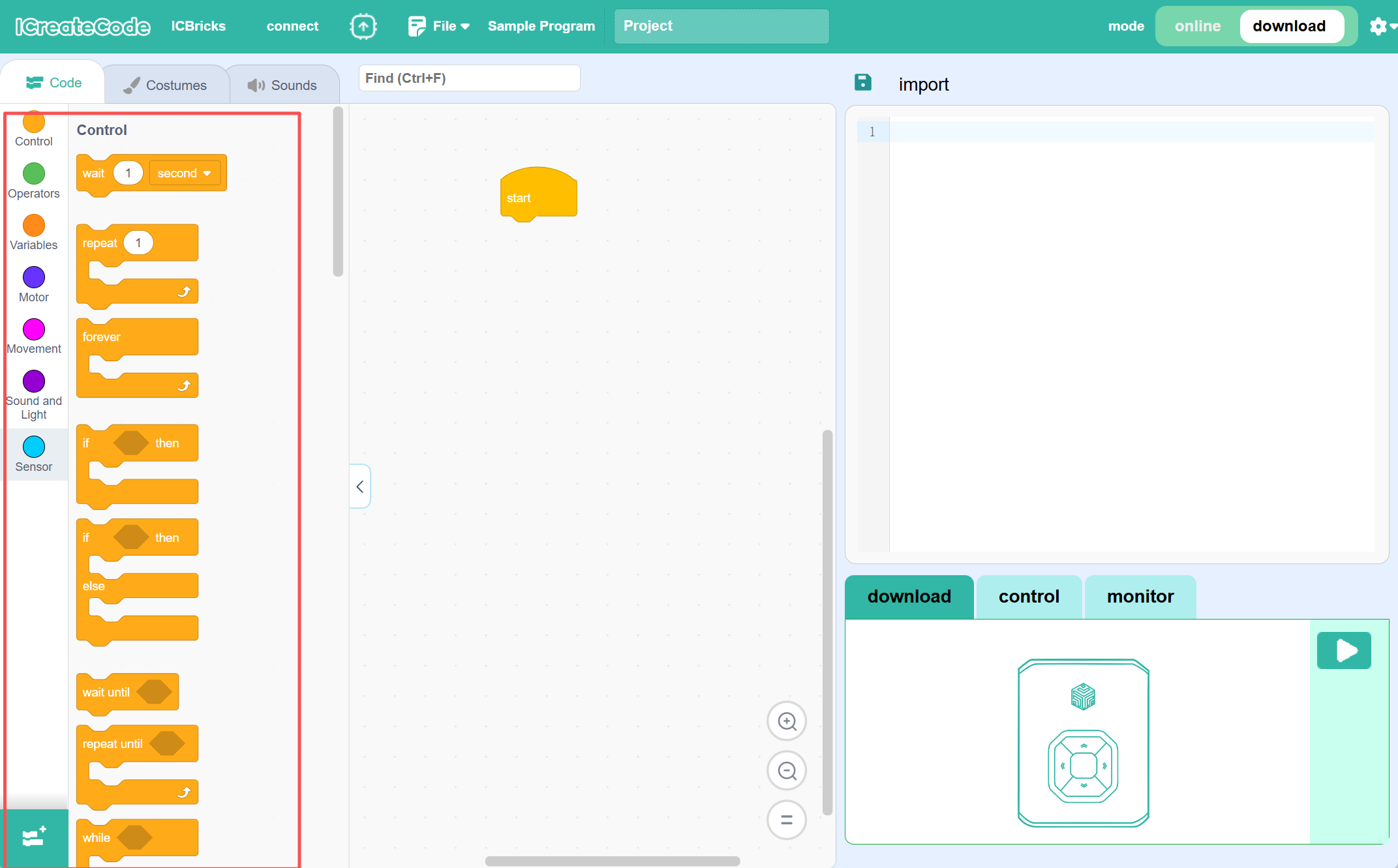
Step 2: Once the connection is successful, the block command area will automatically load the relevant ICBricks extension commands. |
|
|
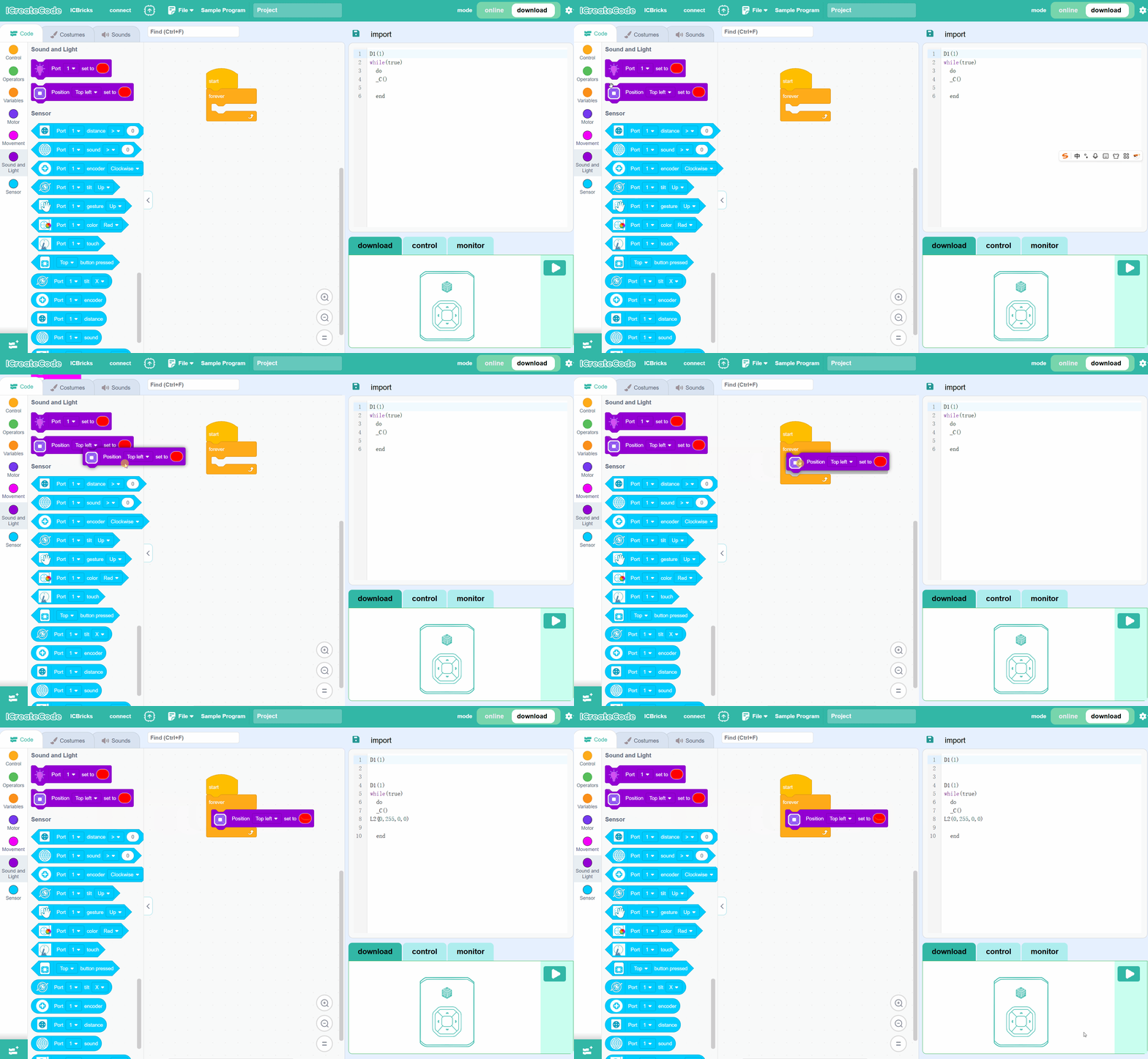
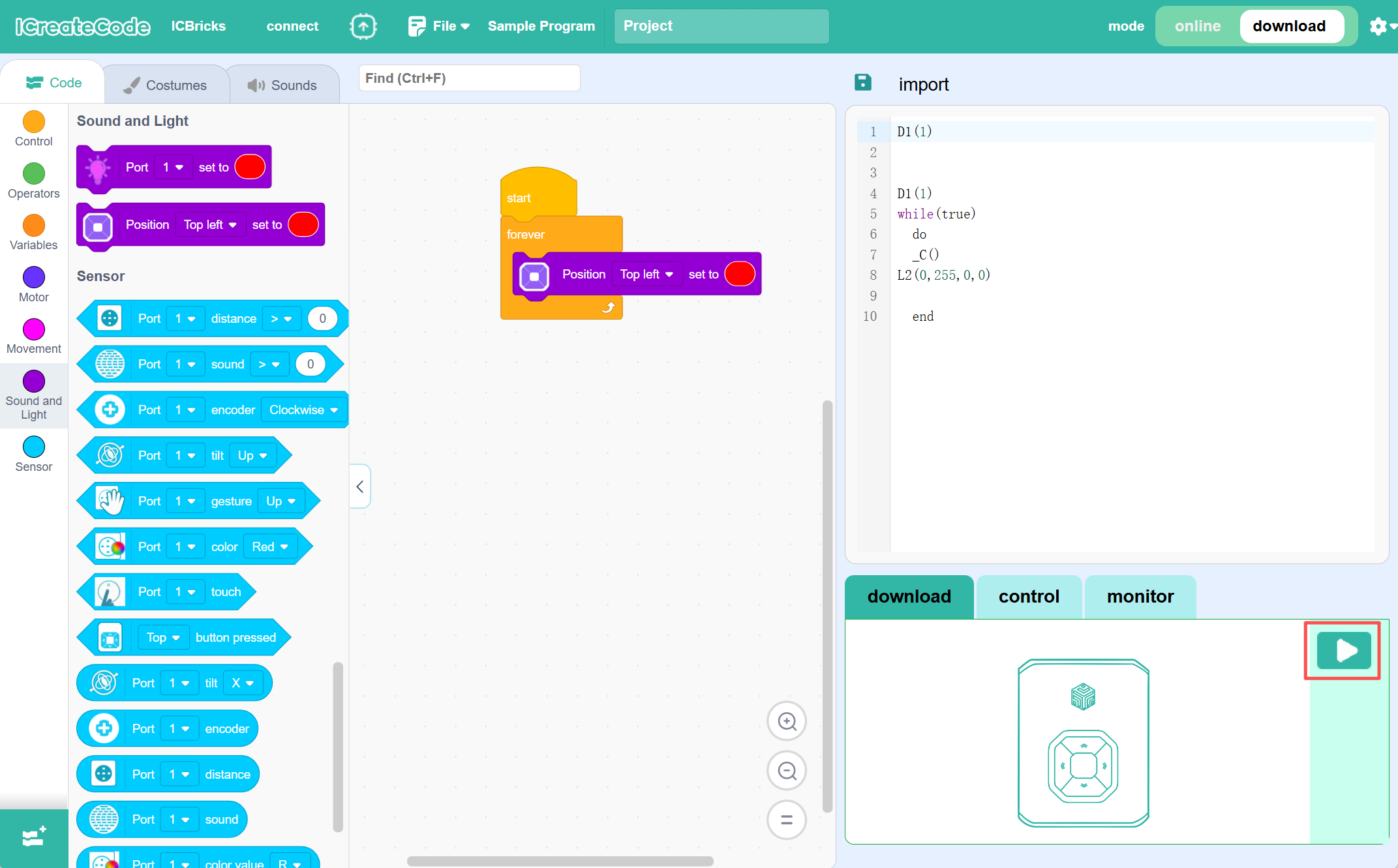
Step 3: Drag the command blocks into the programming area to start programming. While dragging the command blocks, the code area will display |
Step 4: After completing the programming, click the hardware control button to upload the program to the main controller and execute it. |
|
|
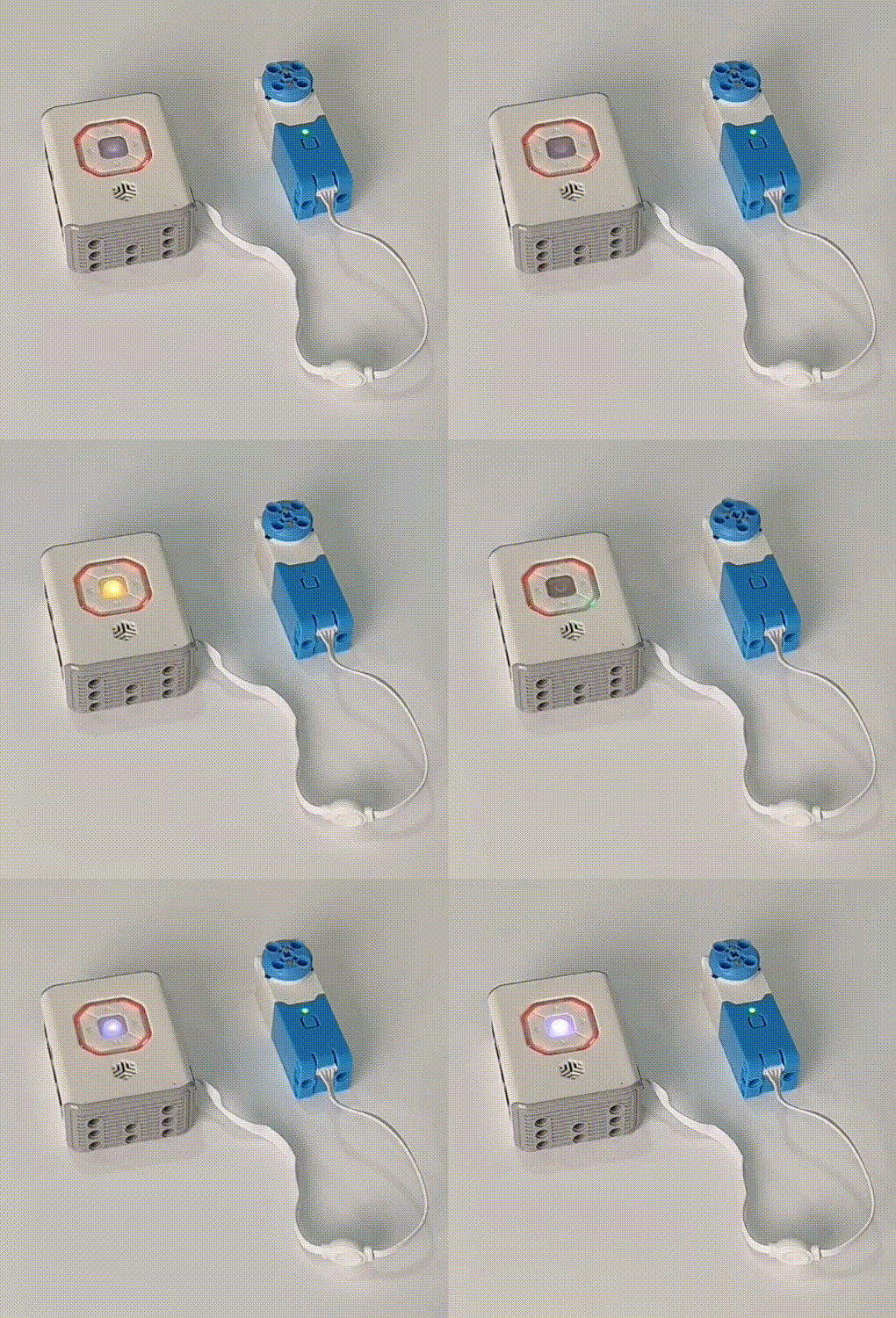
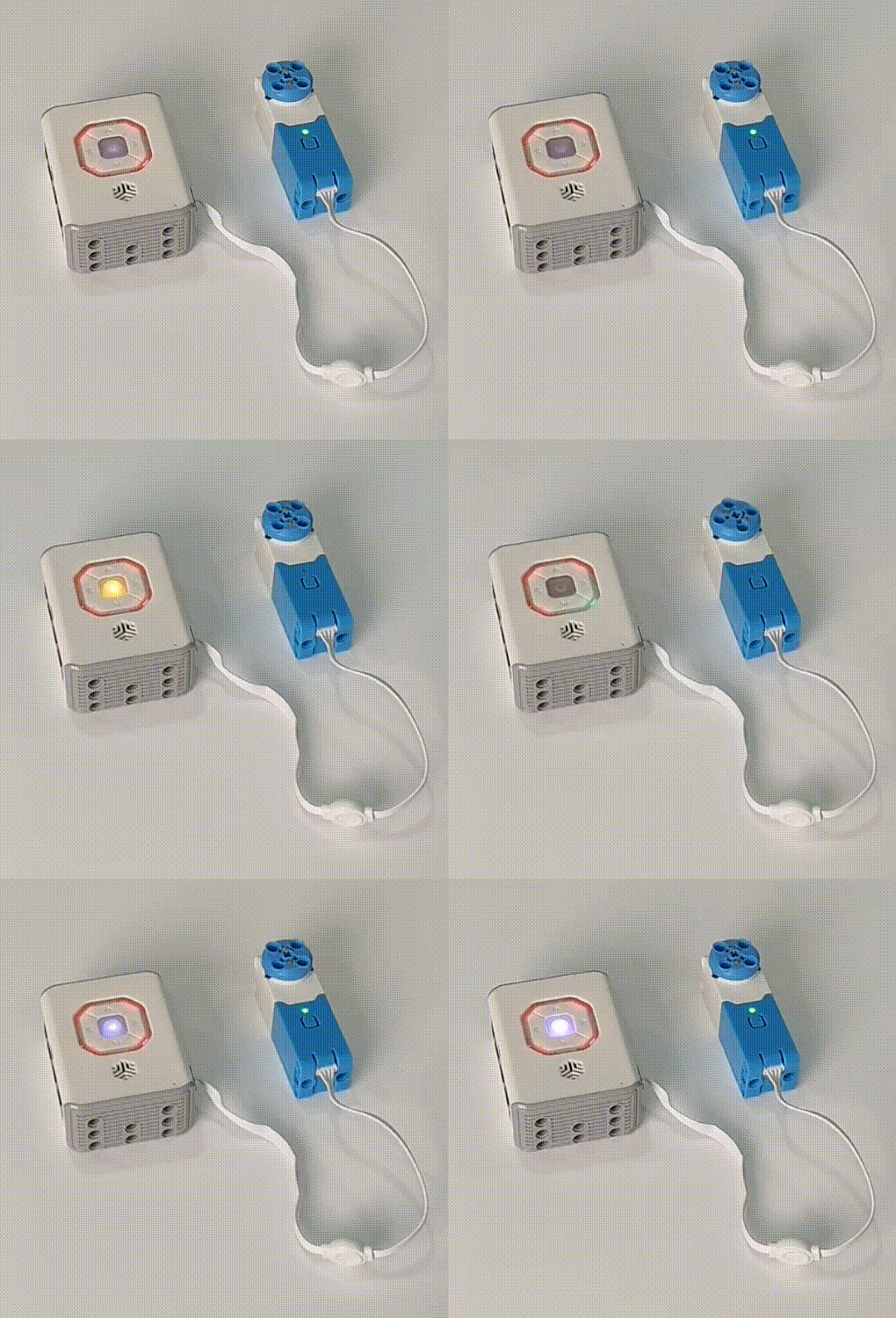
Step 5: After running the program, the light in the middle of the ICBricks main controller will flash orange. |
Demonstration