ICRobot Block Guide
Motion
Robot (moves forward、moves backward、turns left、turns light) at ( ) % power

Controls the robot to move in the specified direction with the given power.
Example:
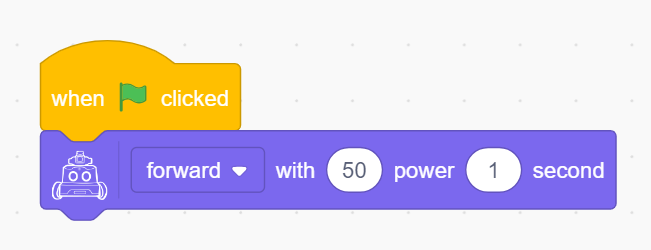
Robot (moves forward、moves backward、turns left、turns light) at ( ) % power ( ) Seconds

Controls the robot to move in the specified direction with a given power for a certain number of seconds. This is a blocking block.
Example:
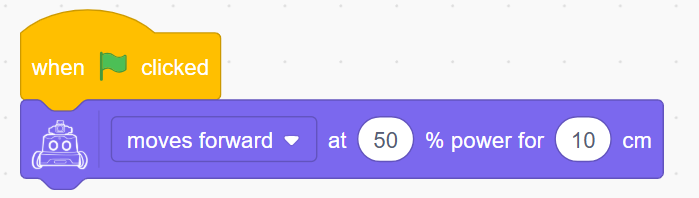
Robot (moves forward、moves backward、turns left、turns light) at ( ) % power for ( ) cm

Controls the robot to move in the specified direction with a given power for a specified distance. This is a blocking block.
Example:
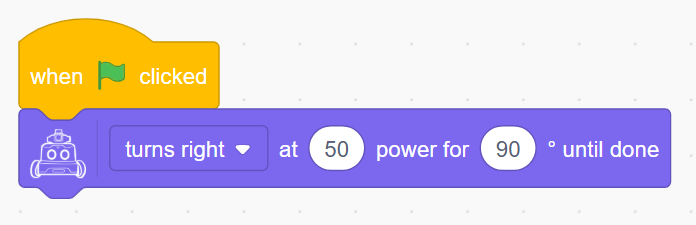
Robot (turns left、turns light) at ( ) % power for () degrees until done
Controls the robot to turn left or right with the specified power until the target angle is reached. This is a blocking block.
Example:
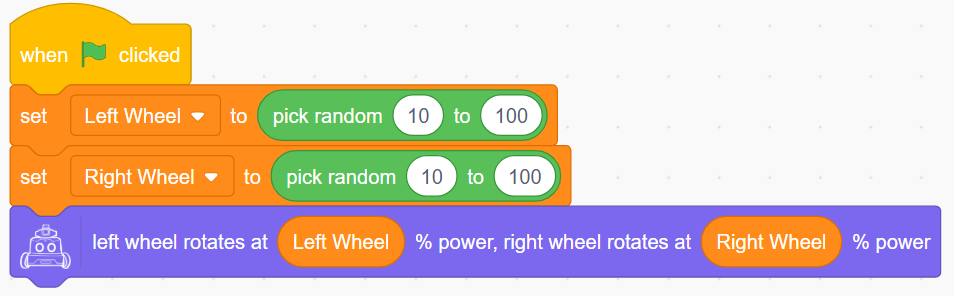
Robot’s left wheel rotates at ( ) % power, right wheel rotates at ( ) % power

Independently control the power of the left and right wheels.
Example:
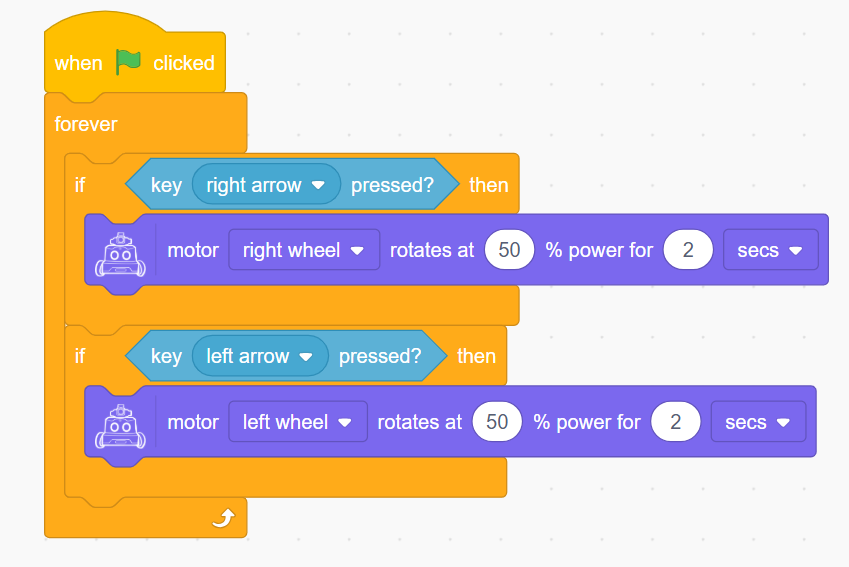
Robot’s motor (left wheel / right wheel) with ( )% power for ( ) (Seconds / cm)

Controls a single wheel to move with the specified power for a given time or distance.
Example:
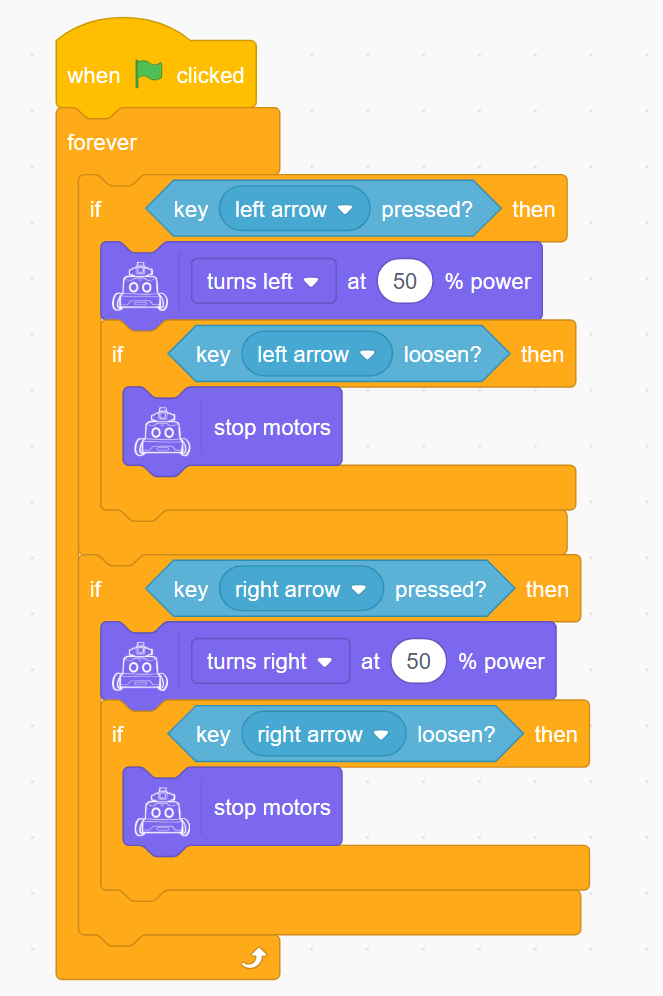
Robot’s motor (left wheel / right wheel) rotates at ( ) % power indefinitely

Continuously control a single wheel to move with the specified power.
Example:
Stop Movement
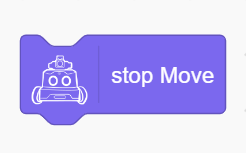
Stop the robot’s motion.
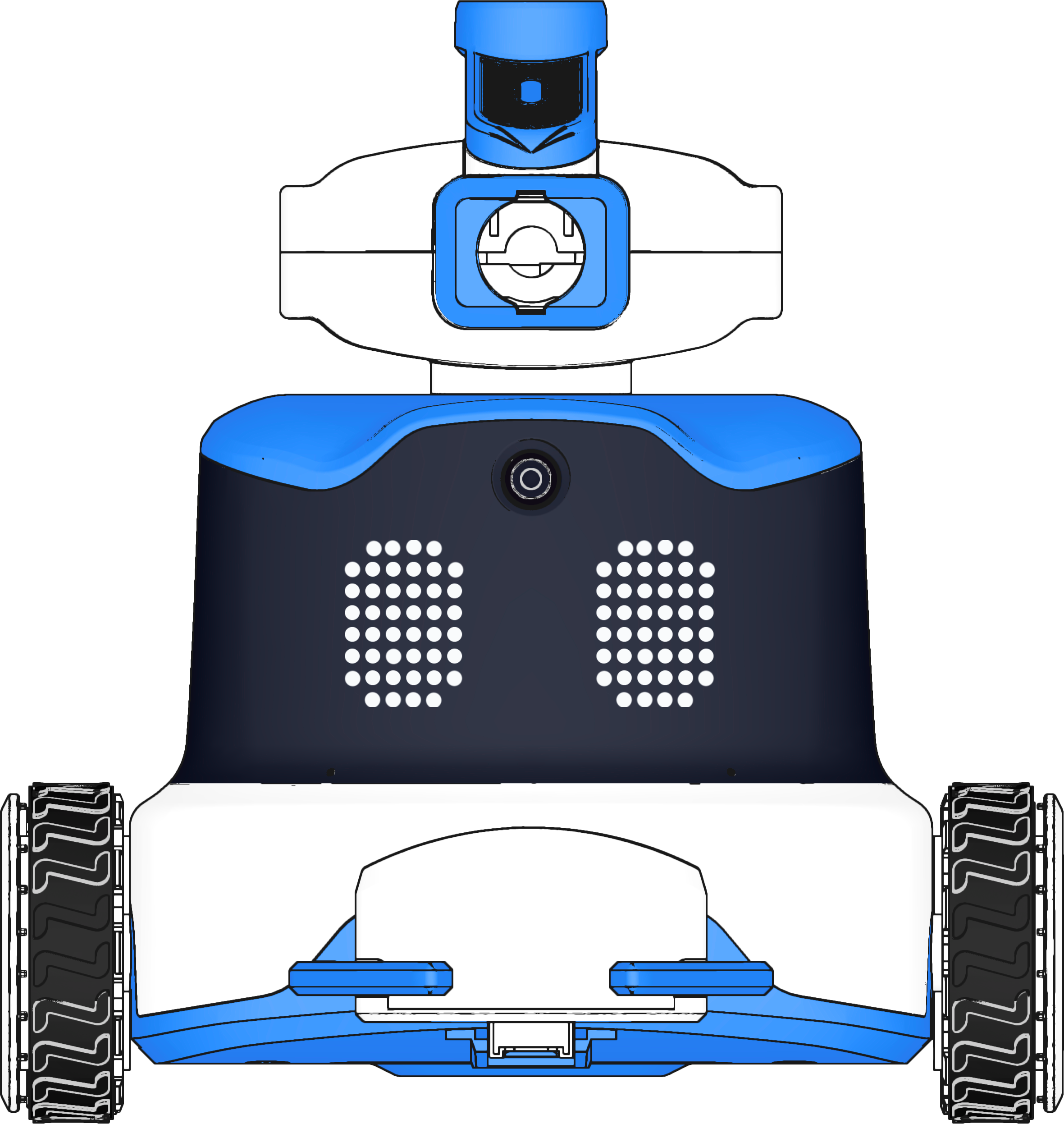
Display (Matrix LED)
Set display brightness to (1–10)
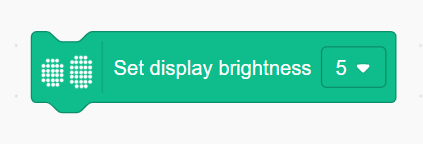
Set the display brightness of the robot’s dot-matrix screen, the value is 1-10, the larger the value the brighter it is.
Example:
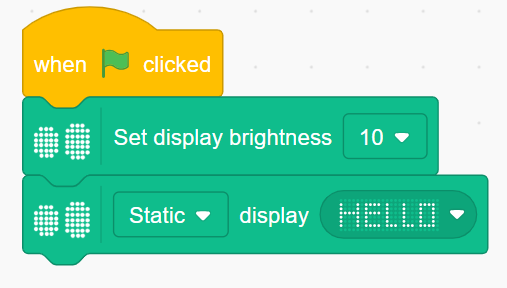
(Static / Right to Left / Left to Right / Top to Bottom / Bottom to Top) Display () for () seconds

Setting the static or dynamic display of the set dots for a given length of time
Example:
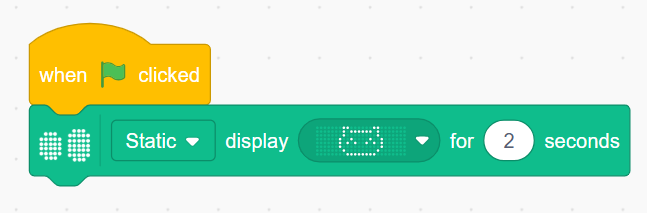
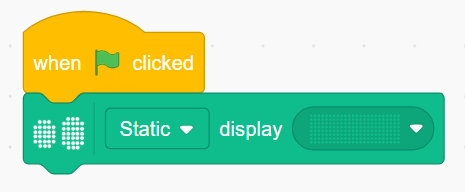
(Static / Right to Left / Left to Right / Top to Bottom / Bottom to Top) Display ( )
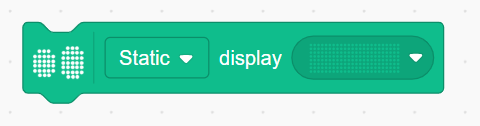
Set static or dynamic display of a given dot matrix all the time
Example:
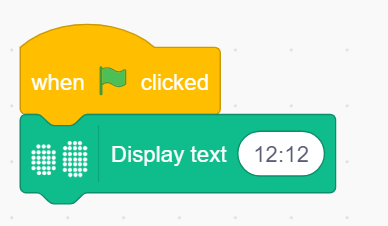
Display Text ()
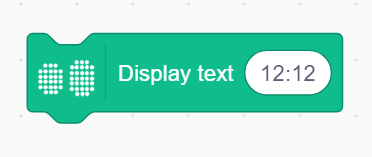
Display a text string on the matrix; if the string exceeds the matrix width, it scrolls; otherwise, it displays statically.
Example:
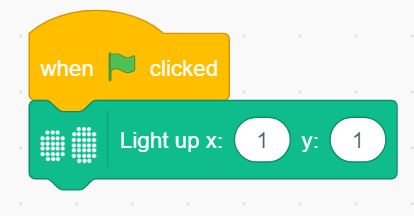
Light up x() y()
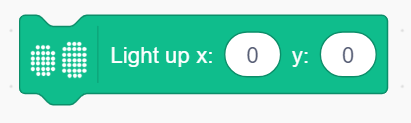
Turn on the LED at coordinate (x, y); (0, 0) is bottom-left.
Example:
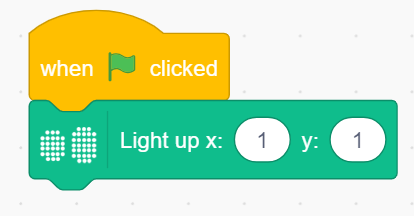
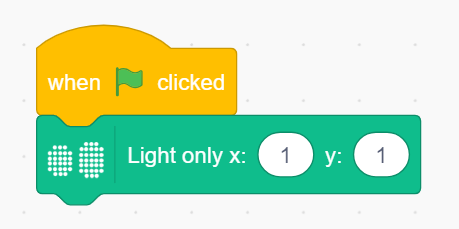
Only light up x() y()

Light up only the LED at (x, y), turning off all others.
Example:
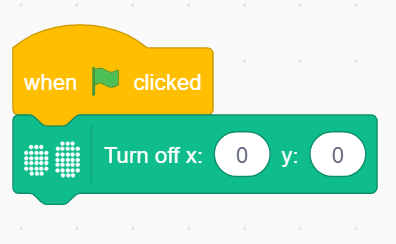
Turn off x() y()
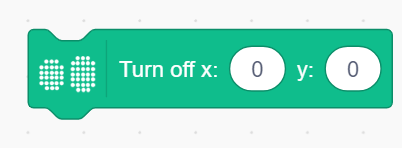
Turn off the LED at coordinate (x, y).
Example:
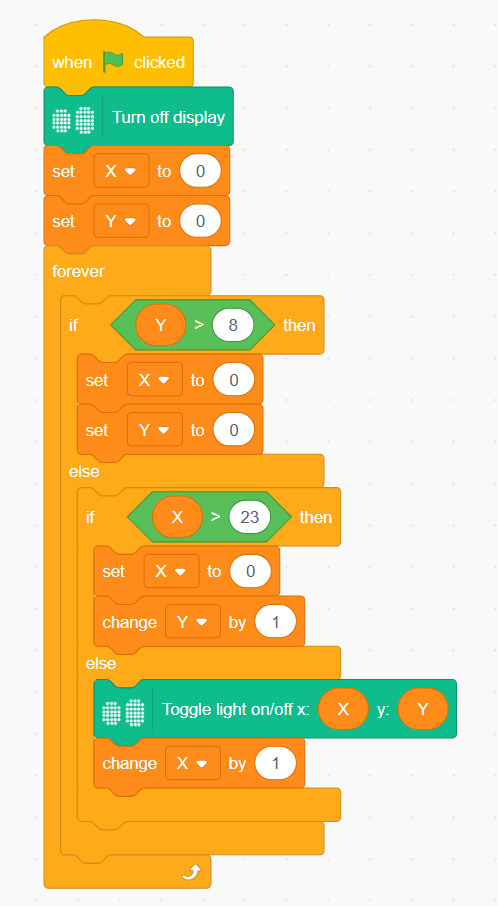
Toggle x() y()
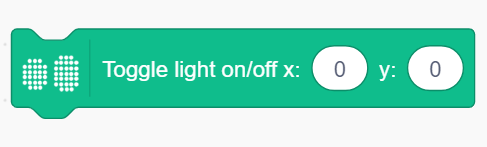
Switch the LED at (x, y) between on and off.
Example:
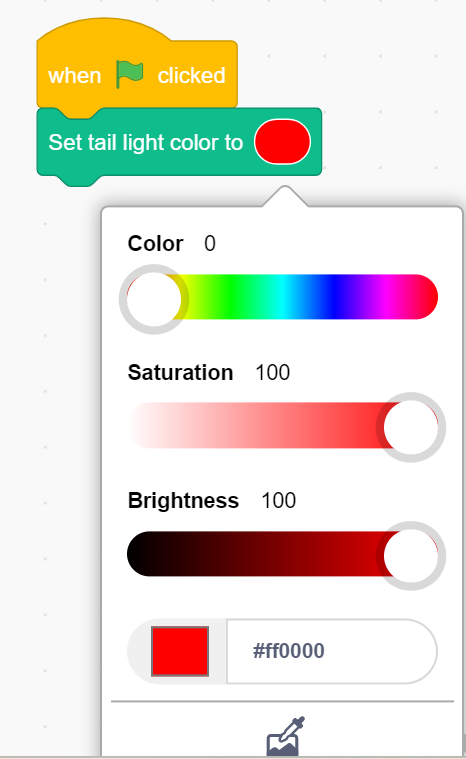
Set tail light color()
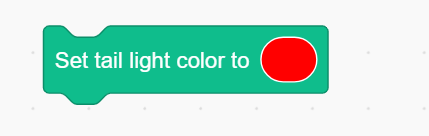
Change the tail light to a selected color.
Example:
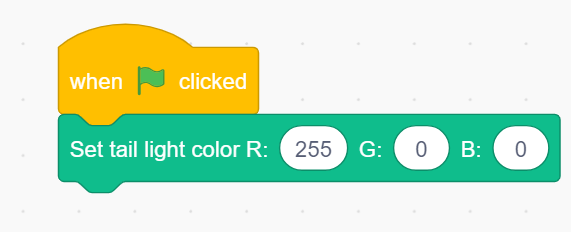
Set tail light color to R() G() B()
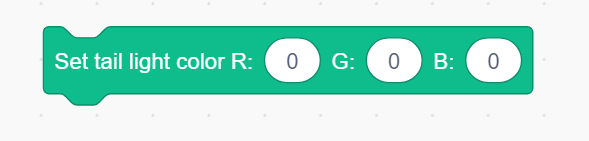
Set RGB values for the tail light.
Example:
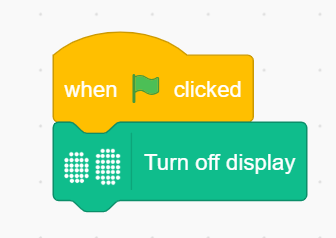
Turn off display
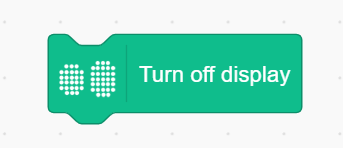
Turn off the matrix display.
Example:
Audio
Upload Audio File
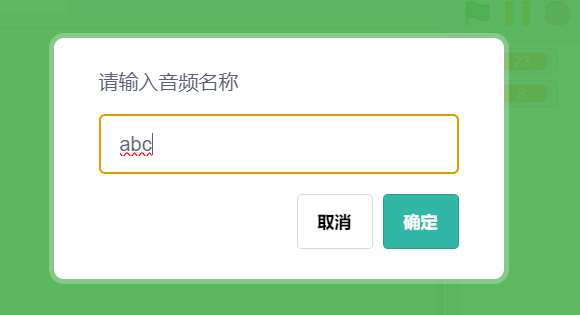
Choose and upload a custom audio file, and assign a filename.
Set volume to ()
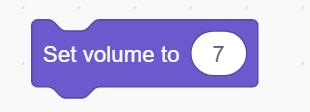
Set playback volume (range: 0–10).
Play music () until finished
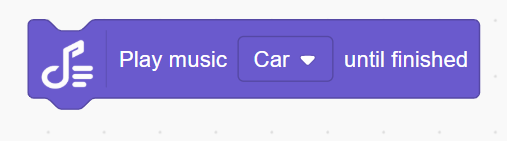
Play selected audio file; wait until it finishes before continuing the next action.
Example:
Play music ()
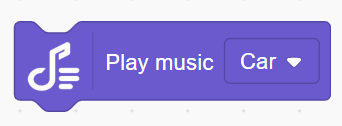
Play the selected audio file immediately.
Example:
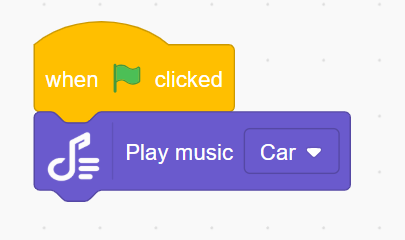
Stop playback
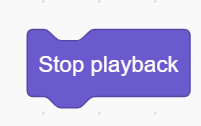
Stop the current audio.
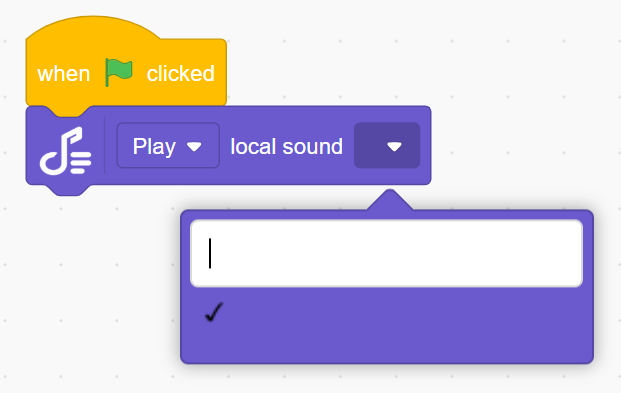
() Play local audio ()
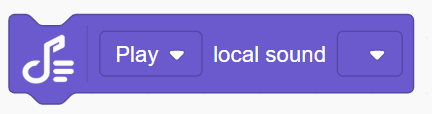
Play an uploaded audio file in real-time.
Example:
Actuators
Robot’s gripper at port ( ) (open/close)
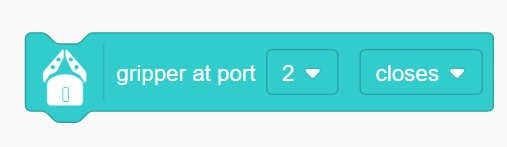
ontrol the gripper at the selected port.
Example:
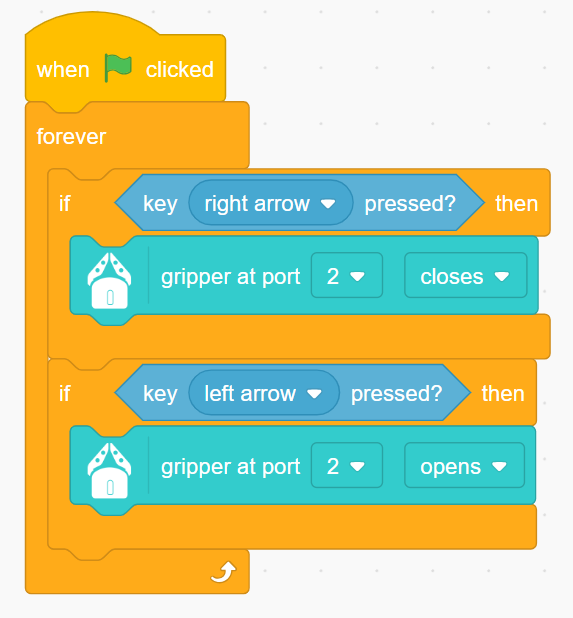
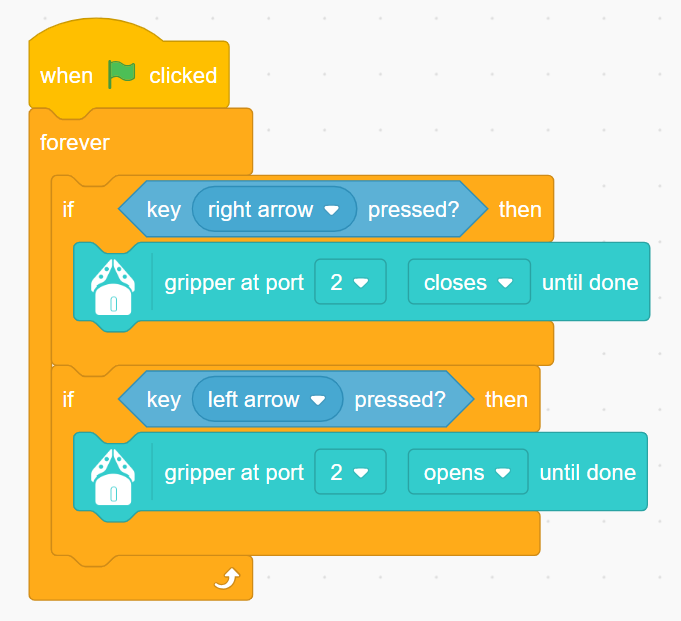
Robot’s gripper at port ( ) (open/close) until done

Control the gripper and wait until action completes before next step.
Example:
Robot’s launcher at port ( ) shoots (number) ball
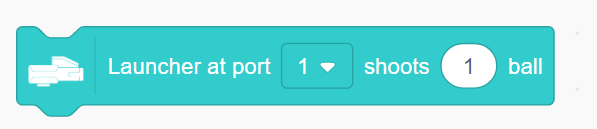
Launch specified number of marbles from selected port.
Example:
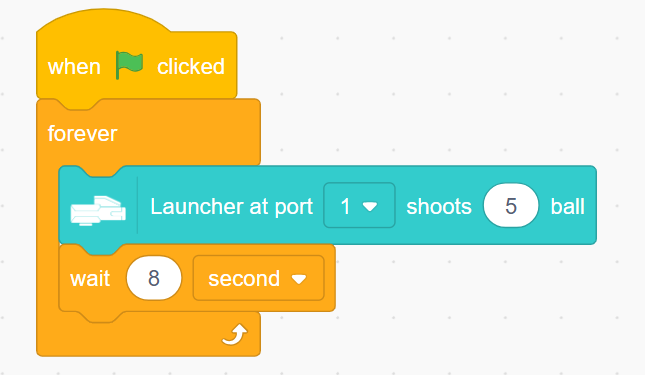
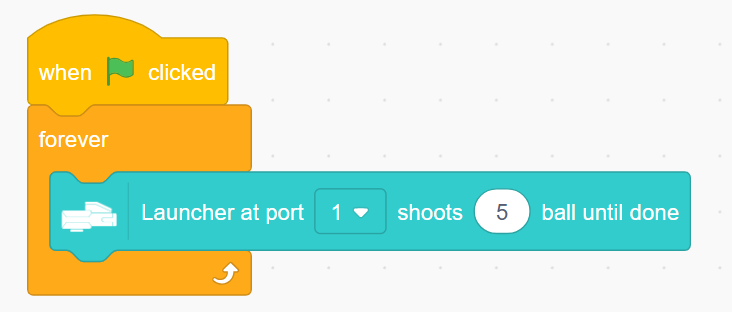
Robot’s launcher at port ( ) shoots ( ) ball until done
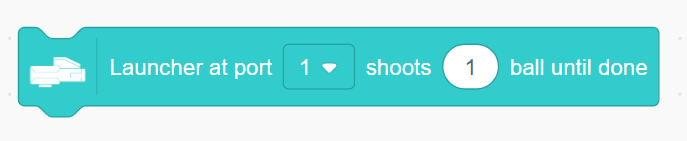
Launch and wait until finished before proceeding.
Example:
Sensors
Button (A/B) pressed
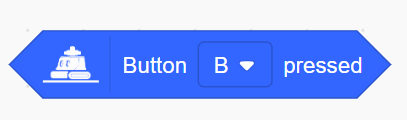
Detect if left or right button is pressed.
Example:
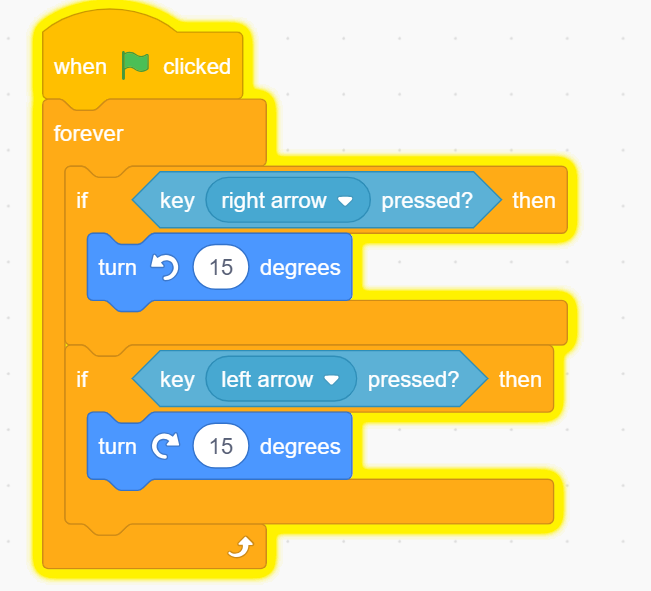
Sound()()
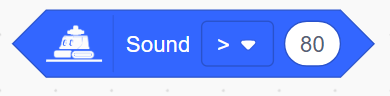
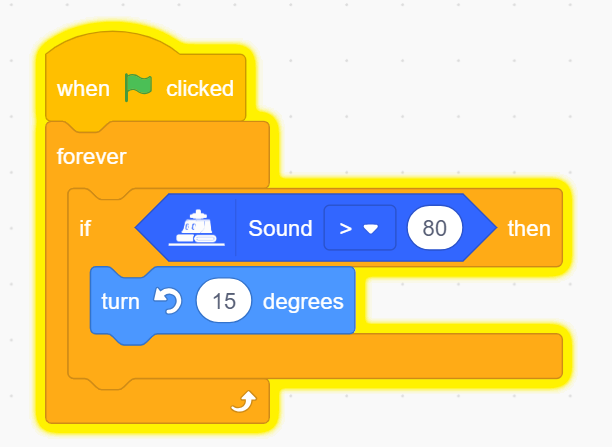
Check if detected sound is greater/less than/equal to a value.
Example:
Current sound level
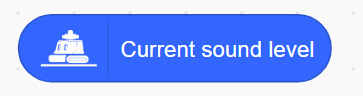
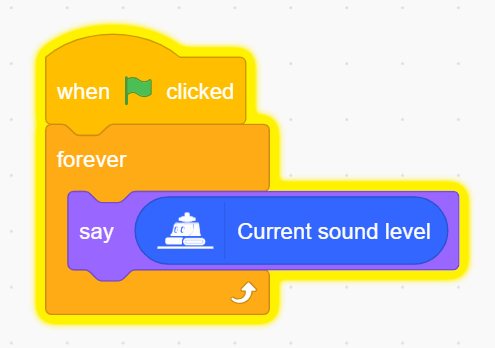
Return the detected sound level.
Example:
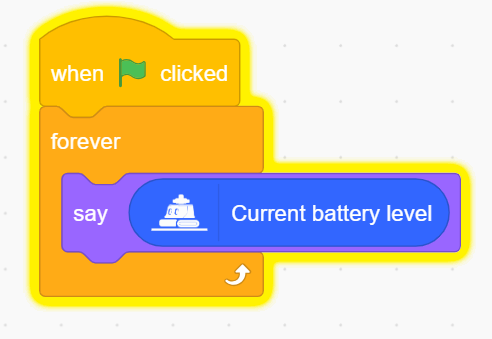
Current battery level
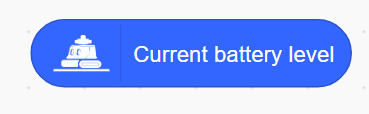
Return remaining battery.
Example:
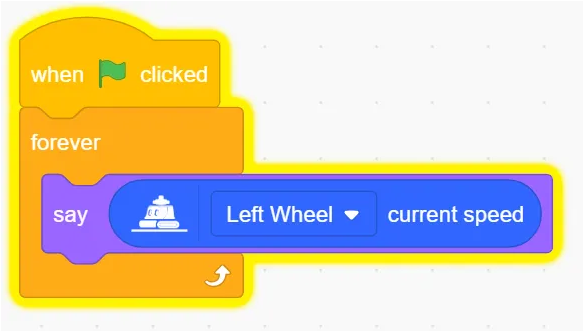
()current speed
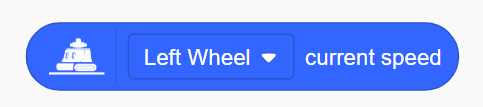
Get current speed of each wheel.
Example:
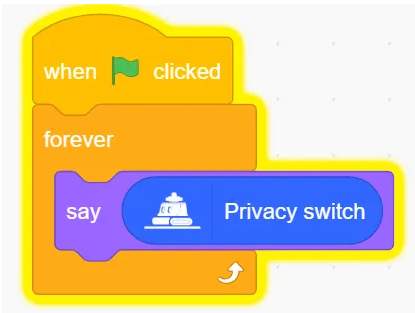
Privacy switch status
Return status of privacy switch.
Example:
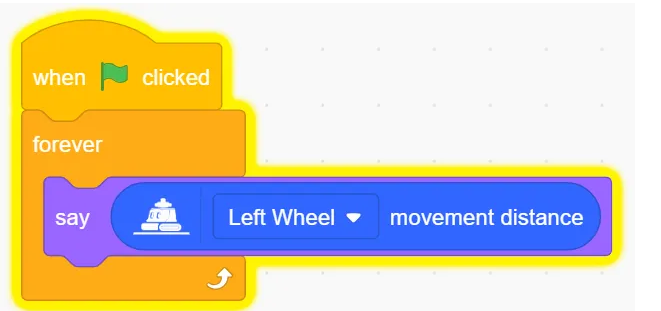
()movement distance
Return the movement distance.
Example:
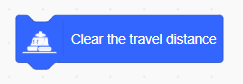
Clear the travel distance
Set line-following sensor to () mode
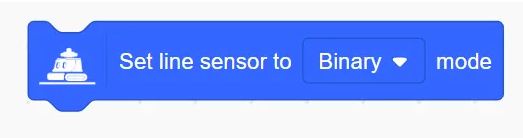
Choose binary/gray/color mode.
Example:
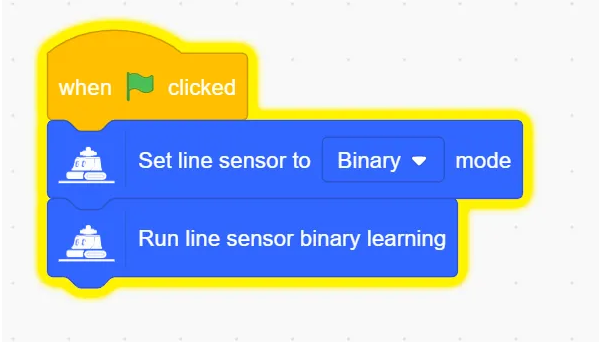
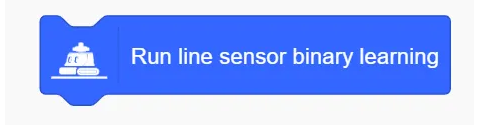
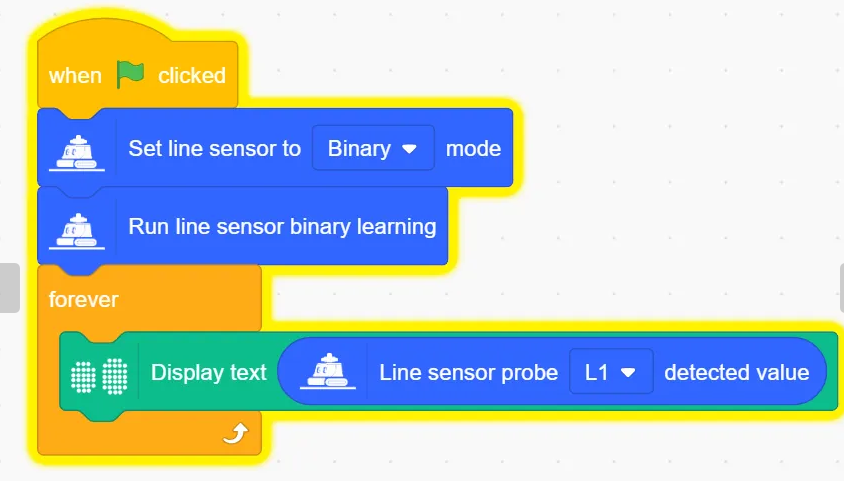
Run Line Following Sensor Binary Learning
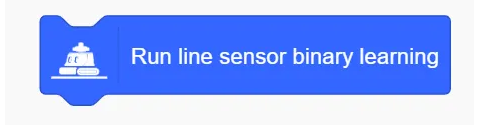
Set Line Following Sensor to binary mode learning.
Example:
Run Line Following Sensor Learning () Colour
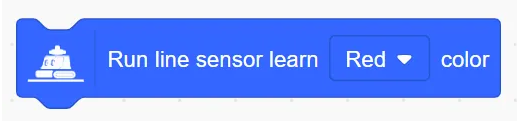
Learn a specific color.
Example:
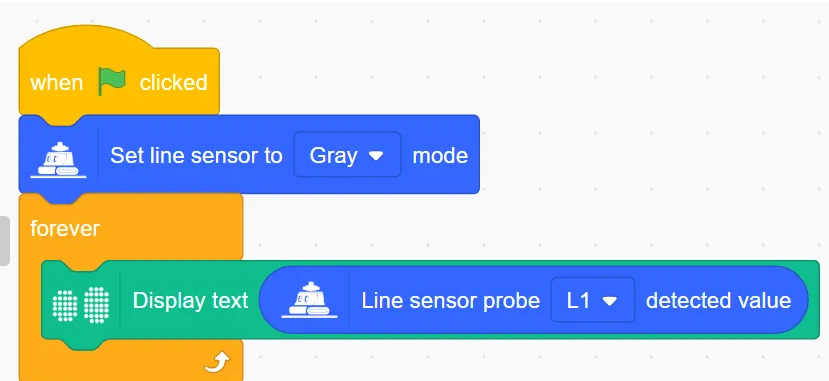
Value detected by the roving sensor probe ( )

Get value from probe (L1, L2, M, R2, R1).
Example:
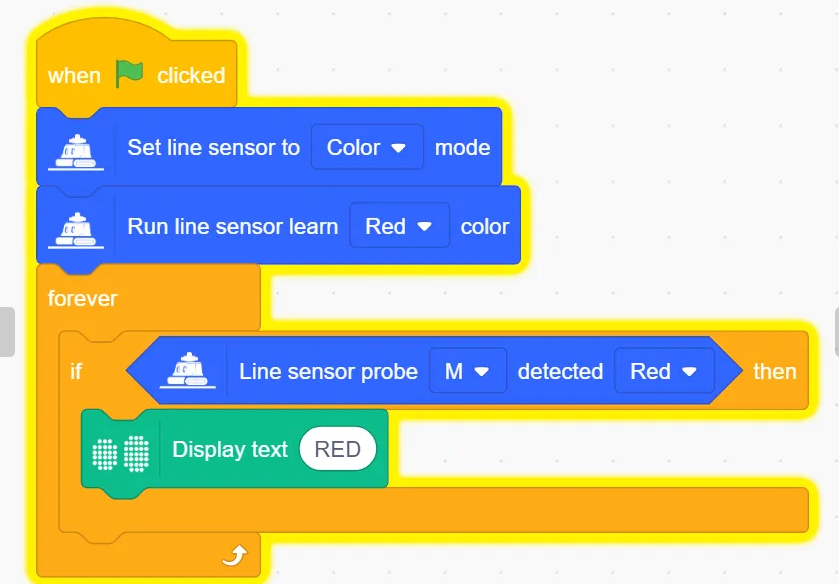
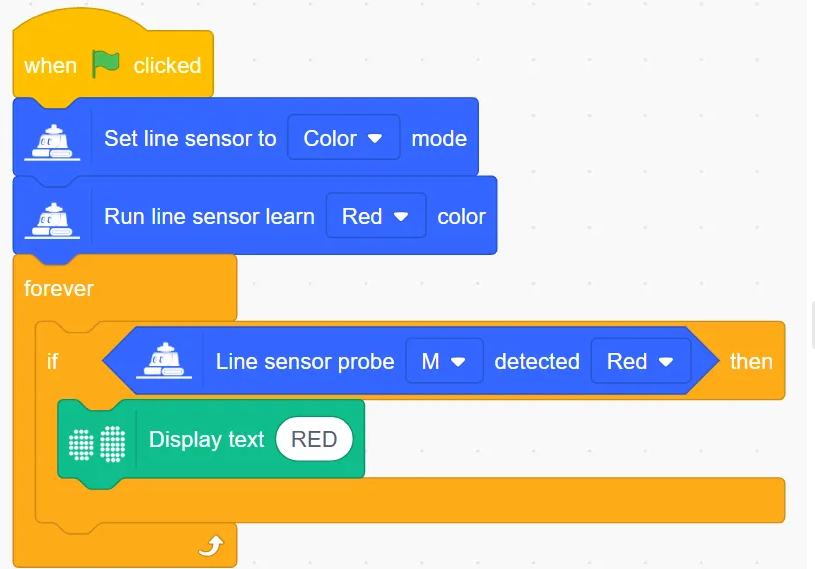
Line Following probe () detects ()

Check if probe detects specific color.
Example:
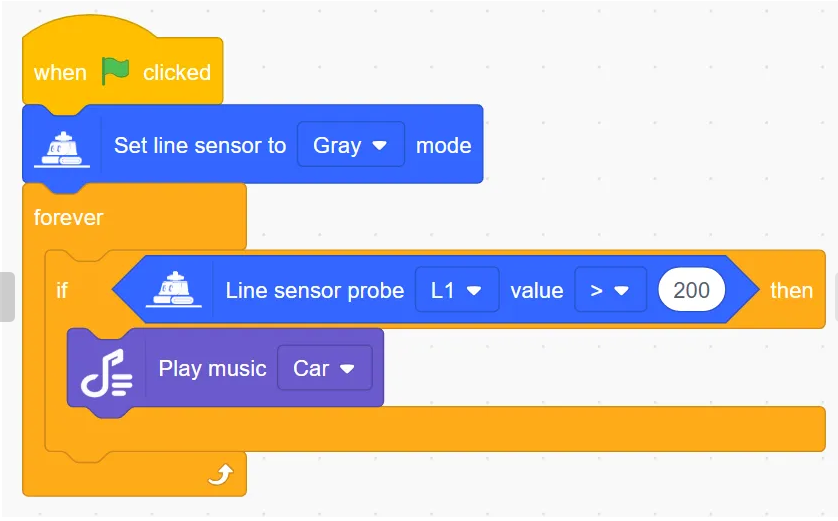
Line Following probe () value () ()

Whether the detected value is greater than/less than/equal to the specified value
Example:
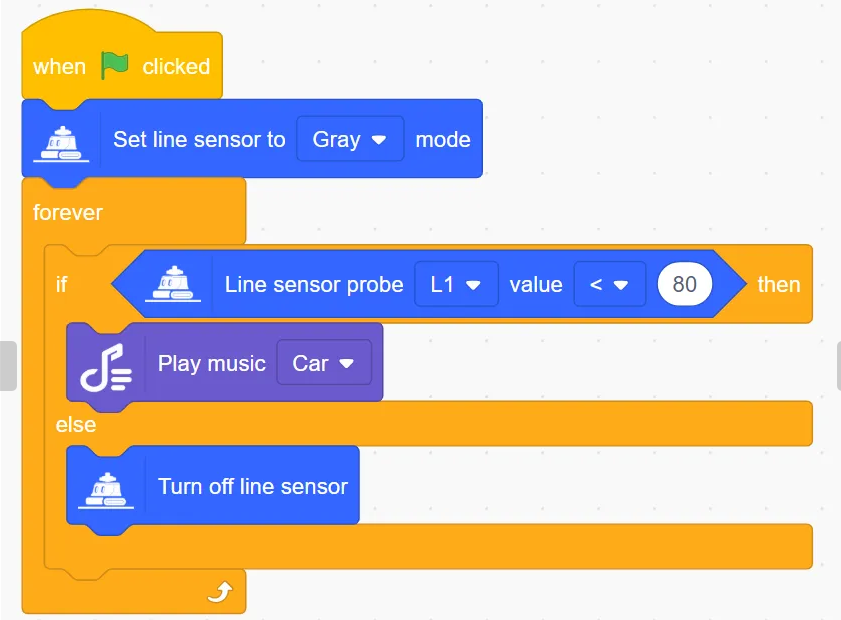
Turn off Line Following sensor
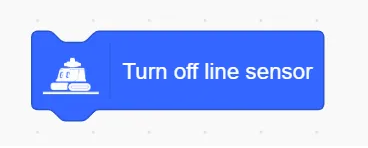
Disable Turn off Line Following sensor.
Example:
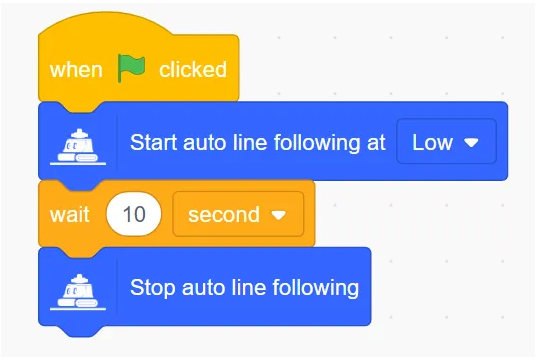
Start auto line following at () speed
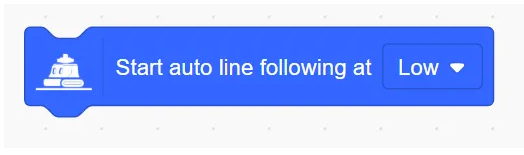
Allow robots to automatically patrol lines at low/medium/high speeds
Example:
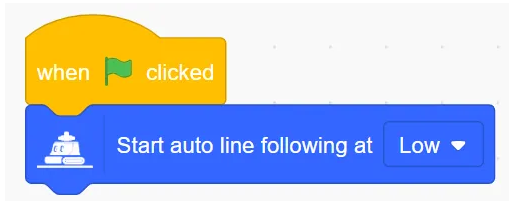
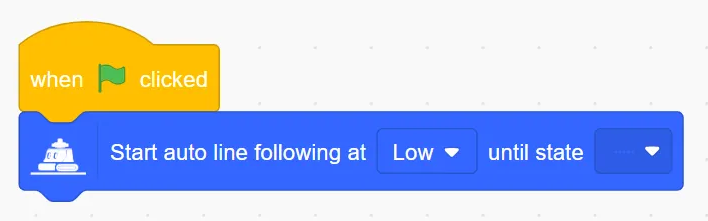
Start auto line following at () speed until state is ()

Controls the robot to start auto-touring at low/medium/high speeds until the value of the five probes is the set value and then stops auto-touring.
Example:
Stop auto line following
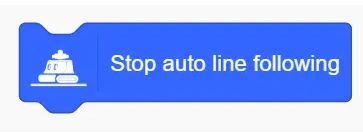
Stop line-following behavior.
Example:
External Microbit Module
Port () Servo rotates to () degrees
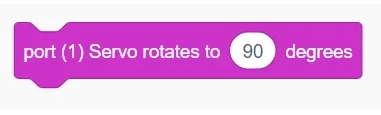
Set servo rotation degree
Port () Set the servo motor to ()
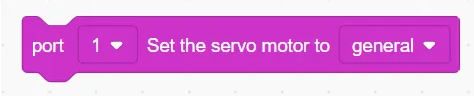
Set servo motor mode
Port () Servo motor rotates at a speed of ()
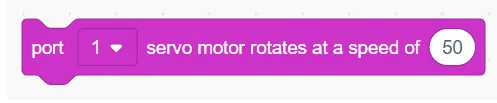
Set motor rotation speed
Port () Servo motor rotates at a speed of () for () seconds

Set motor rotation speed and time
Port () Servo motor rotates at speed () to () degrees

Set motor rotation speed and rotate to a fixed angle
Port () servor motor rotates at speed () for () degrees

Set motor rotation speed and angle
Port () servor motor stop
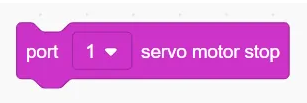
Set motor to stop rotation
Port () Get current angle
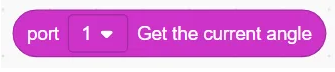
Get current angle
Port () Laser sensor set to **() **brightness ()
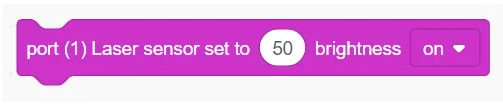
Set laser sensor brightness and switch state
Port () fan runs at a speed of () ()

Set fan speed and switch state
Port()()(sensor)
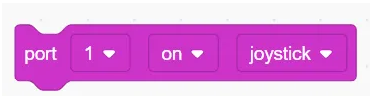
Set sensor switch state
Port () Detects joystick ()

Judge joystick state
Port () Joystick () direction
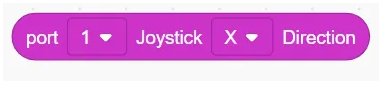
Get joystick X or Y direction value
Port () Ultrasonic sensor distance

Get ultrasonic sensor distance value
Port () Potentiometer
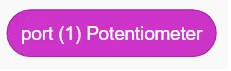
Get potentiometer sensor value
Port () Hall sensor
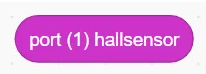
Get Hall sensor value
Port () PIR sensor
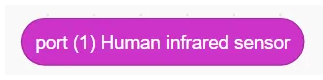
Get human infrared sensor value