Users’s Guide
Online Mode (Interactive Mode)
Usage Introduction
In Online Mode, the ICRobot can communicate with the PC via Serial Port, Bluetooth, AP, or STA, allowing you to program and control the robot to perform actions.
Steps
|
|
|---|---|
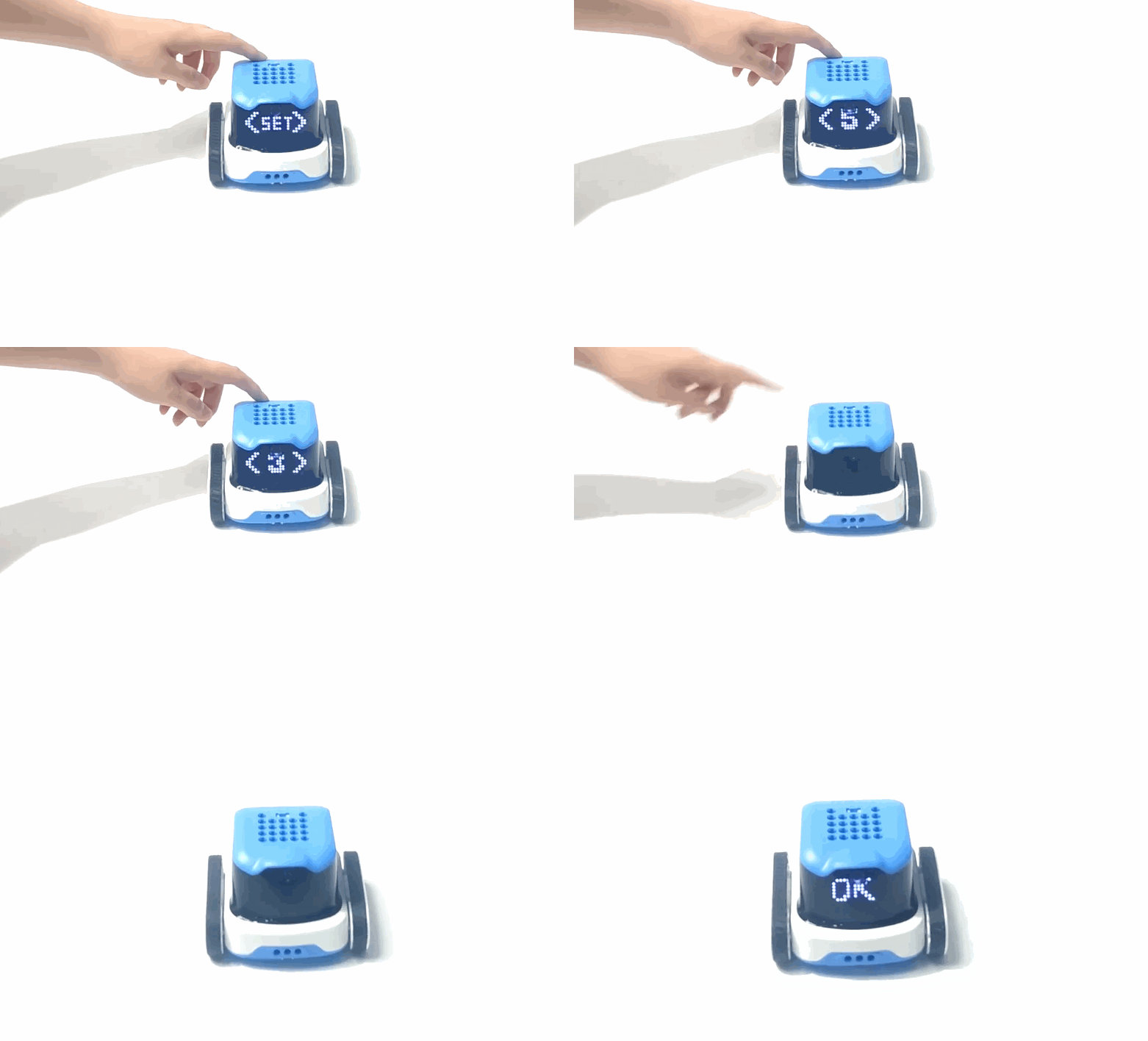
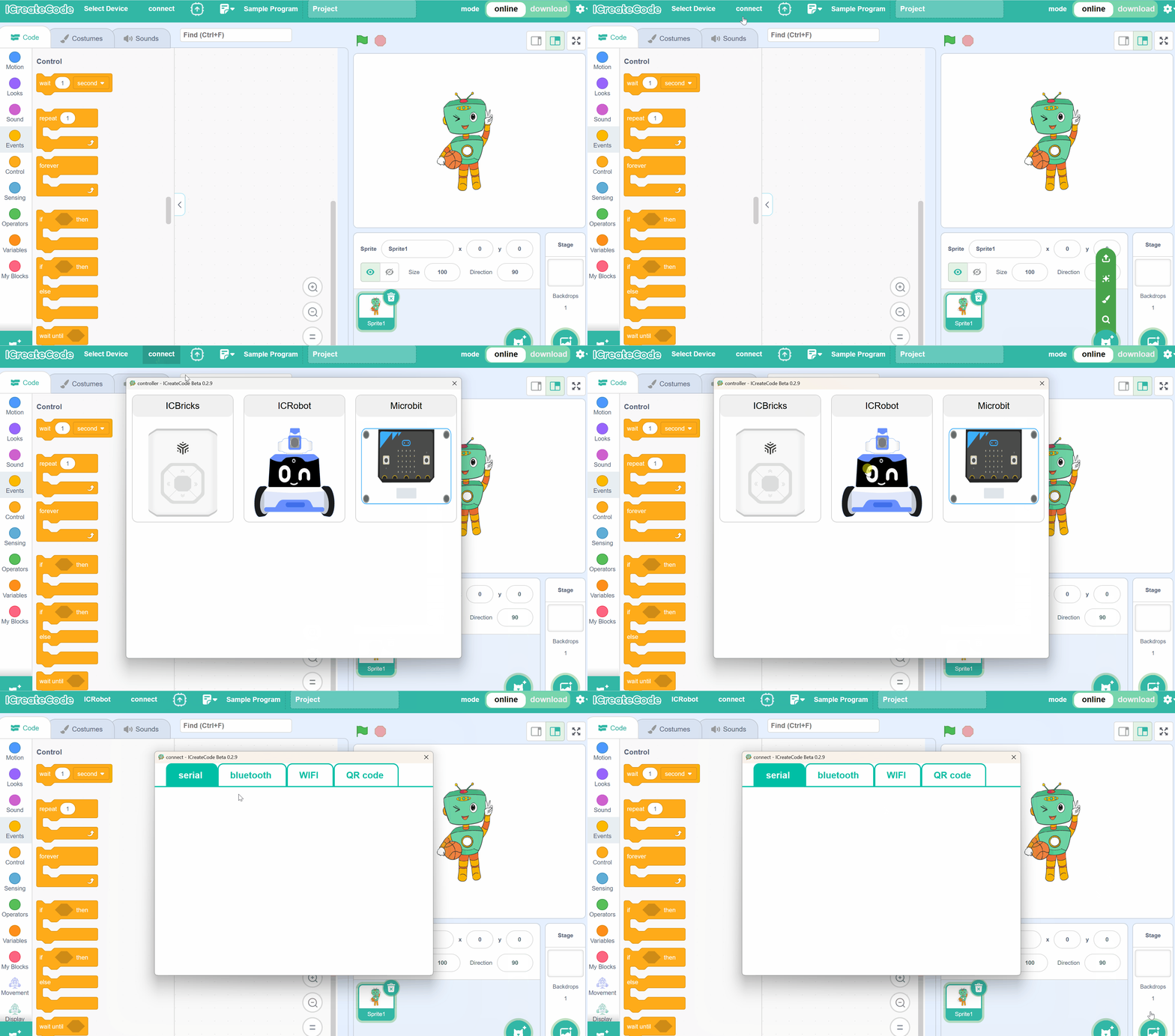
Step 1. After both the ICRobot and the programming software are powered on, switch the software mode to Online Mode. Then select the |
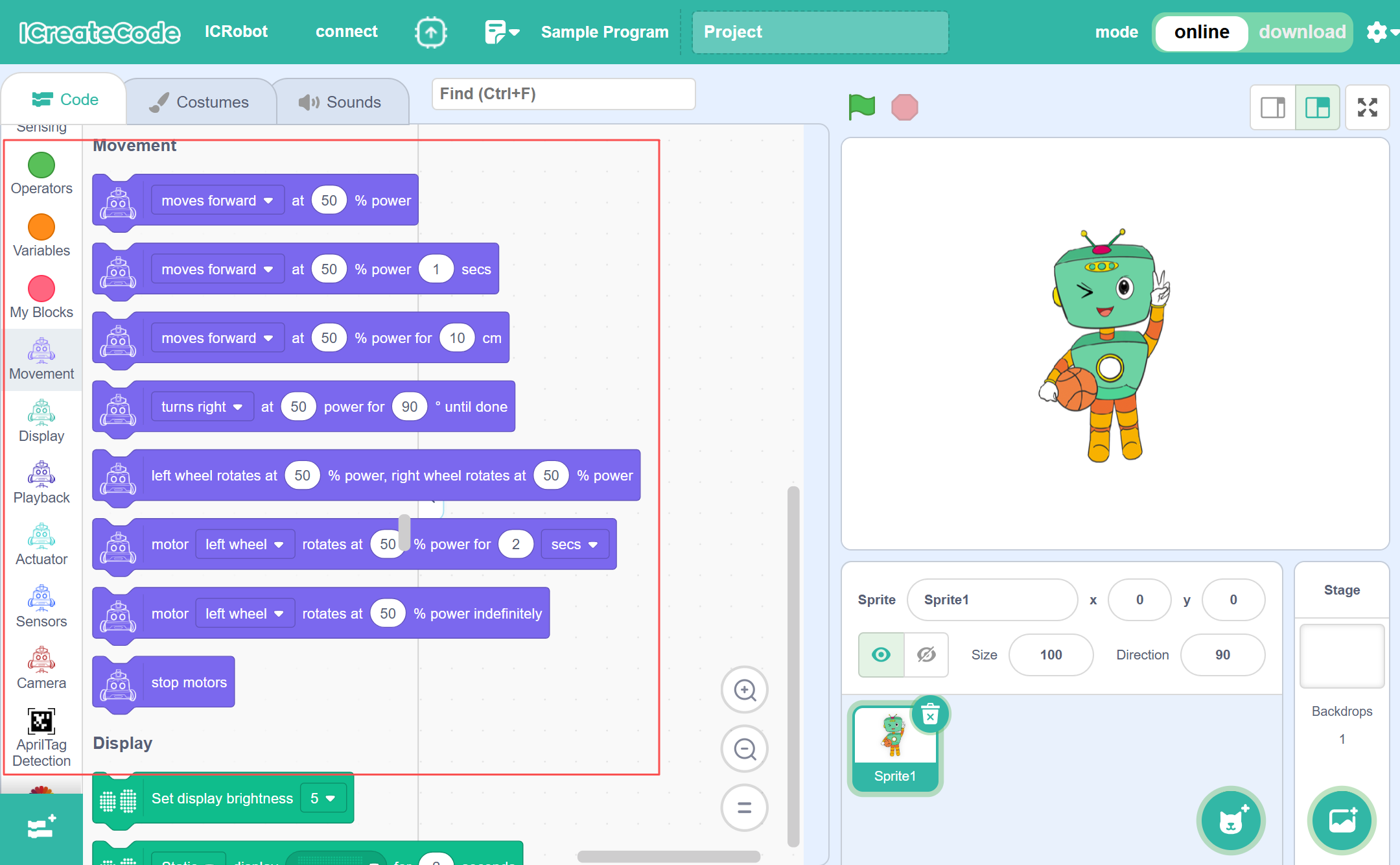
Step 2. Once the selection is successful, the Block Commands panel will automatically load the ICRobot-related extension blocks. |
|
|
Step 3. Drag the required blocks into the Coding Area to create your program. |
Step 4. After programming is complete, click the green flag to execute the program and observe the result. |
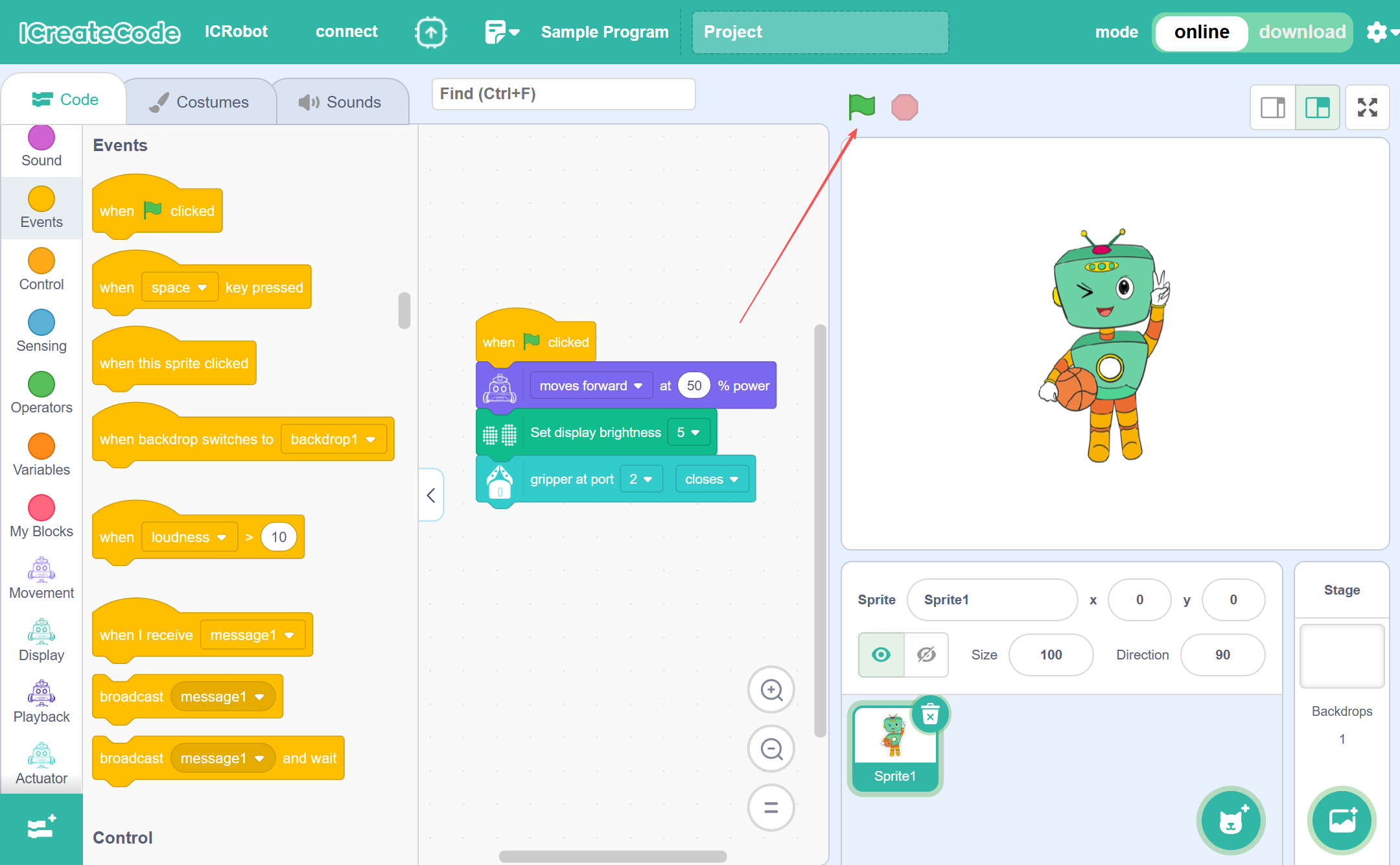
Example
Scenario
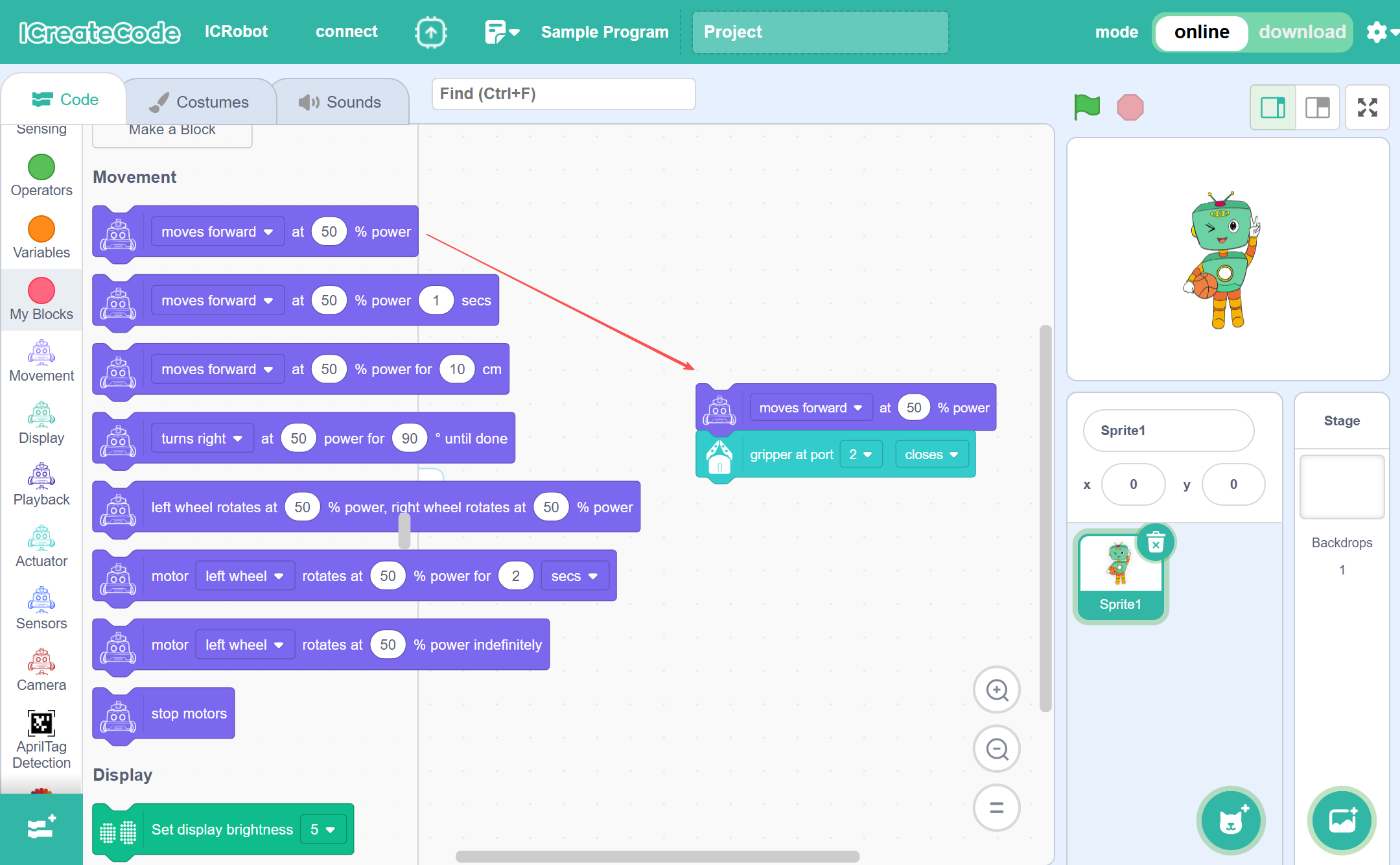
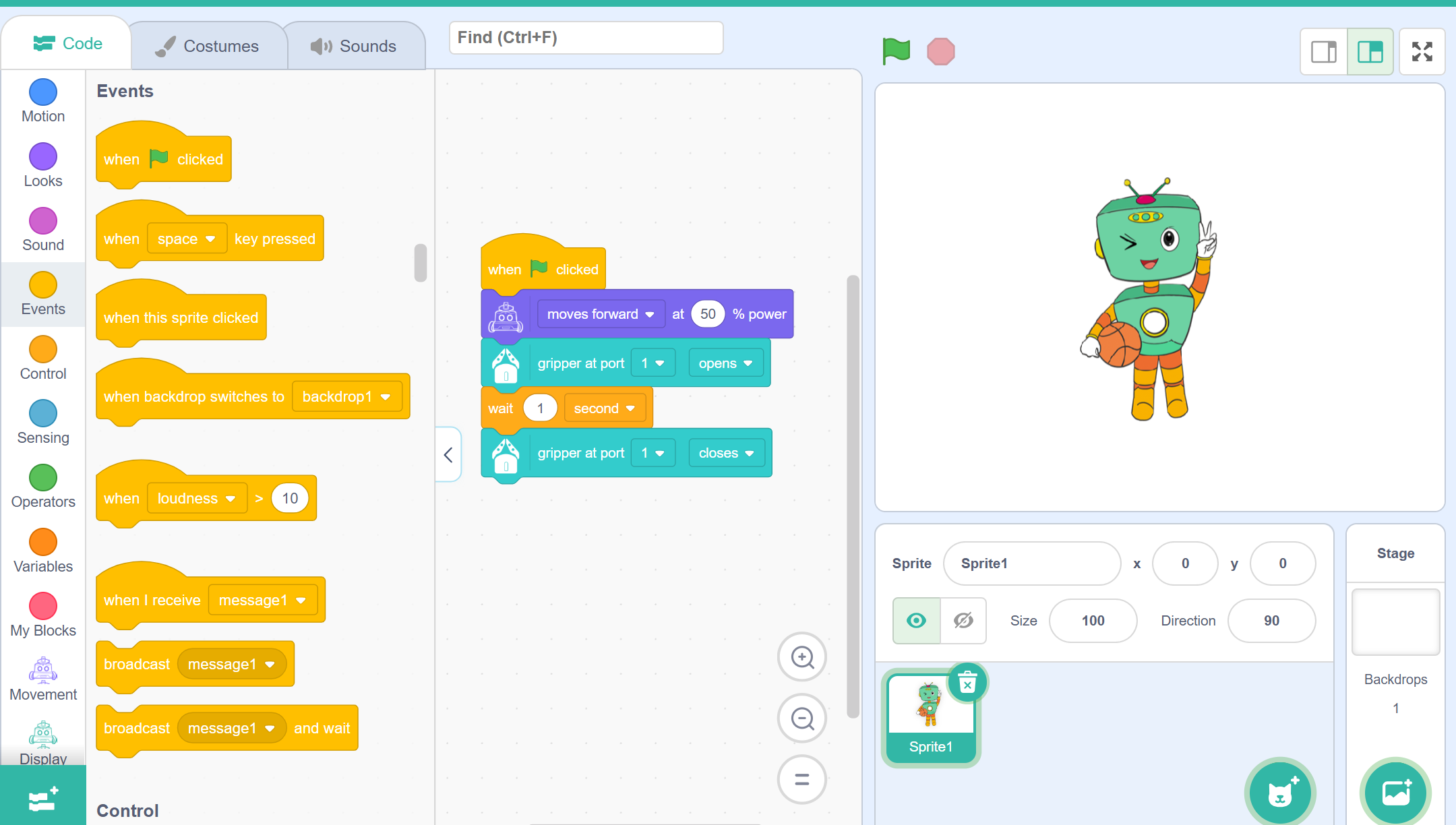
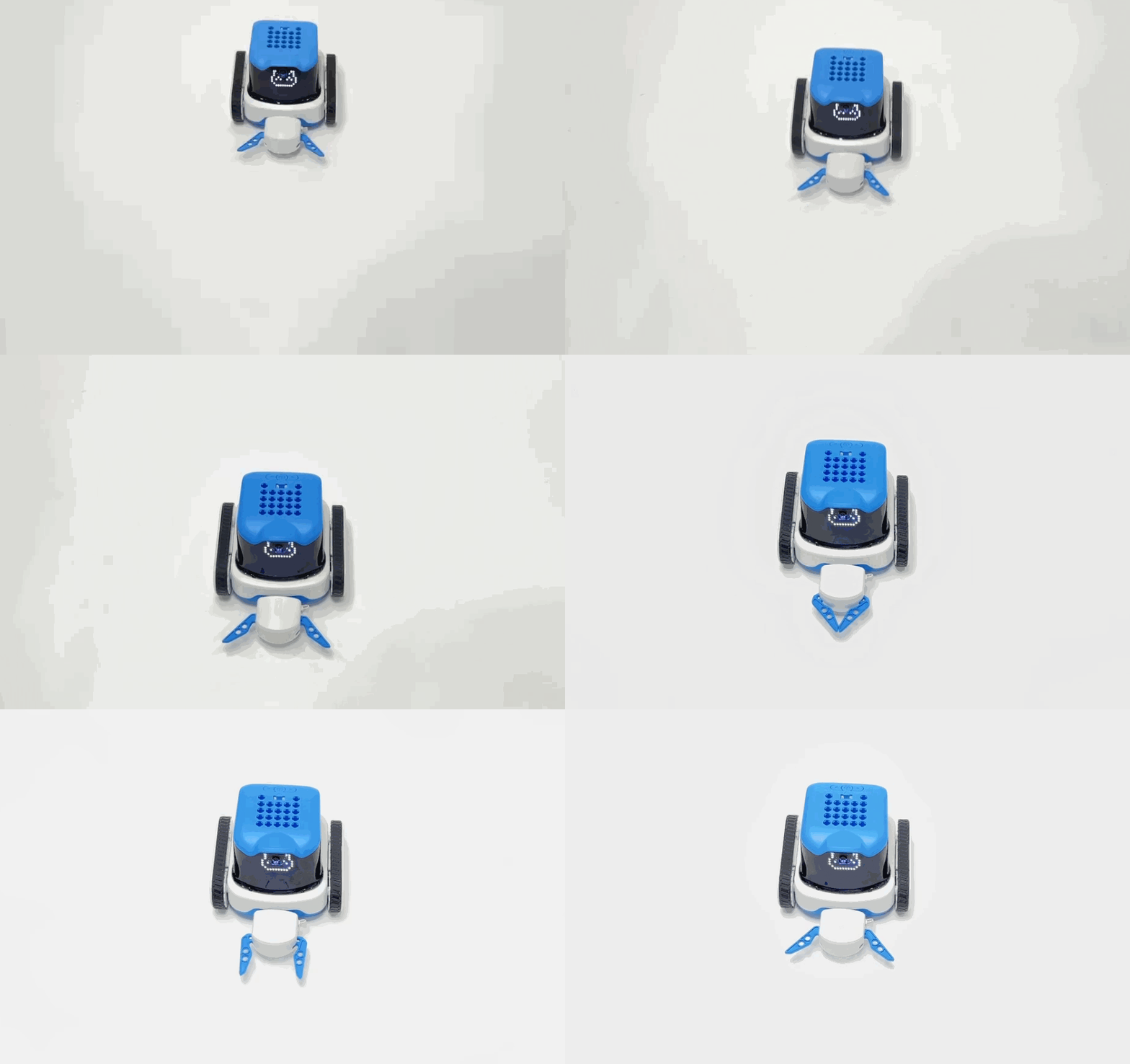
Using AP mode, ICRobot connects to the PC and moves forward at full power for 1 second, then activates its robotic gripper once.
Preparation
|
|
|
|---|---|---|
A computer (Windows/macOS) |
ICreate Code |
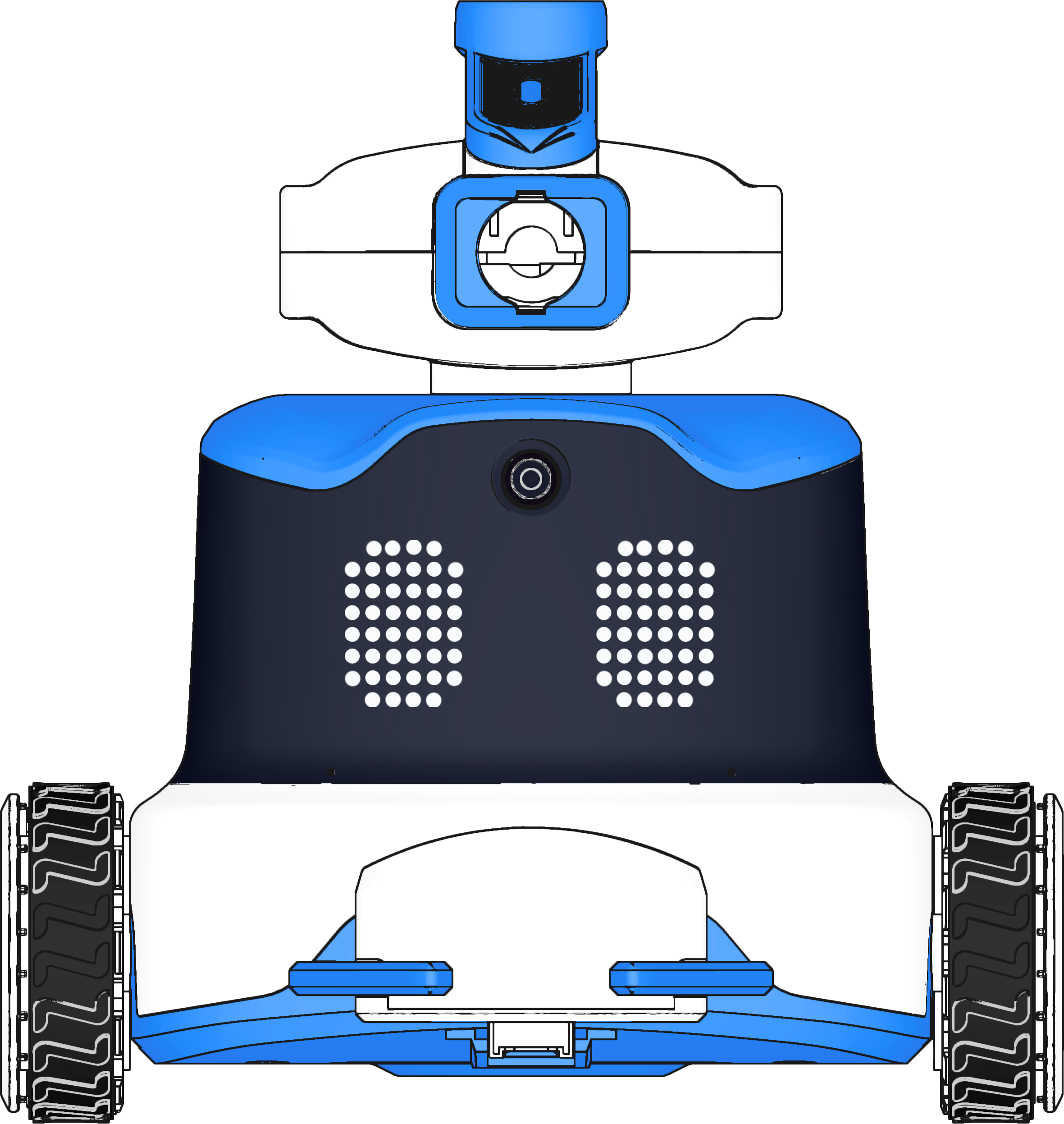
ICRobot |
Steps
|
|
|---|---|
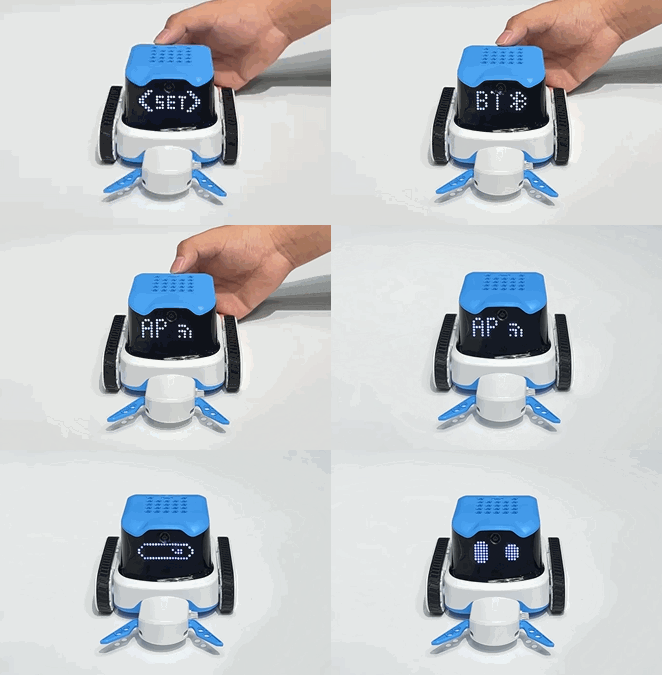
Step 1. Power on ICRobot and switch to AP mode via the SET menu. |
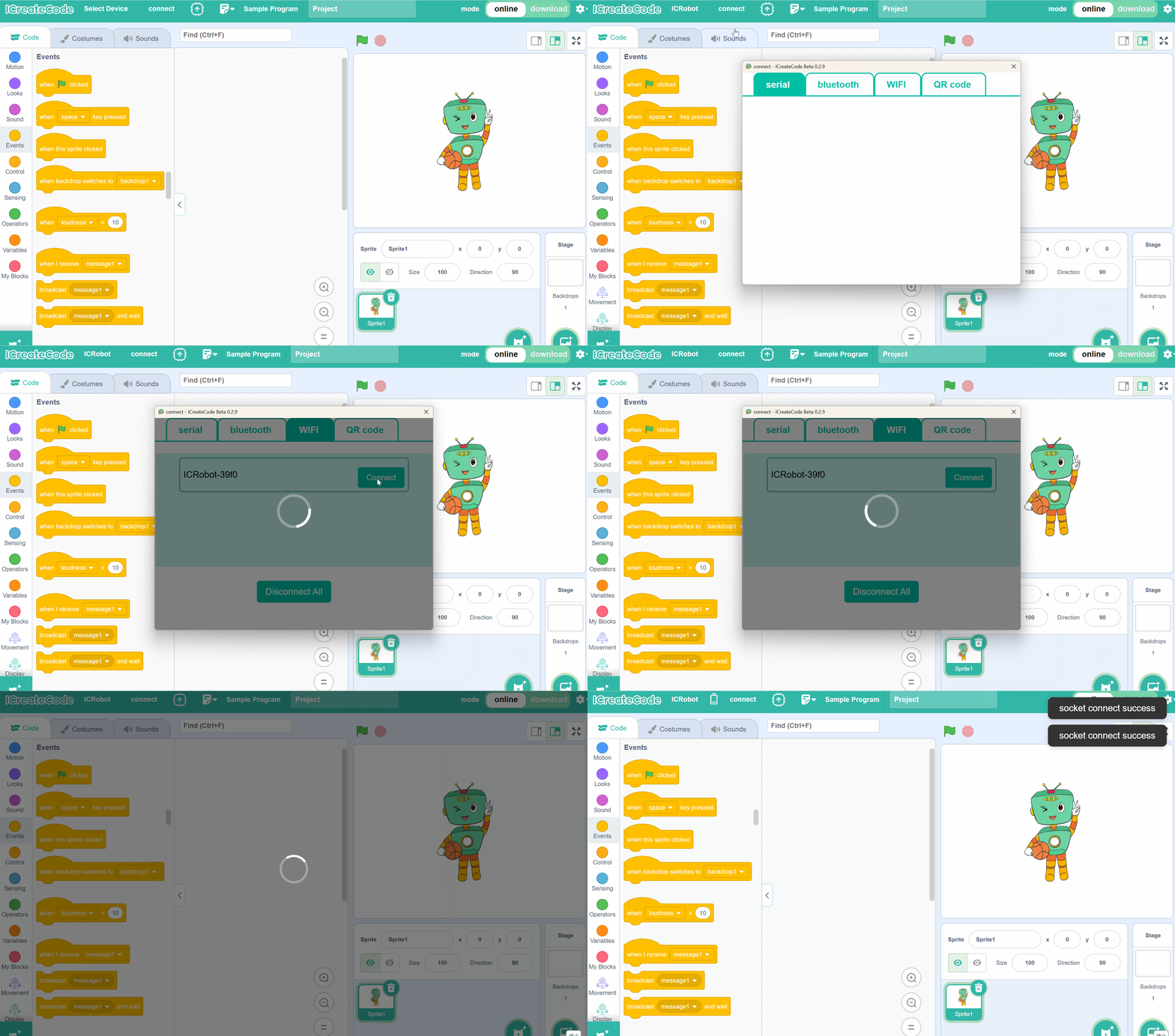
Step 2. Open the programming software ICreate Code. |
|
|
Step 3. After the connection is successful, program the target content. |
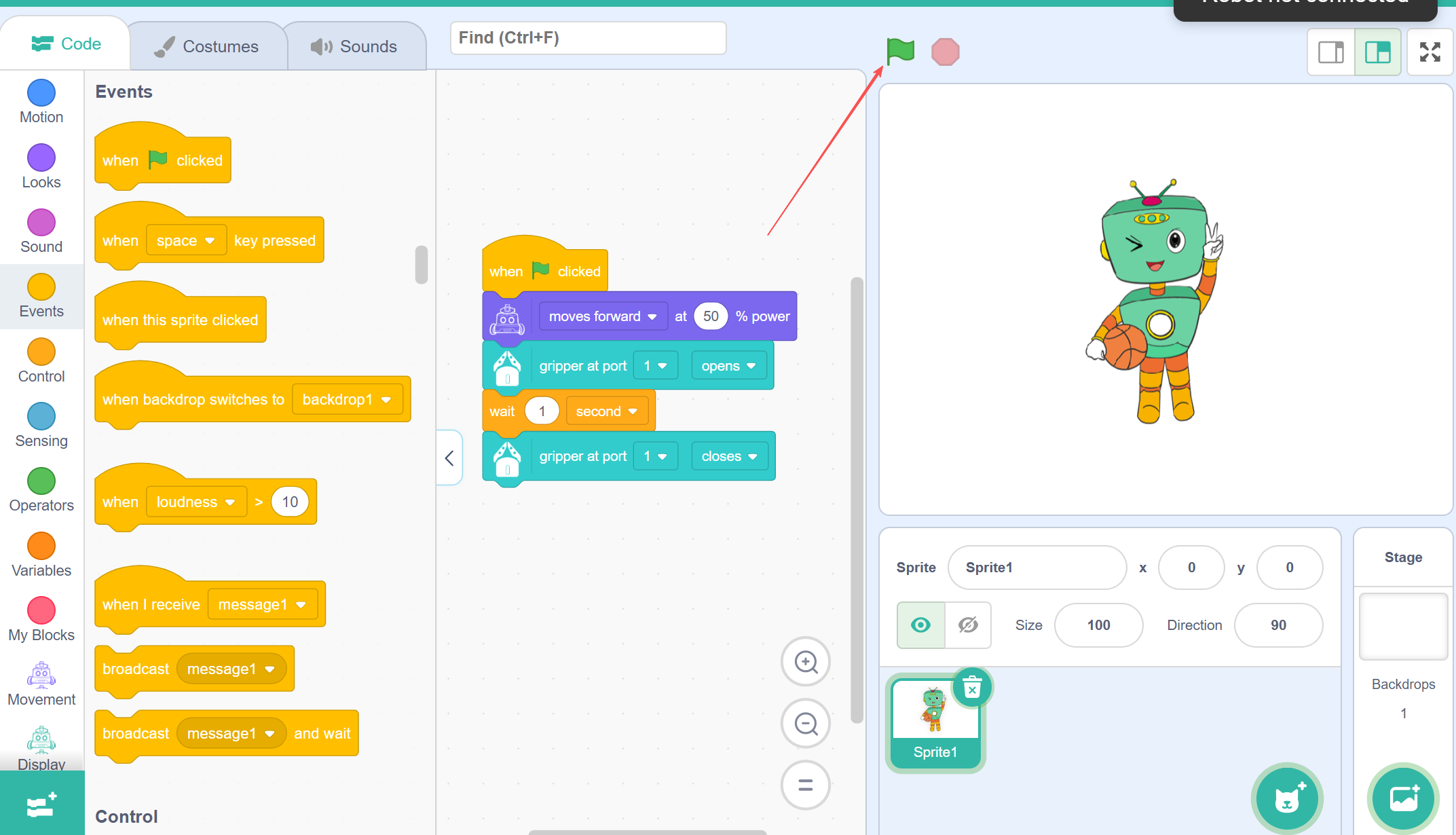
Step 4. Click the green flag to run the program and observe the results. |
Demonstration
Download Mode
Usage Introduction
The programming content can be downloaded to the ICRobot and executed on the robot. The download steps are as follows:
In the software, confirm the target download slot/location for the program.
Download the program to the built-in program storage of Robot Car 1–5.
Based on the program content, control the robot to execute the corresponding action commands.
Steps
|
|
|---|---|
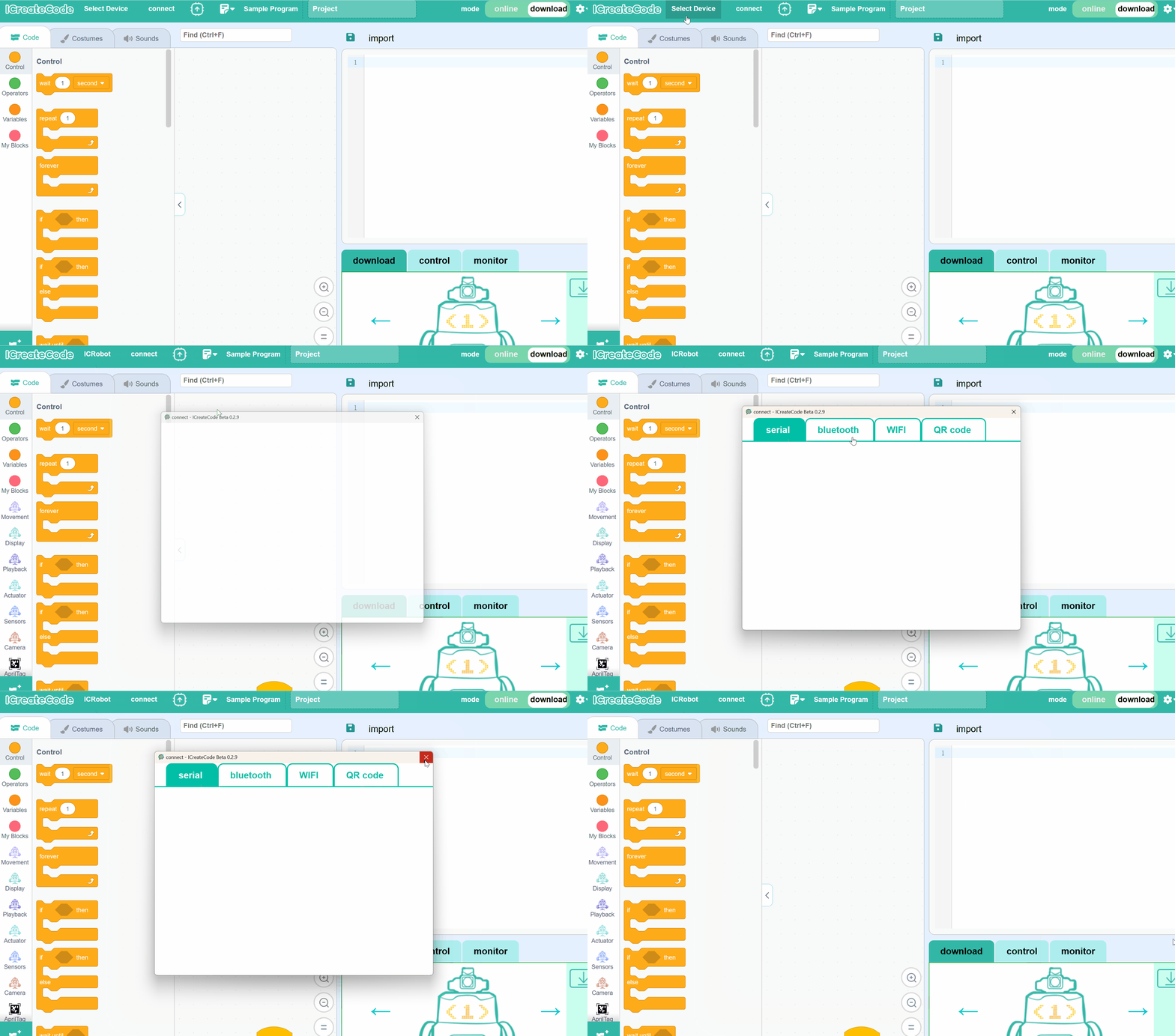
Step 1. After both the ICRobot and the programming software are powered on, switch the |
Step 2. Once the selection is successful, the Block Commands panel will automatically load |
|
|
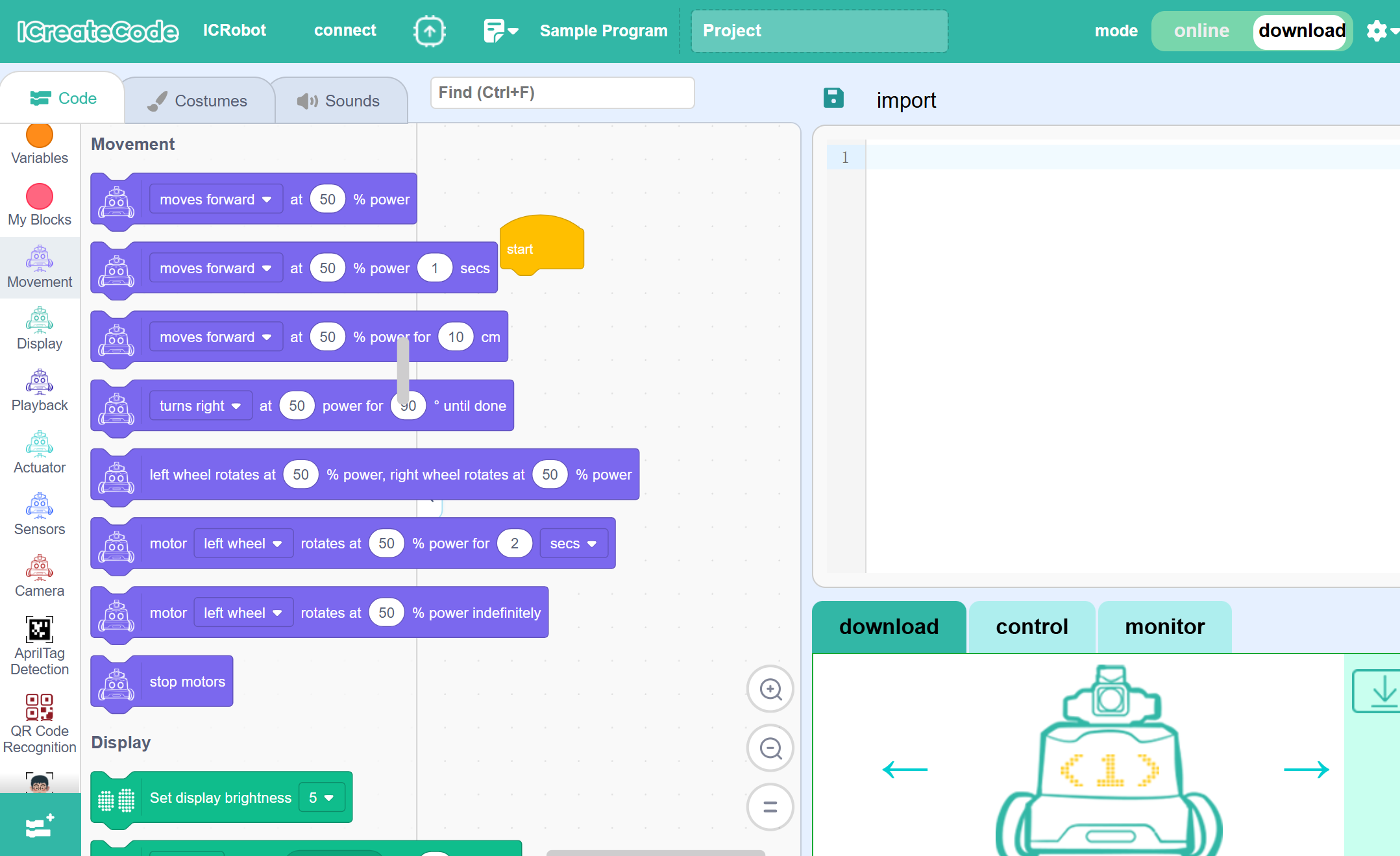
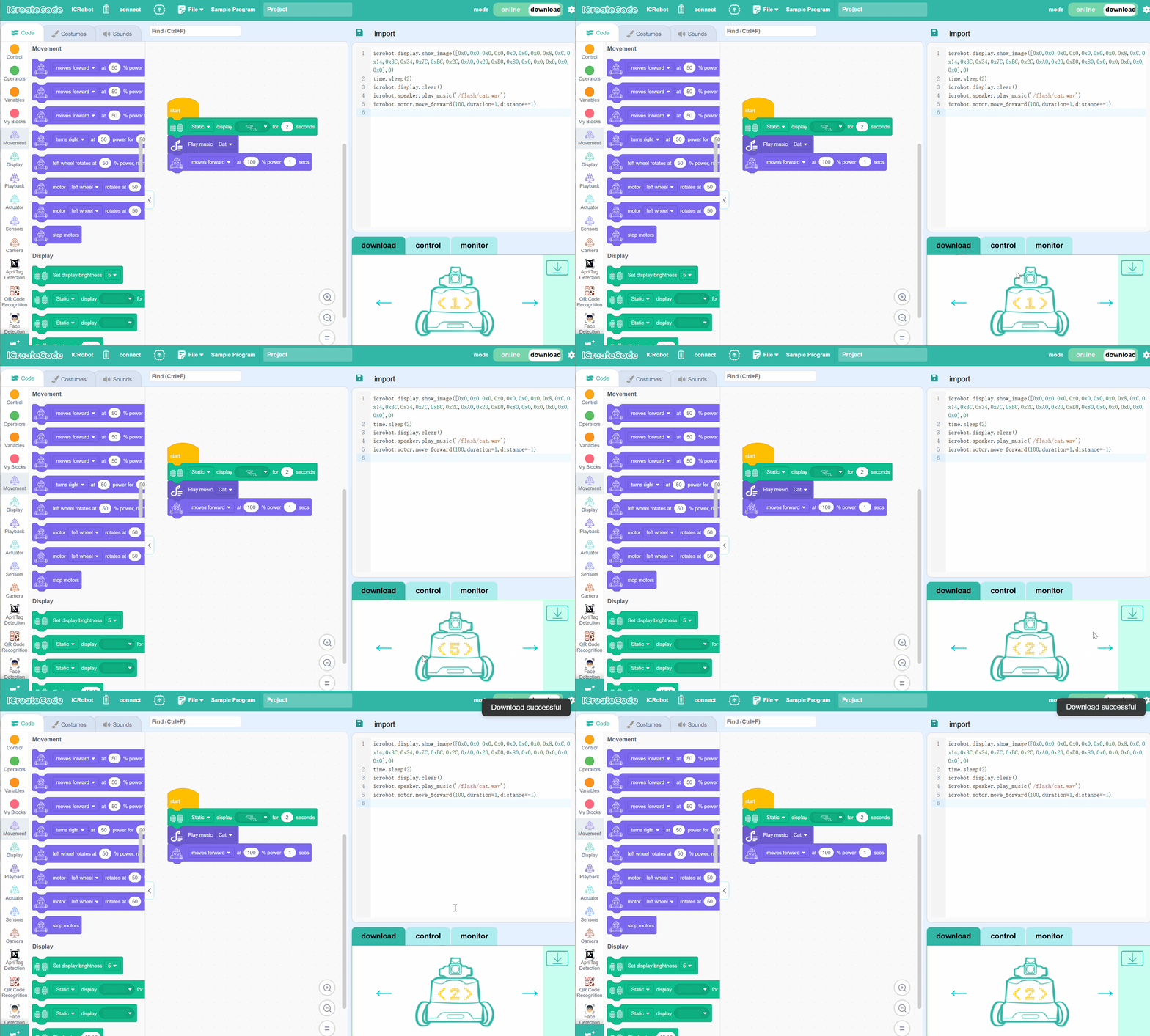
Step 3. Drag the command blocks into the Coding Area to create the program. While dragging |
Step 4. After completing the programming, click the Download option in the Hardware |
Example
Scenario
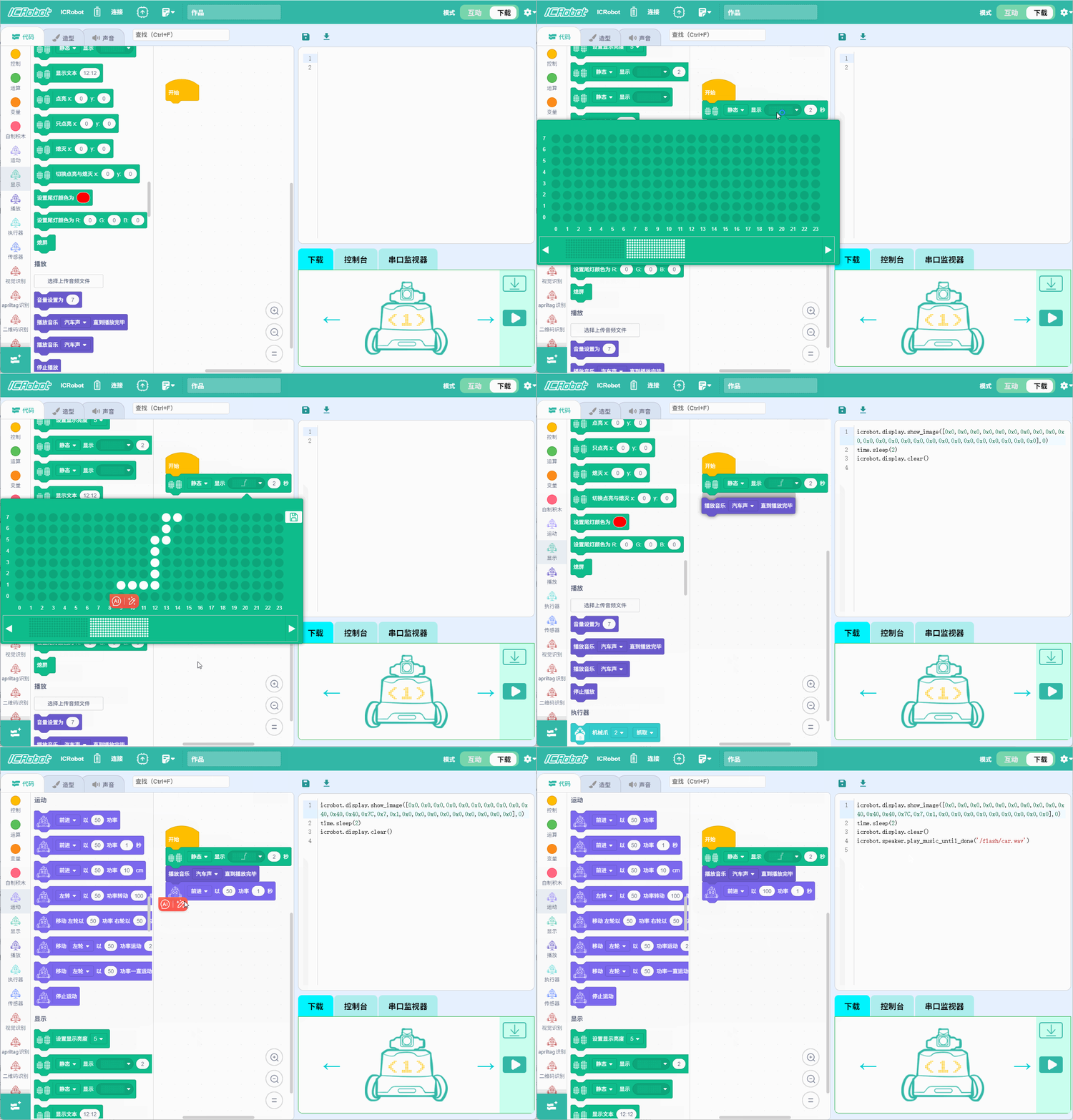
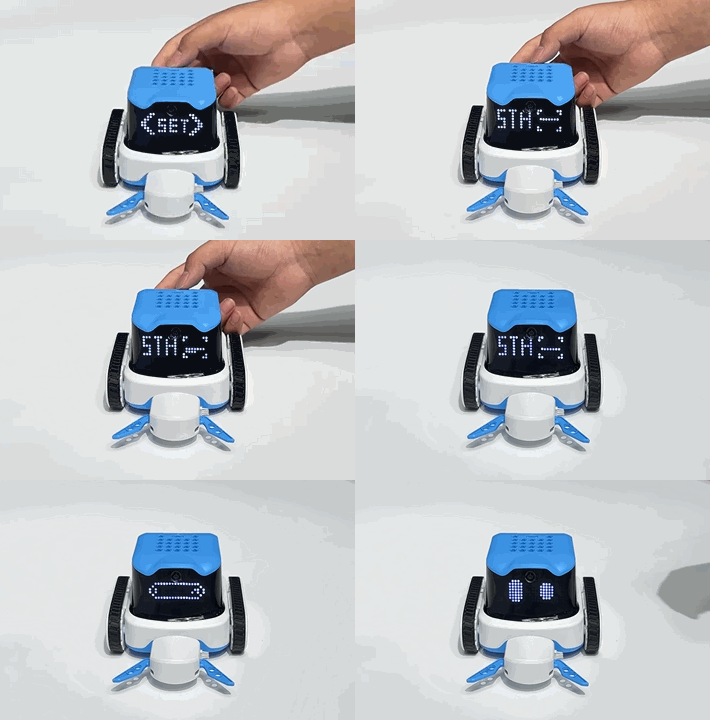
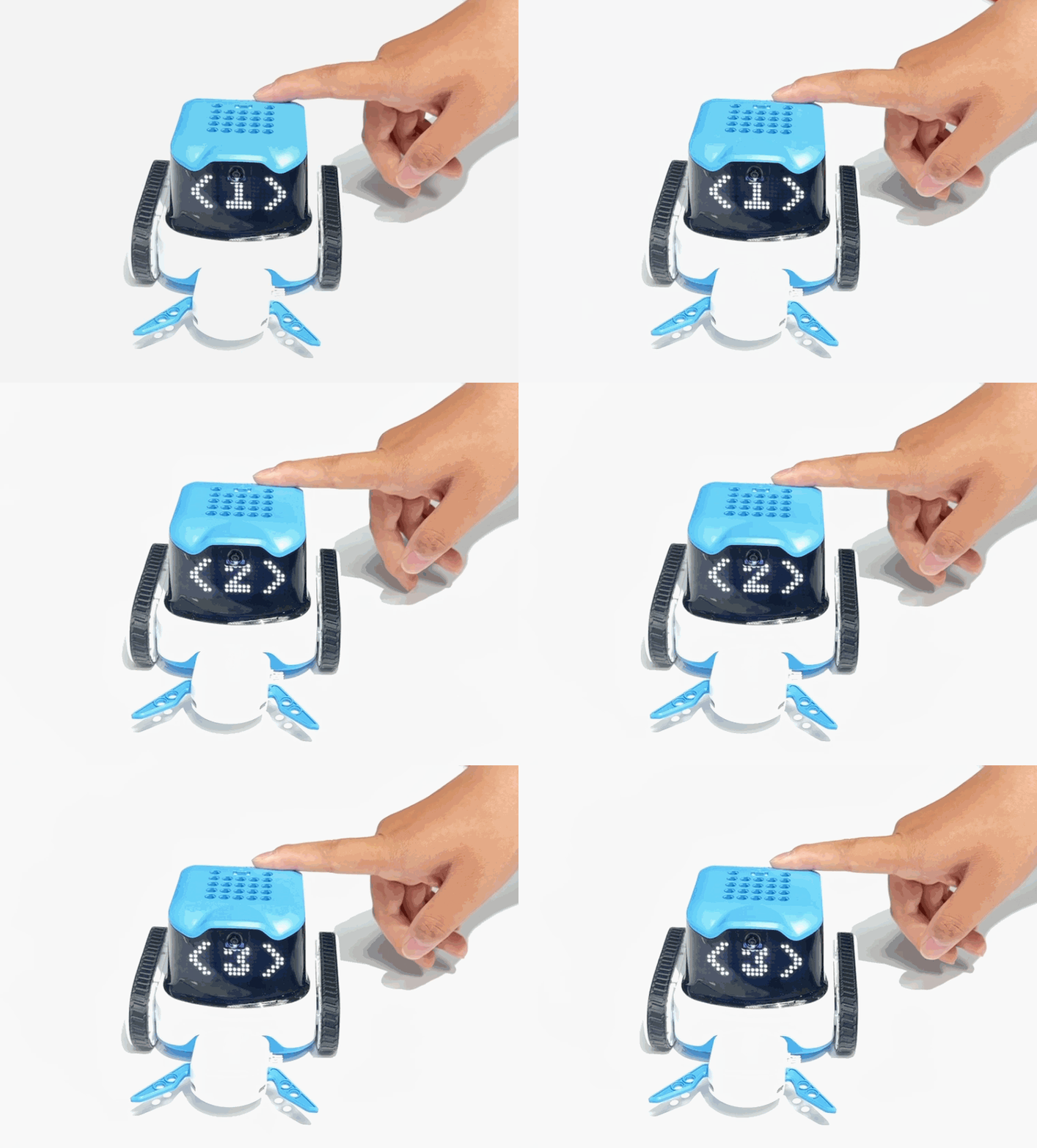
The ICRobot connects to the PC via STA Mode, making the robot move forward at maximum power for 1 second. After that, the display shows the custom dot matrix effect. The program content is downloaded to the built-in program storage at position 3.
Preparation
|
|
|
|---|---|---|
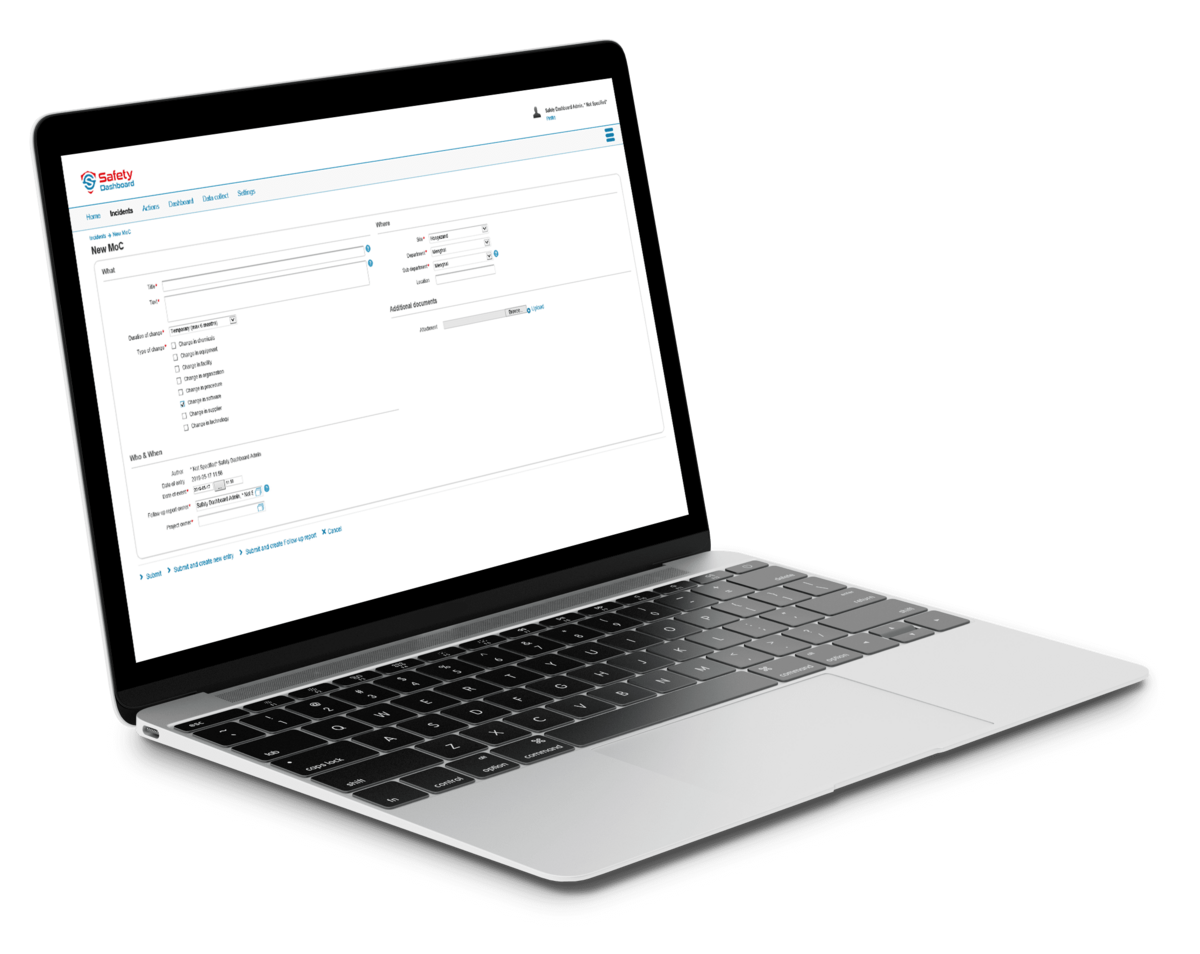
A computer (Windows/macOS) |
ICreate Code |
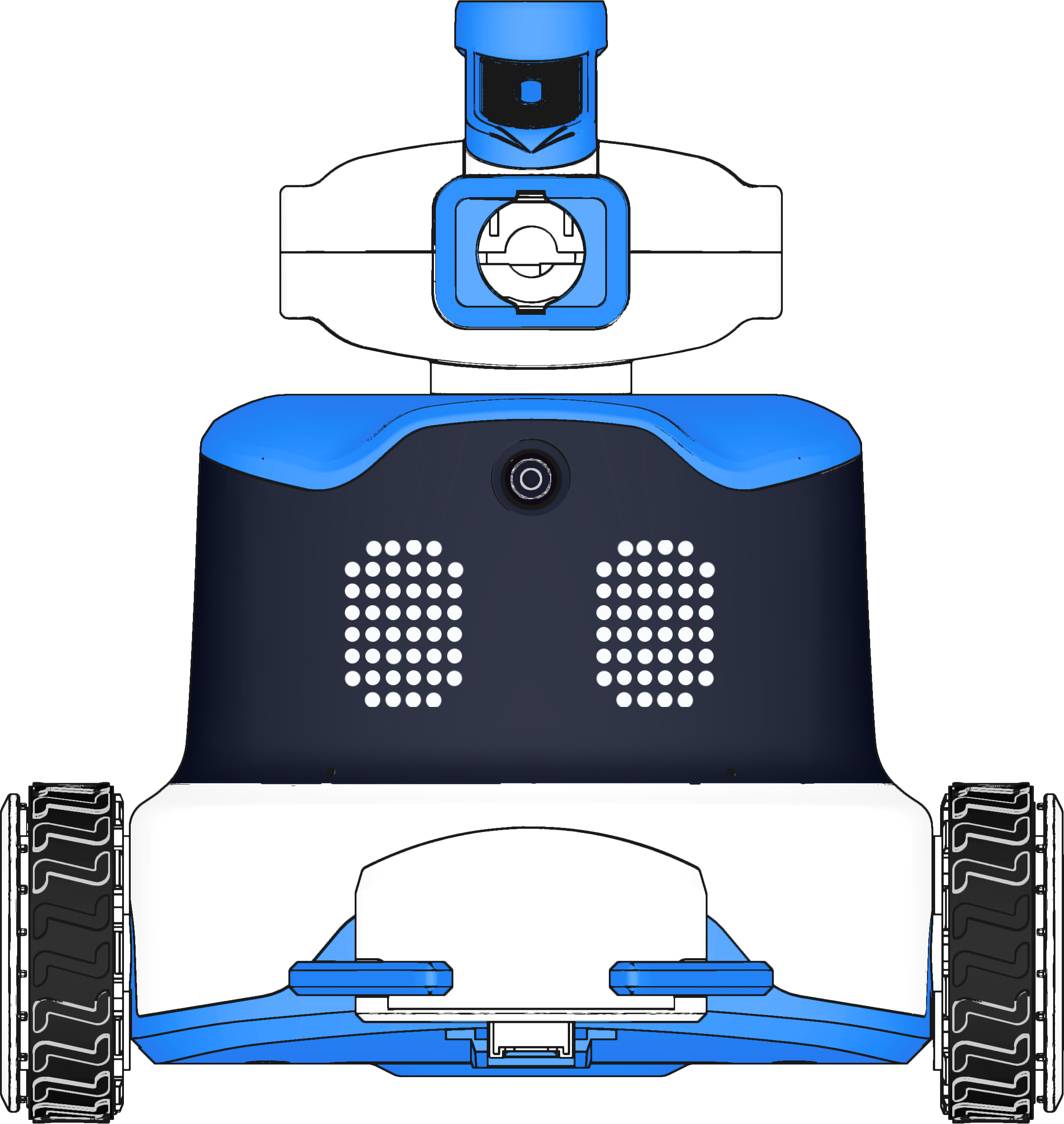
ICRobot |
Steps
|
|
|---|---|
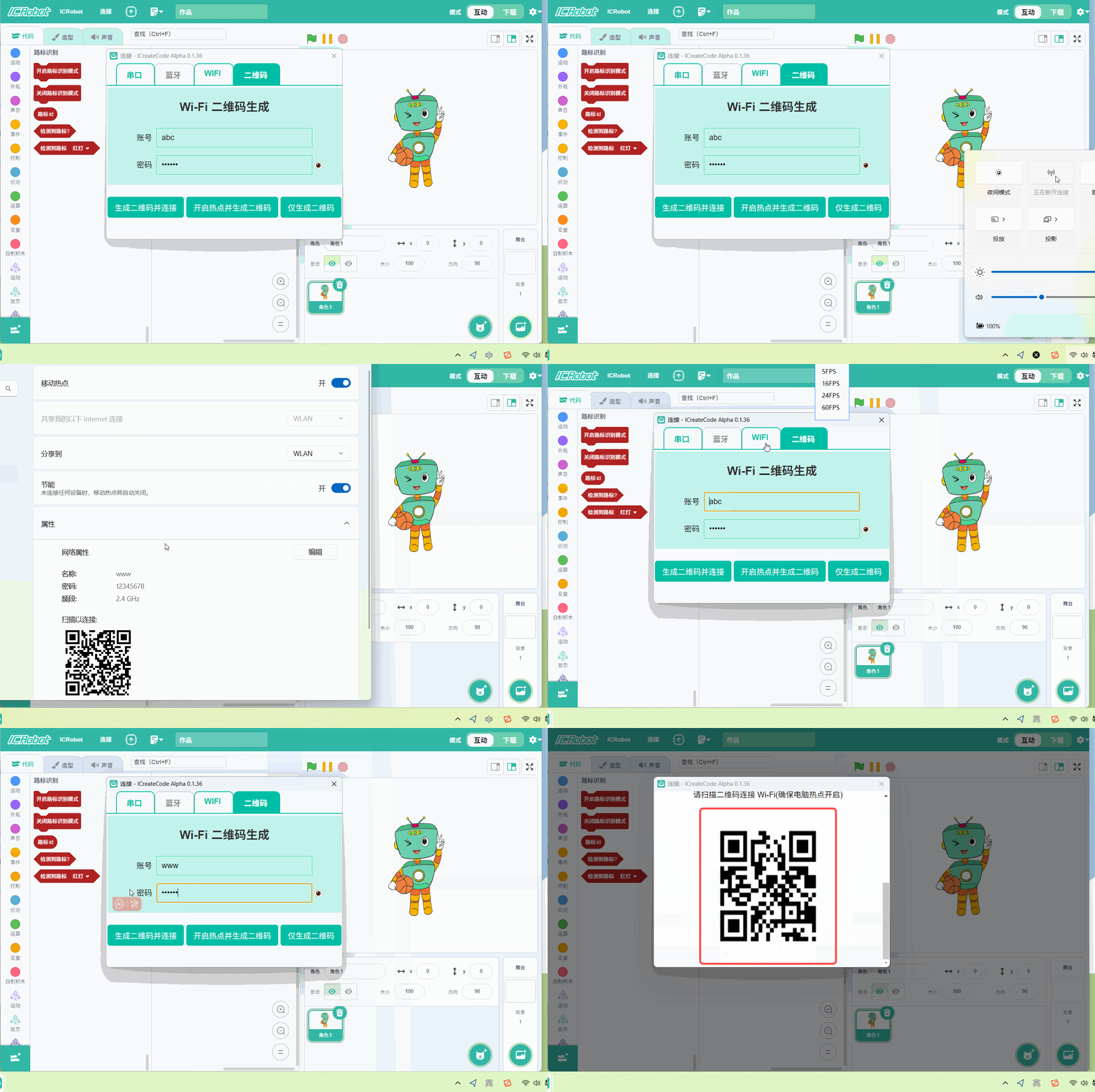
Step 1. Power on ICRobot. Switch to SET Mode, then select STA Mode. |
Step 2. Open the programming software ICreate Code, and select the STA connection method in the software to establish the connection. |
|
|
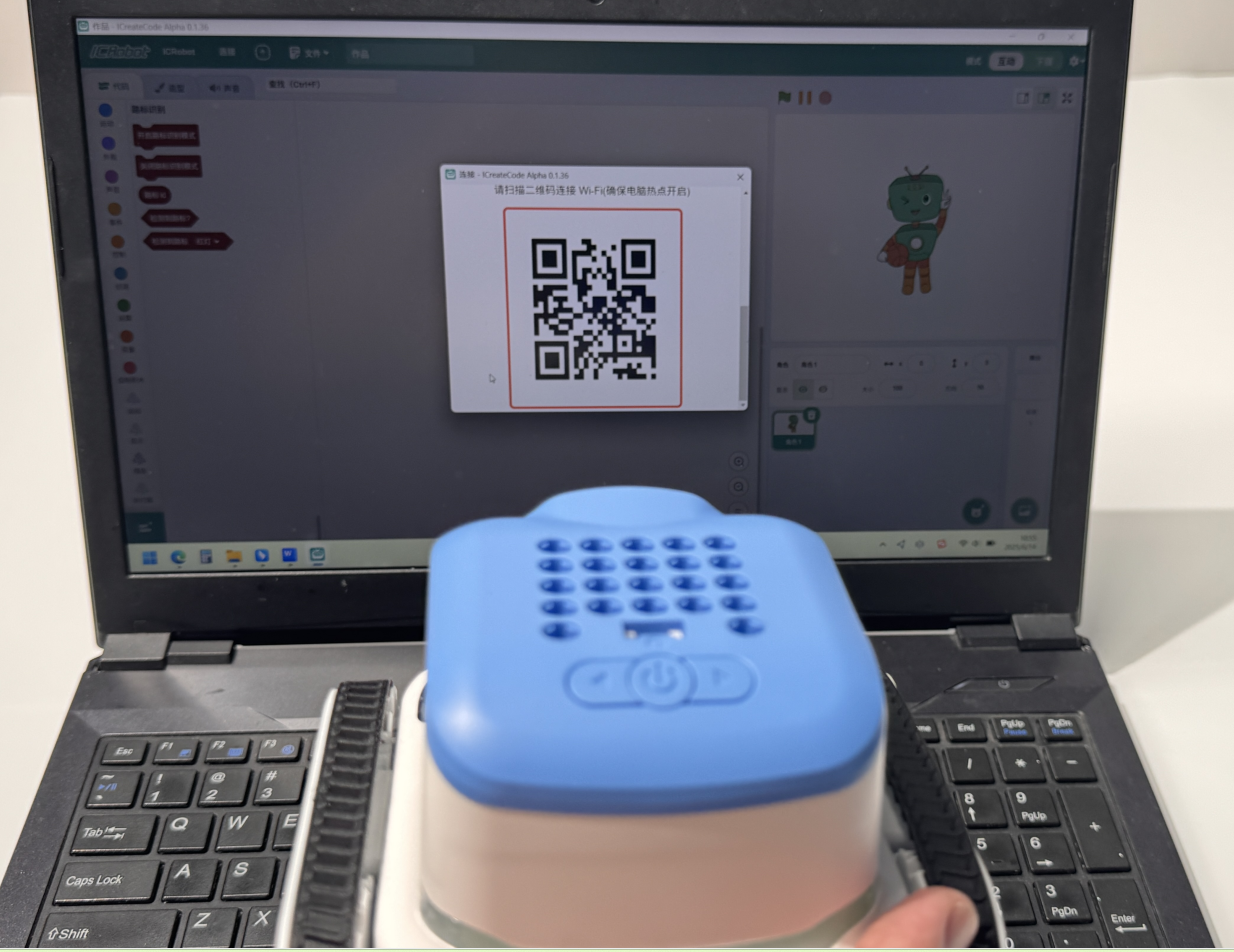
Step 3. Point the ICRobot camera at the QR code on the screen to scan and connect. Once connected, a message will appear saying |
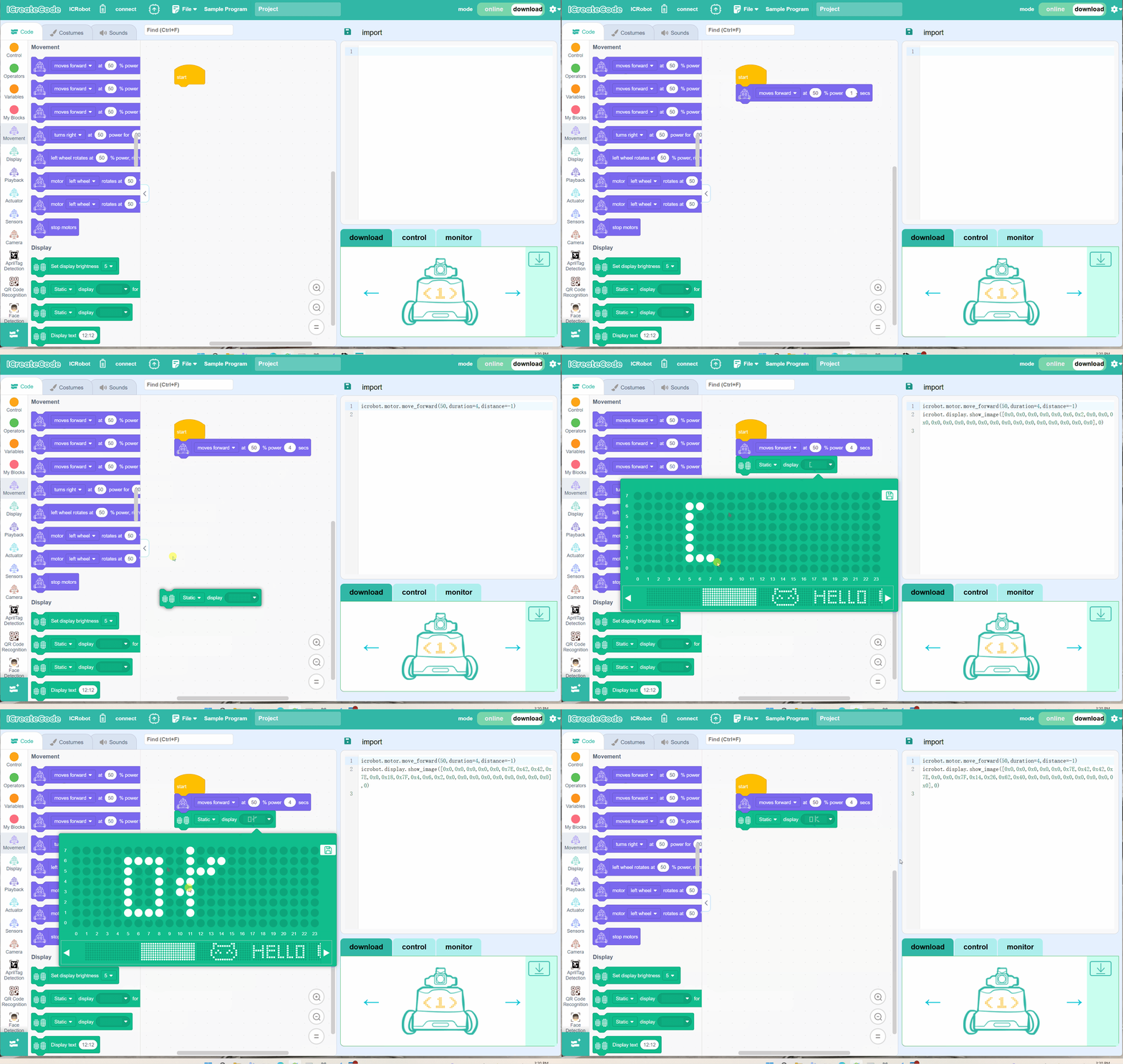
Step 4. After a successful connection, proceed to program the target content. |
|
|
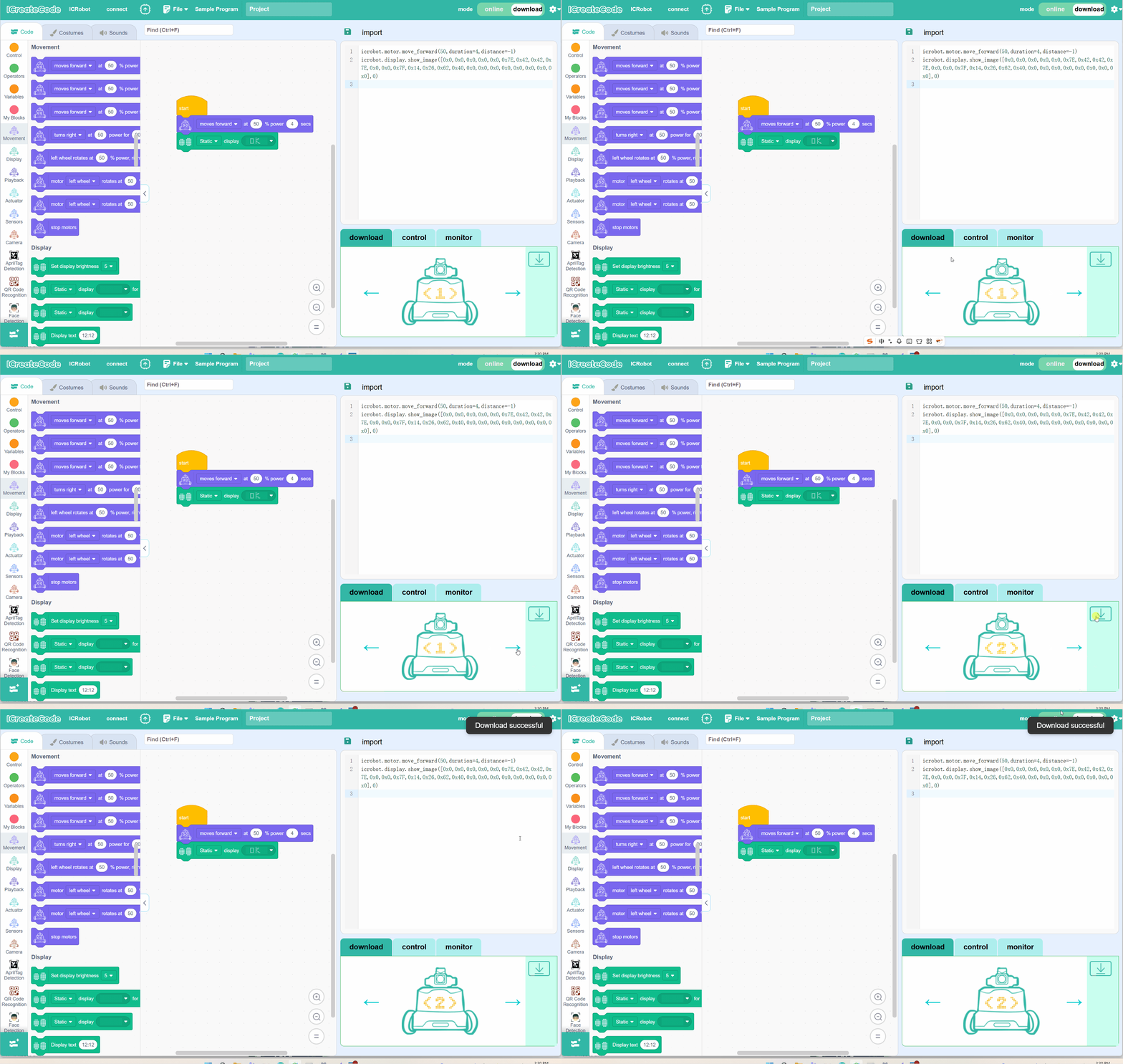
Step 5. After selecting position 3, click Download. Once the download is complete, a message will appear saying “Download Successful”. |
Step 6. After selecting position 3, click Download. Once the download is complete, a message will appear saying “Download Successful”. |
Effect display