Bluetooth Mode (BT Mode)
Preparation
|
|
|
|---|---|---|
A computer |
ICreateCode |
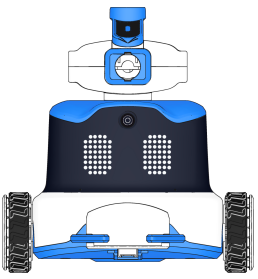
ICRobot |
Steps
_Note: Ensure that Bluetooth is enabled on the computer system. _
|
|
|---|---|
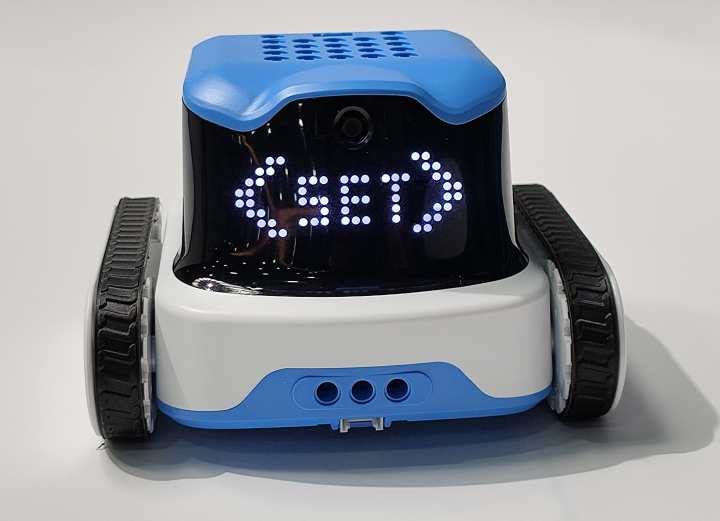
Step 1. Power on the robot, and use the left button to switch the robot’s status. When the screen displays |
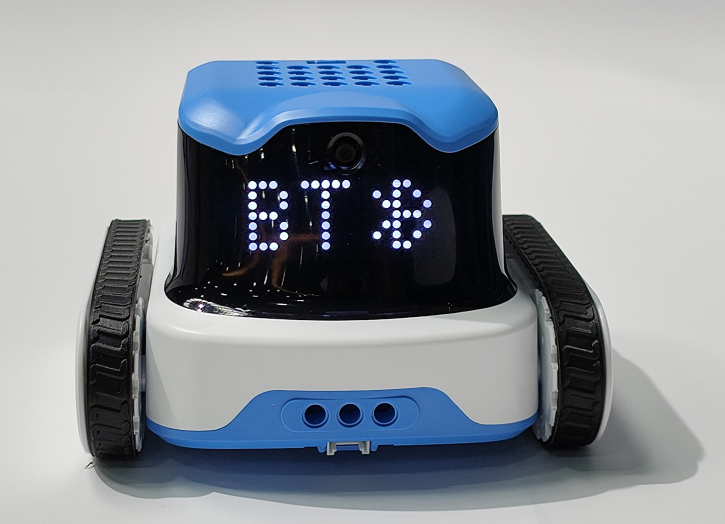
Step 2. In the menu, use the left and right buttons to select the connection mode. Find BT, then press the middle button to confirm and switch to BT connection mode. |
|
|
Step 3. No manual operation is required; the ICRobot will announce the following: |
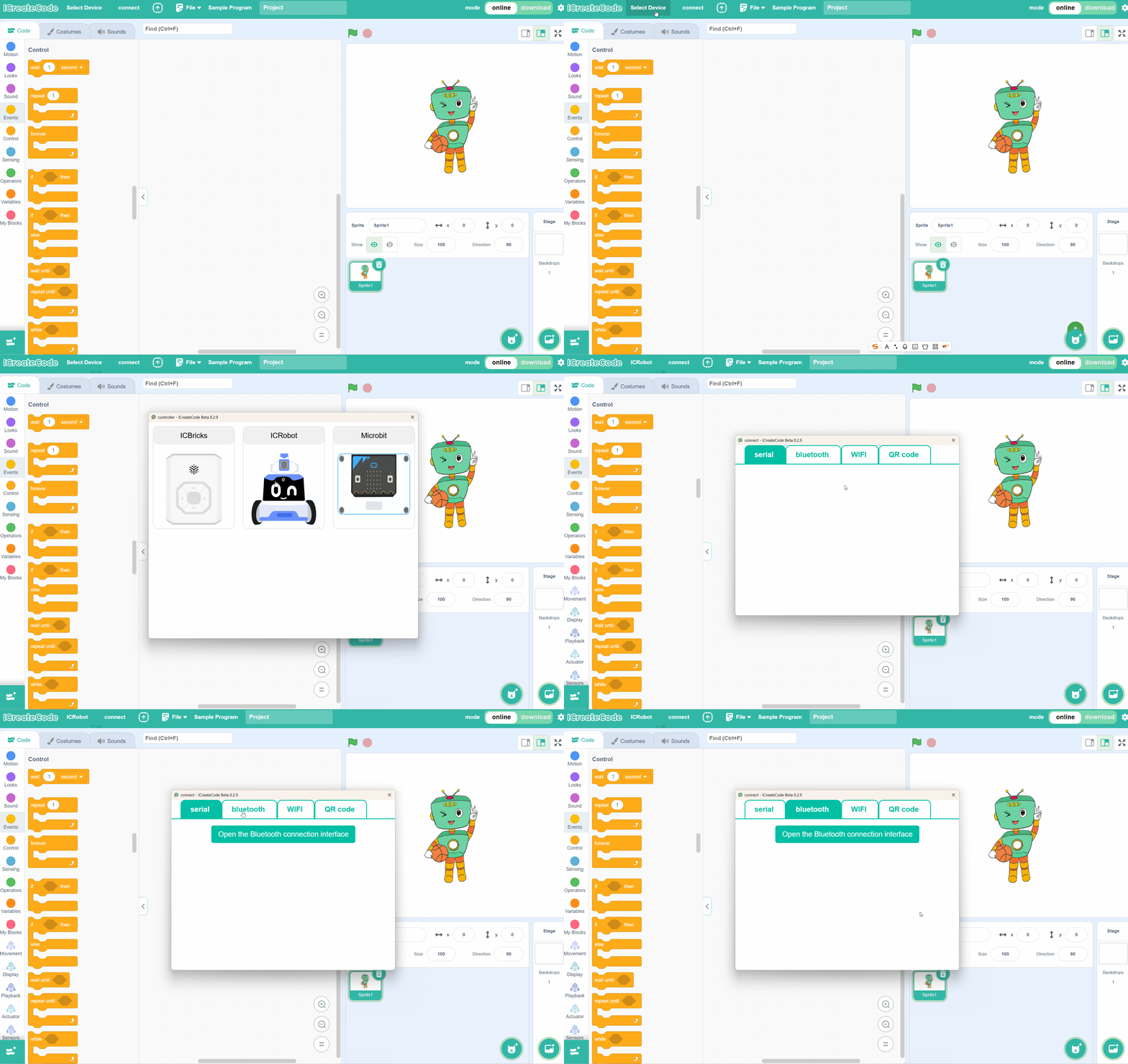
Step 4. Open the programming software on the computer, click “Select Device”, and choose ICRobot. |
|
|
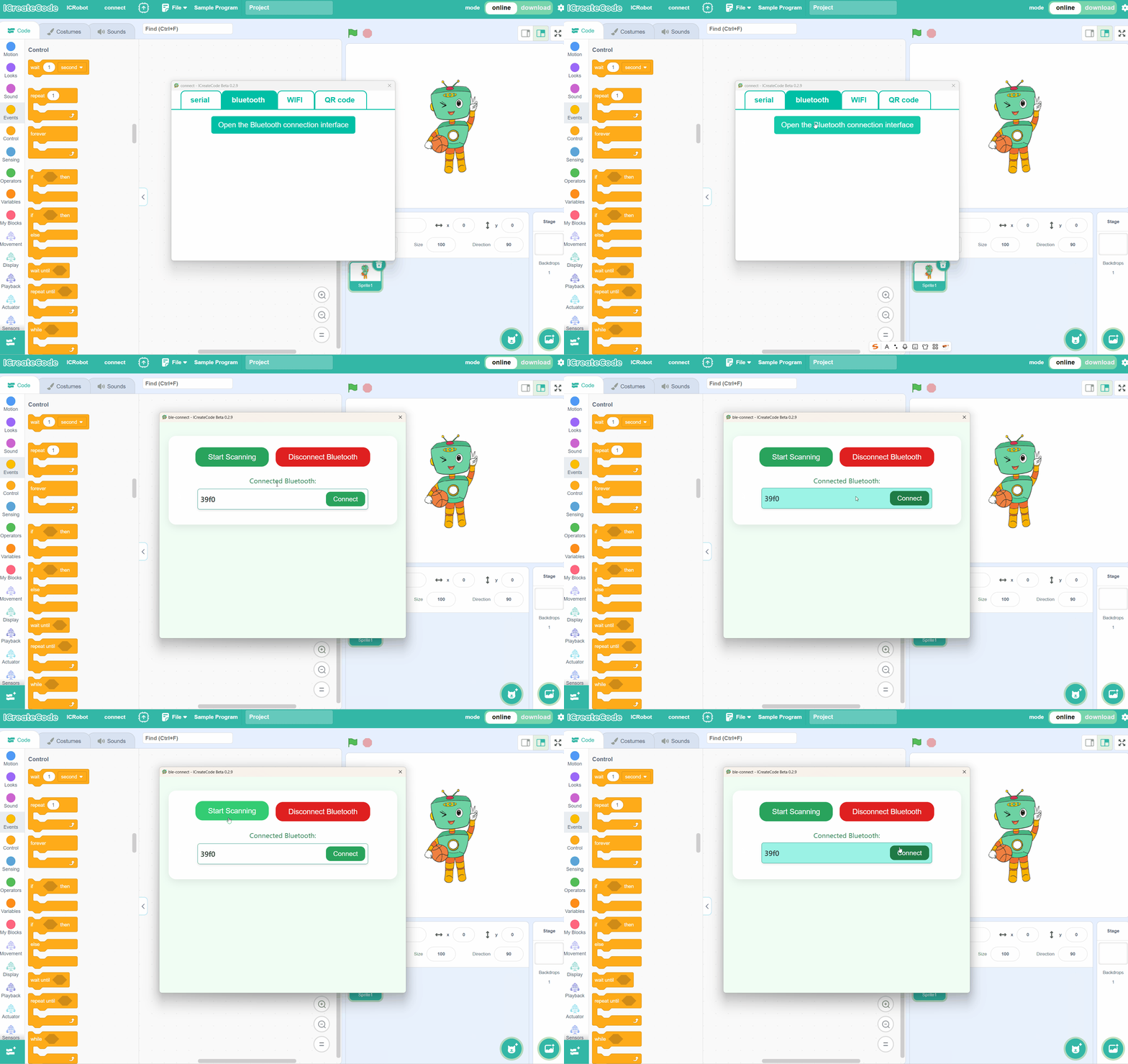
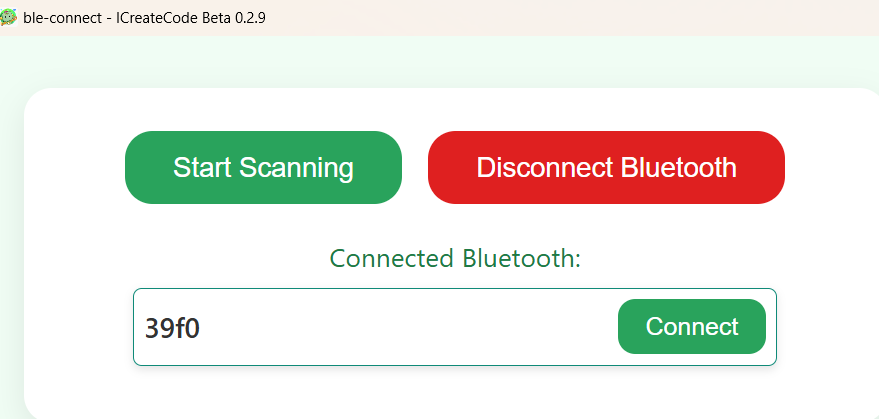
Step 5. Select the Bluetooth connection method, and then click “Start Scanning”. From the refreshed Bluetooth list, |
Once the connection is successful, the programming software will display the connection interface, and the robot will announce |

__