Interface Guide
Title Bar

No. |
Name |
Function Description |
|---|---|---|
① |
Software Name |
Displays the current software name and version number |
Toolbar

No. |
Name |
Function Description |
|---|---|---|
① |
Select Device |
Select the type of device you want to use, including ICBricks, ICRobot, and micro:bit. |
② |
Connect |
Select the connection method, including Serial Port, Bluetooth, Wi-Fi, and QR Code. |
③ |
Firmware Burning |
Select and flash different firmware versions, including the Standard Firmware and the Xiaozhi Firmware versions. |
④ |
File |
The drop-down menu provides three ways to open files: New Project, Open from Computer, and Save As. |
⑤ |
Sample Program |
Includes sample programs in SB3 and Python formats. After selecting any sample, the programming interface will automatically load the corresponding content. |
⑥ |
Program |
Rename the current project. |
⑦ |
Mode |
Switch between Online Interactive Mode and Download Mode. |
⑧ |
Settings |
Configure language and theme color settings. |
⑨ |
Open AI Mode |
The AI conversation-based feature for generating building block code is currently in the testing phase and has not yet been officially released for use. |
Editing Interface
Online Mode
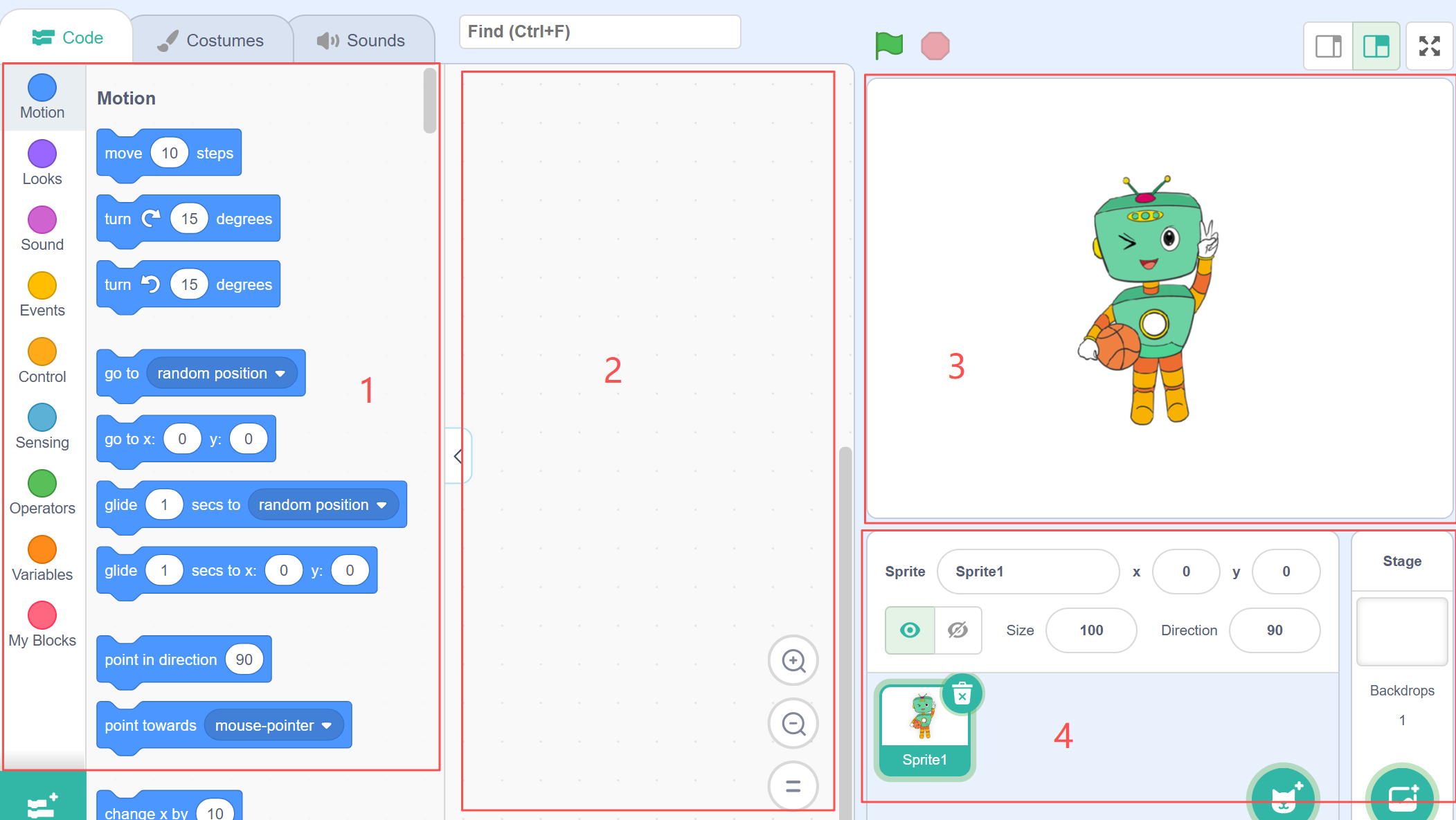
No. |
Name |
Function Description |
|---|---|---|
① |
Block Commands |
Used to select different categories of coding blocks and extensions. |
② |
Coding Area |
Drag block commands into this area to create and edit your program. |
③ |
Stage Area |
Displays the results/effects after the sprite has been programmed. |
④ |
Character Area |
Add/edit characters or background images for the stage |
Download Mode
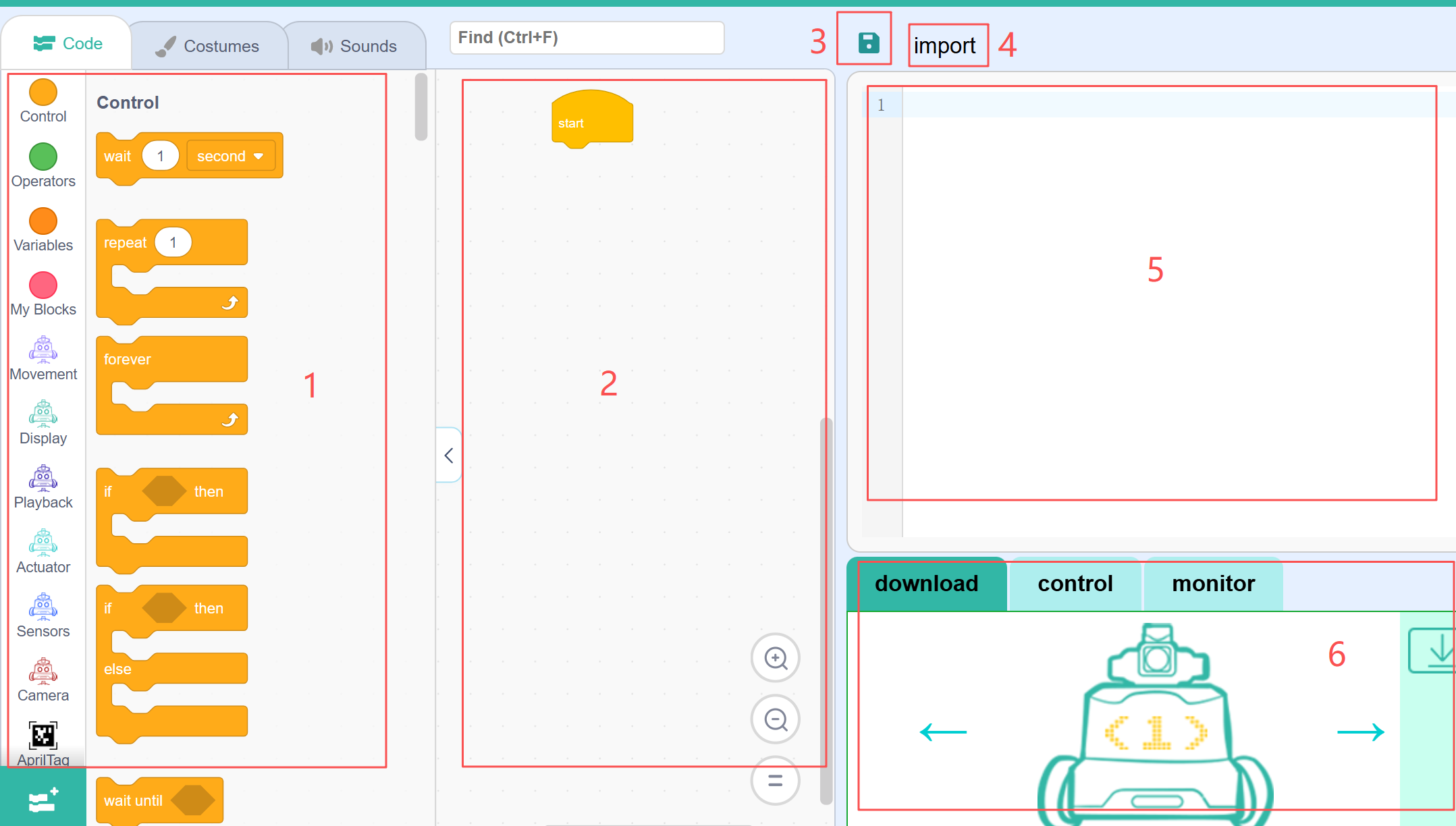
No. |
Name |
Function Description |
|---|---|---|
① |
Block Commands |
Used to select different categories of coding blocks and extensions. |
② |
Coding Area |
Drag block commands into this area to create and edit your program. |
③ |
Save |
Save the current project locally. |
④ |
Import |
Import an existing local file with the .py extension into the current project. |
⑤ |
Python Coding Area |
Displays the Python code corresponding to the blocks on the left. You can add, delete, and edit the code here. |
⑥ |
Hardware Control Panel |
+ Download: Upload the program to the ICRobot. |