Station Mode (STA)
Definition
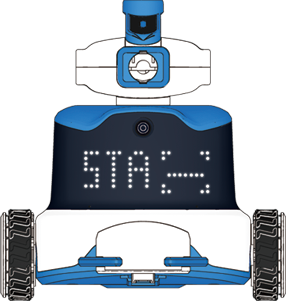
In STA Mode, the ICRobot connects to the computer’s mobile hotspot for wireless communication.
Preparation
|
|
|
|---|---|---|
A computer (Windows/macOS) |
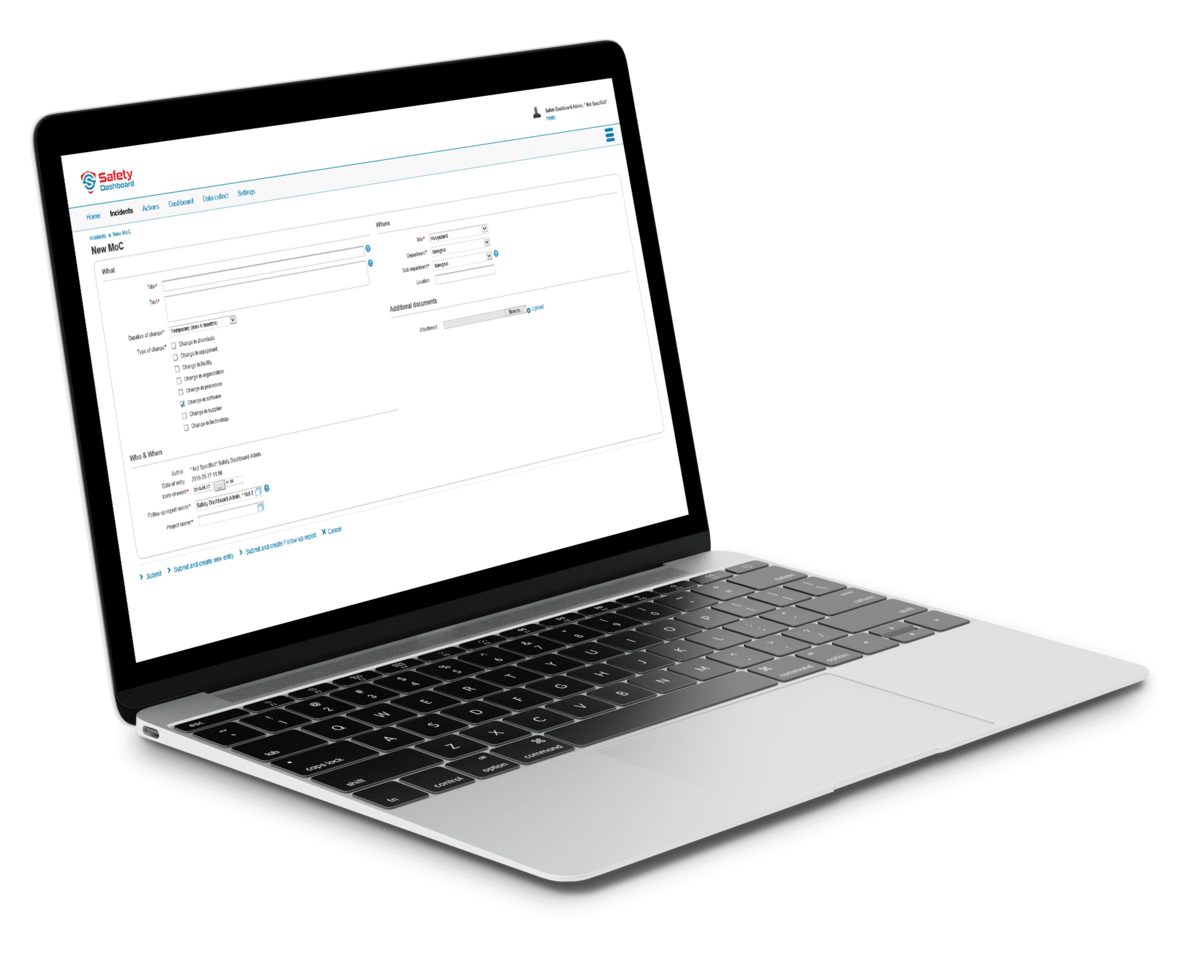
ICreateCode |
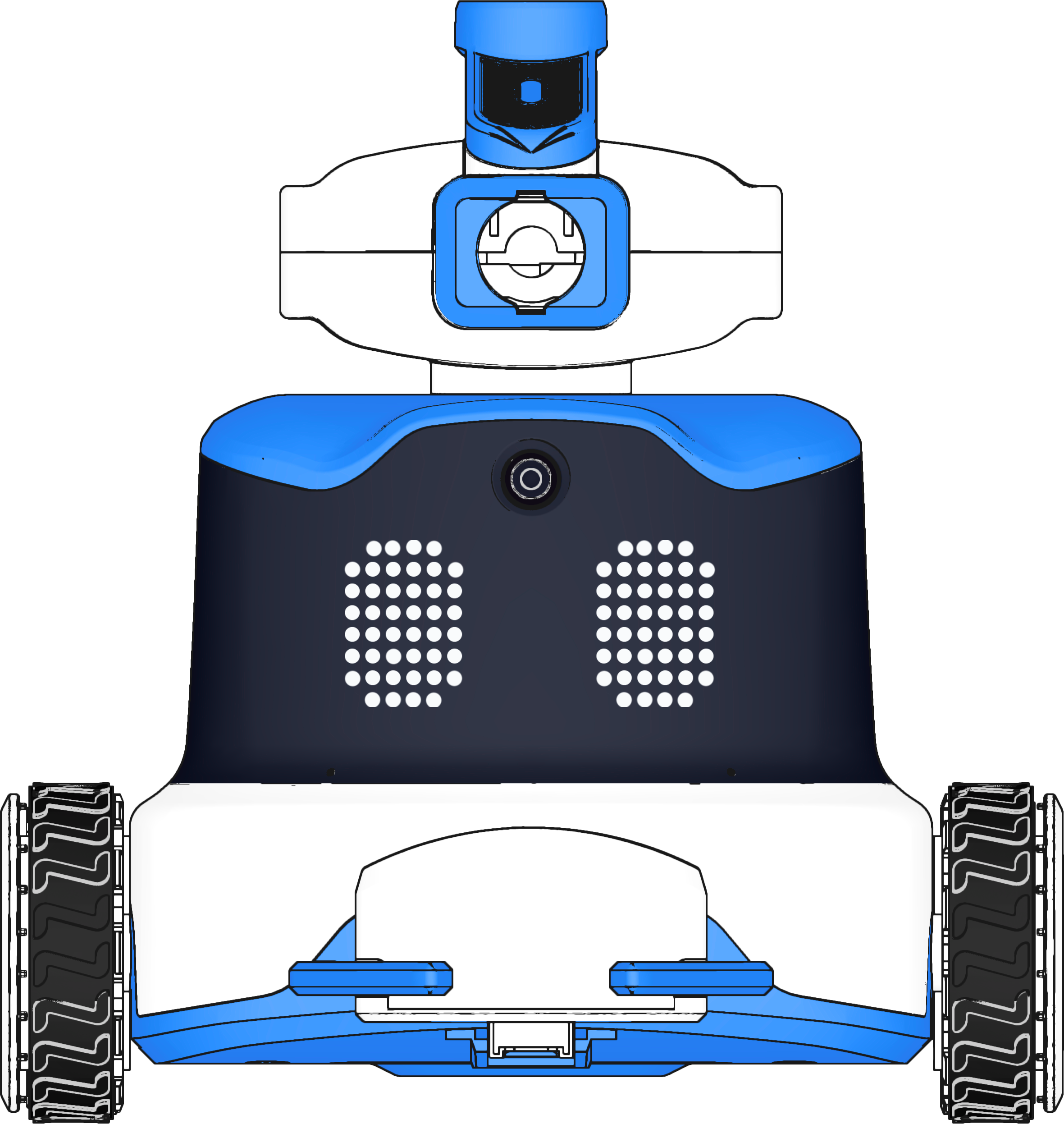
ICRobot |

Steps
|
|
|---|---|
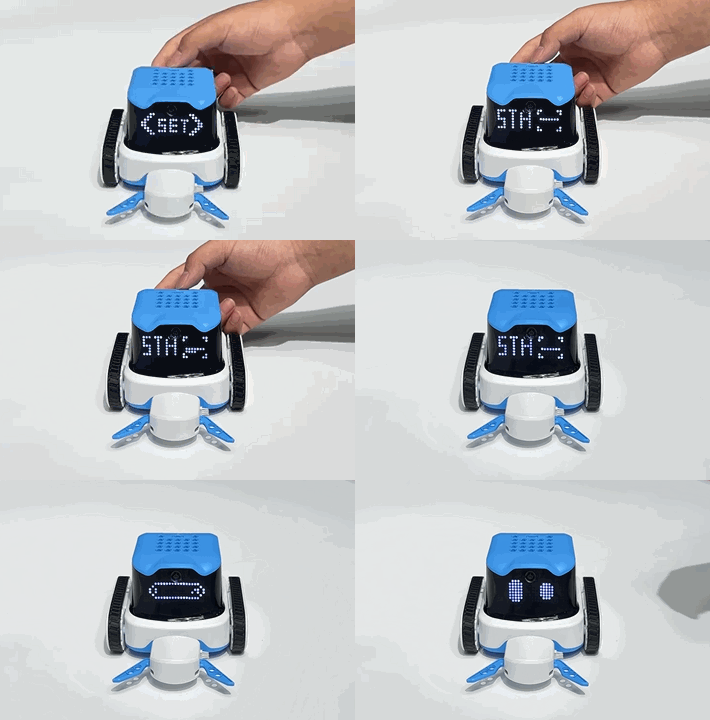
Step 1. After powering on, use the left button or right button to switch to SET mode, then press the power button to enter. |
Step 2. After switching to STA mode using the left button or right button, press the power button. At this point, the robot |
|
|
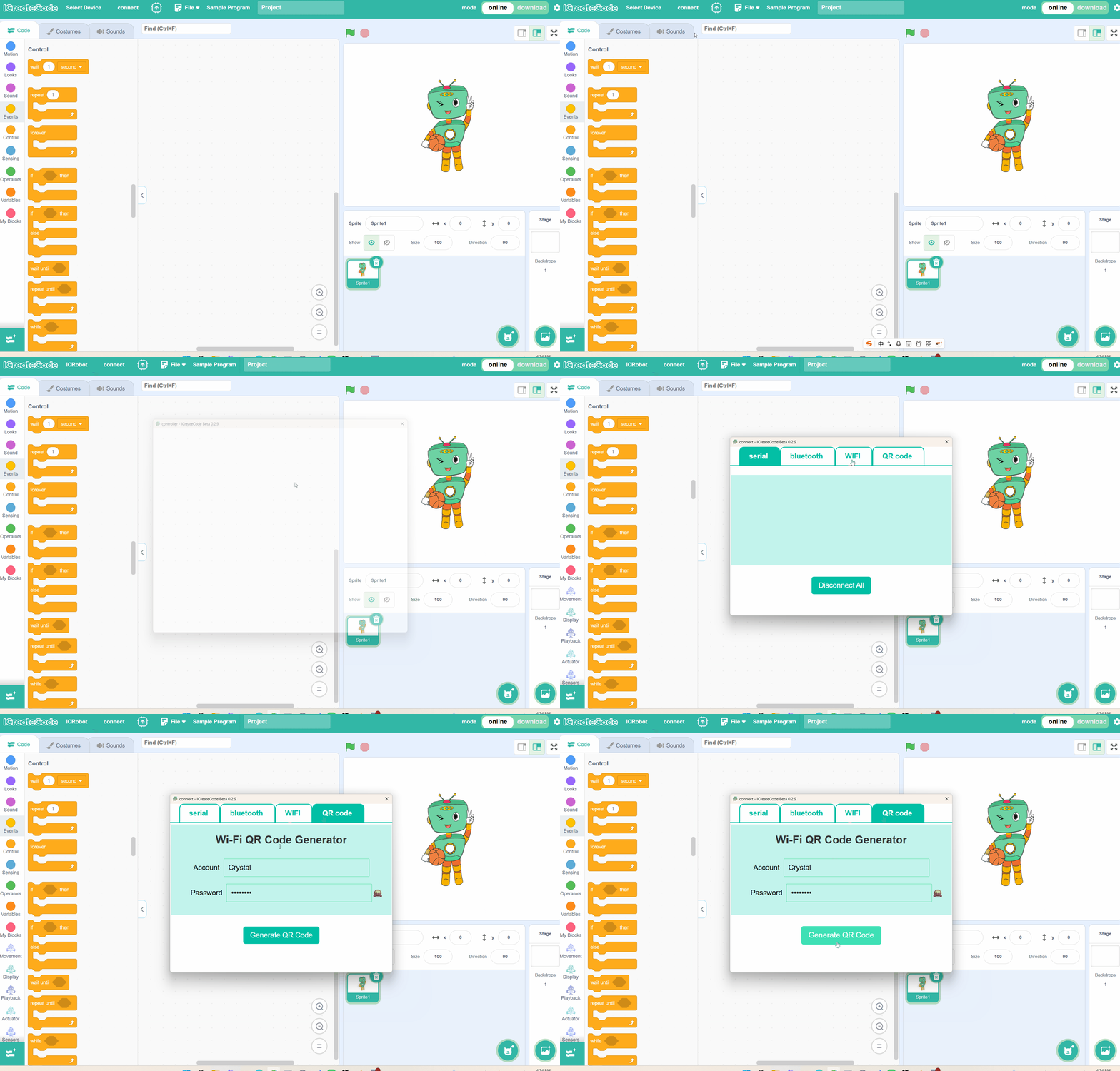
Step 3. Open the programming software, click “Select Device”, and choose “ICRobot”. In the pop-up dialog box, select “QR Code”. |
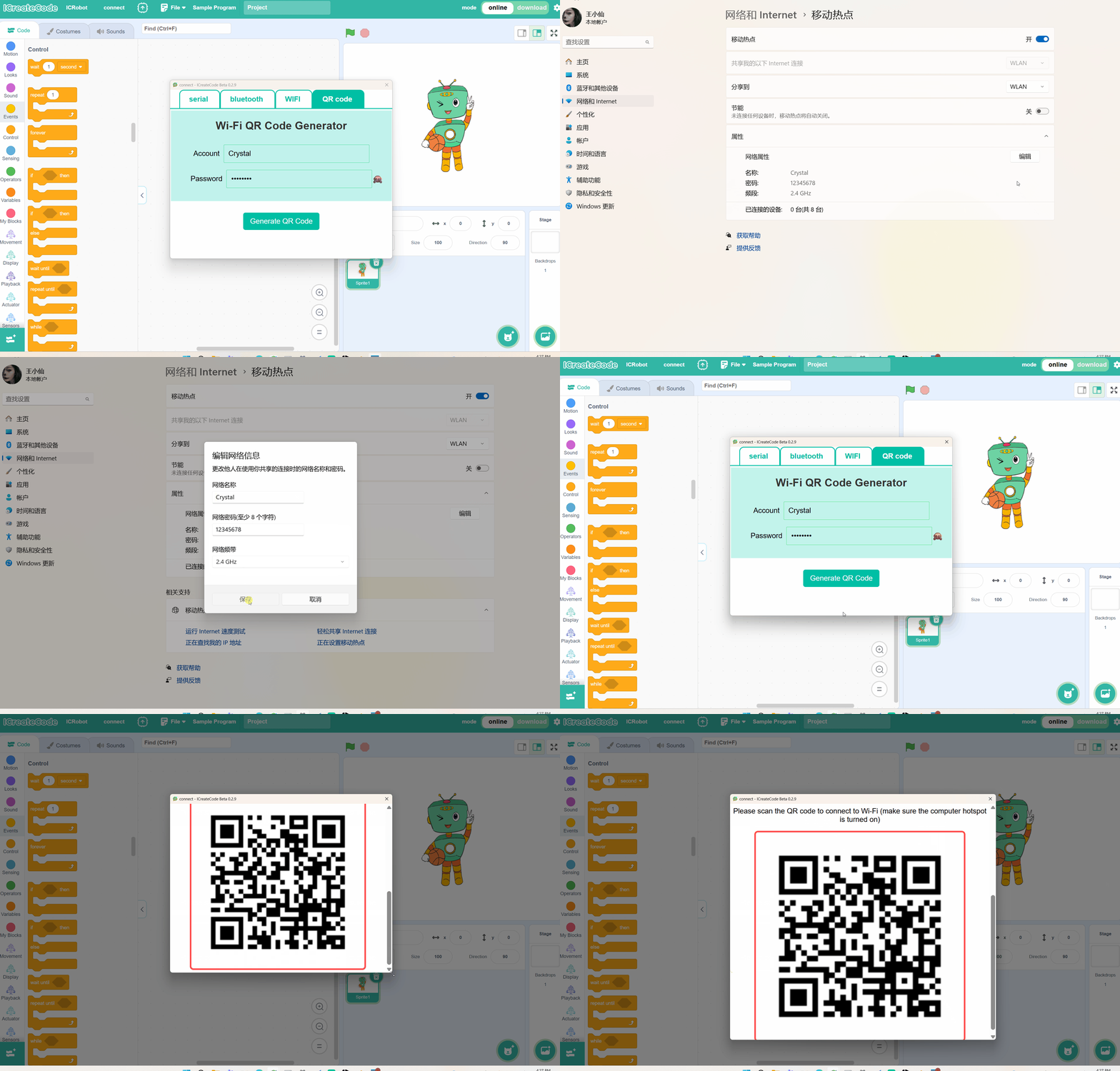
Step 4. Open the computer’s mobile hotspot, right-click on the hotspot and select “Settings” to view the device name and password. |
|
|
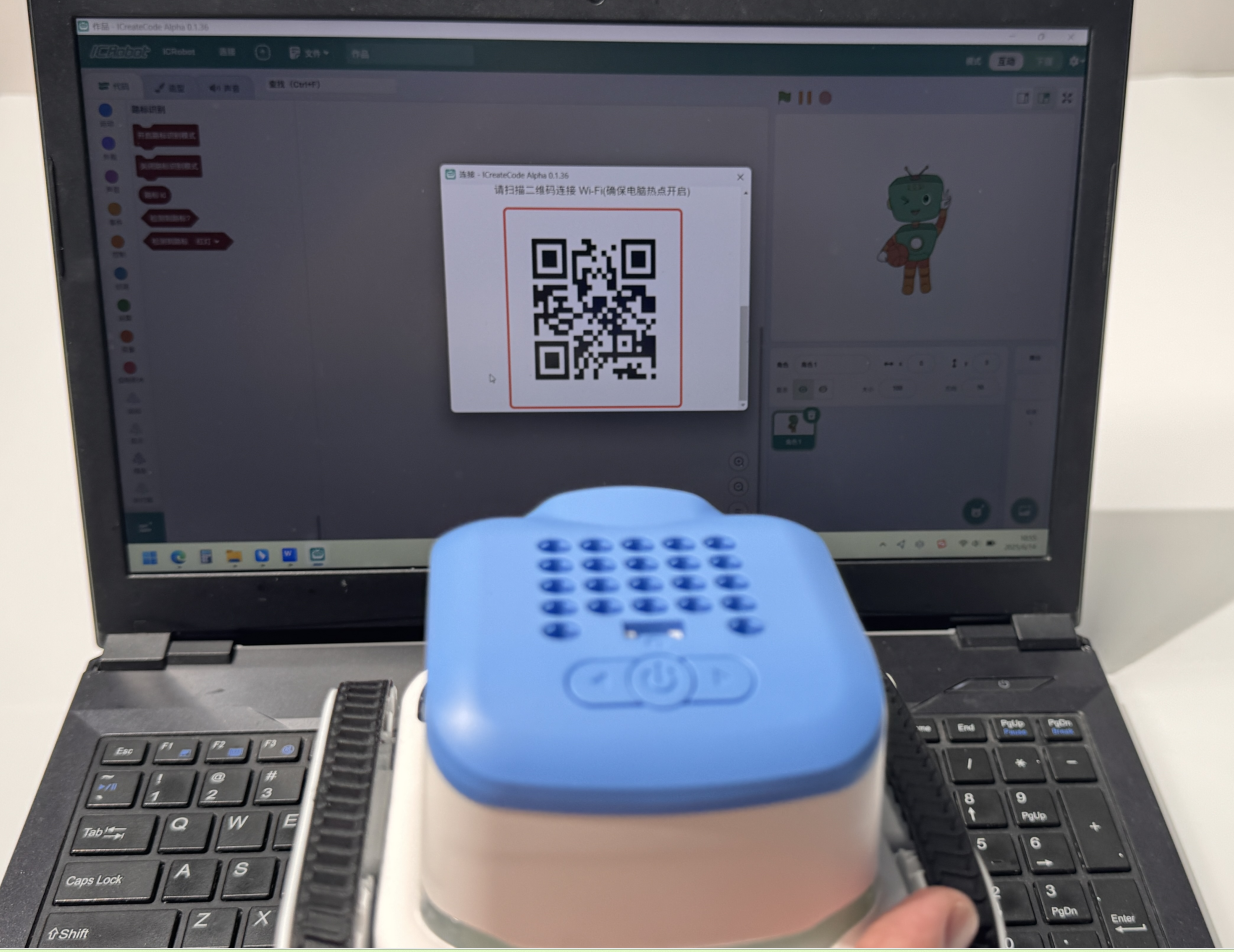
Step 5. Use the robot’s camera to scan the QR code generated by ICreateCode to complete the network configuration. |
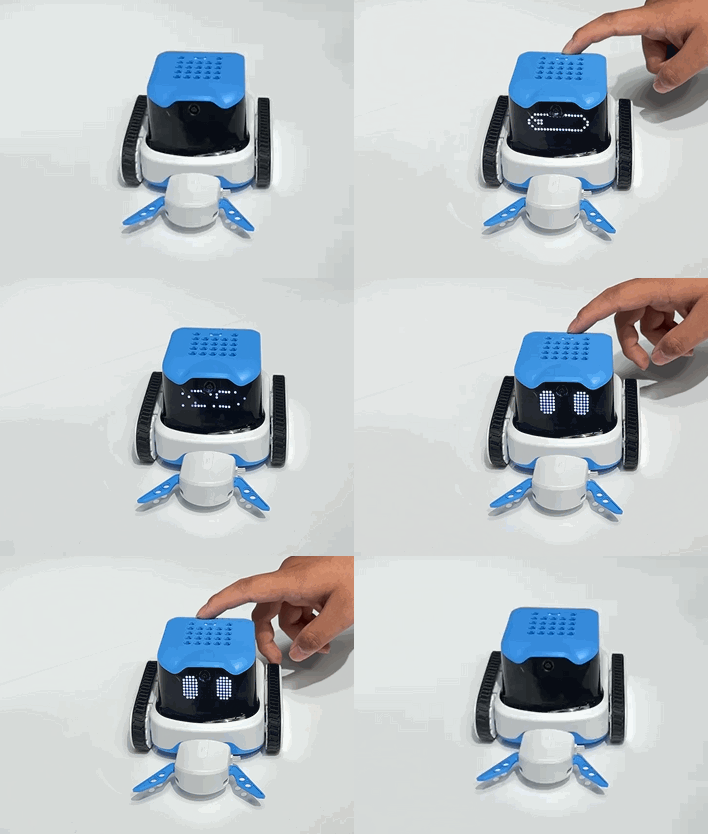
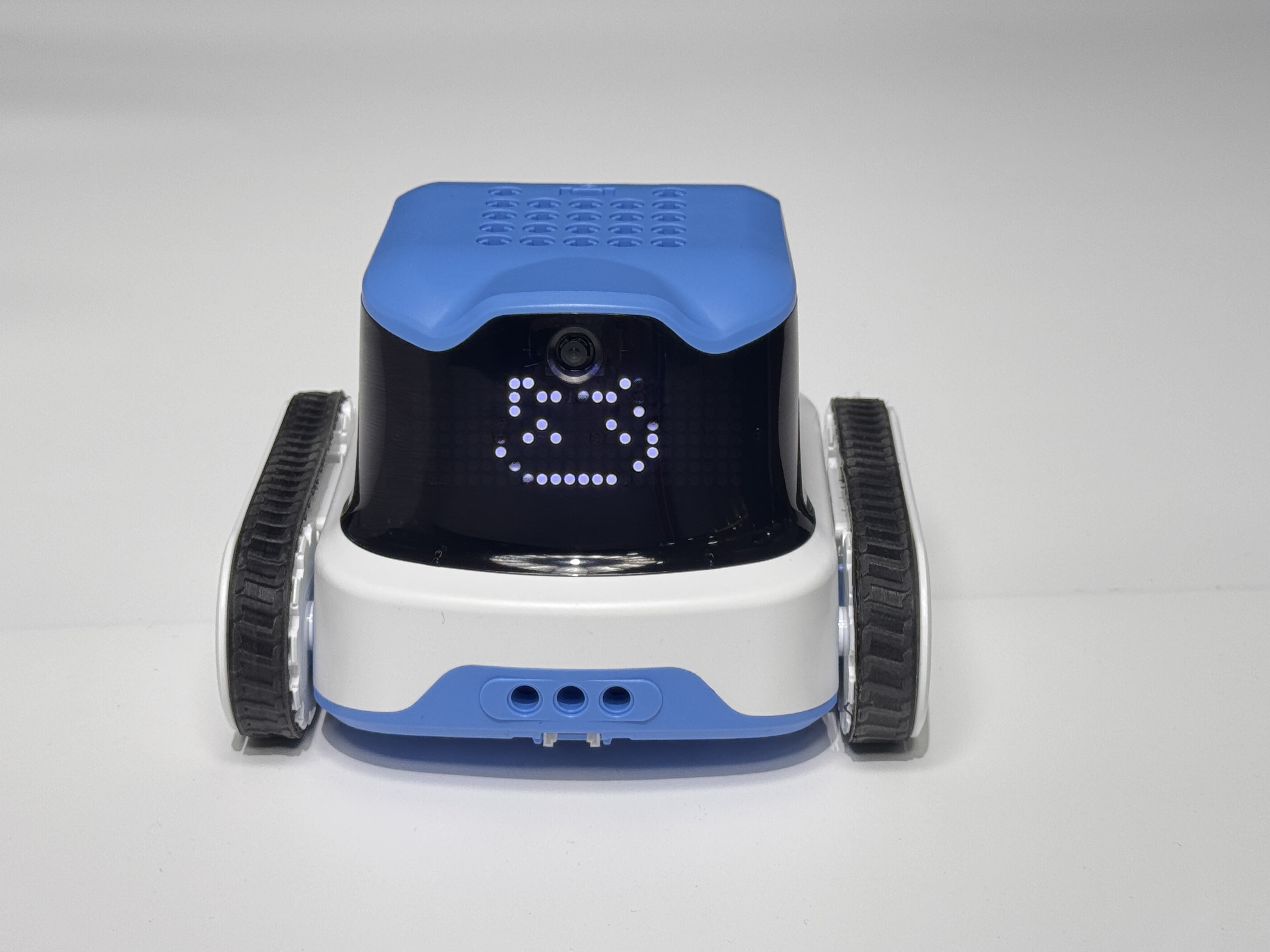
Step 6. The ICRobot display will switch to a cat interactive expression, and the robot will announce “Connection successful.” |
Note: If you need to disconnect, simply turn off the mobile hotspot on the computer.